
 AsyaTicari
 AsyaRestoran
 AsyaOtel
 AsyaCrm
 AsyaKlinik
 AsyaSpor
 AsyaSSH
 AsyaEmlak
 AsyaFilo
 AsyaPuantaj
 AsyaİSG
 AsyaİHD
 Kolay Öğren
AsyaEmlak · Settings
Permissions
Per-user menu and action permissions (view, new, update, delete); for all branches or a single branch.
On the Permissions screen you decide which menu screens each user can see and whether they can add, change or delete records on them. Permissions can be set generally for all branches or for a single branch.
Opening the screen
Open Settings → Permissions from the side menu.
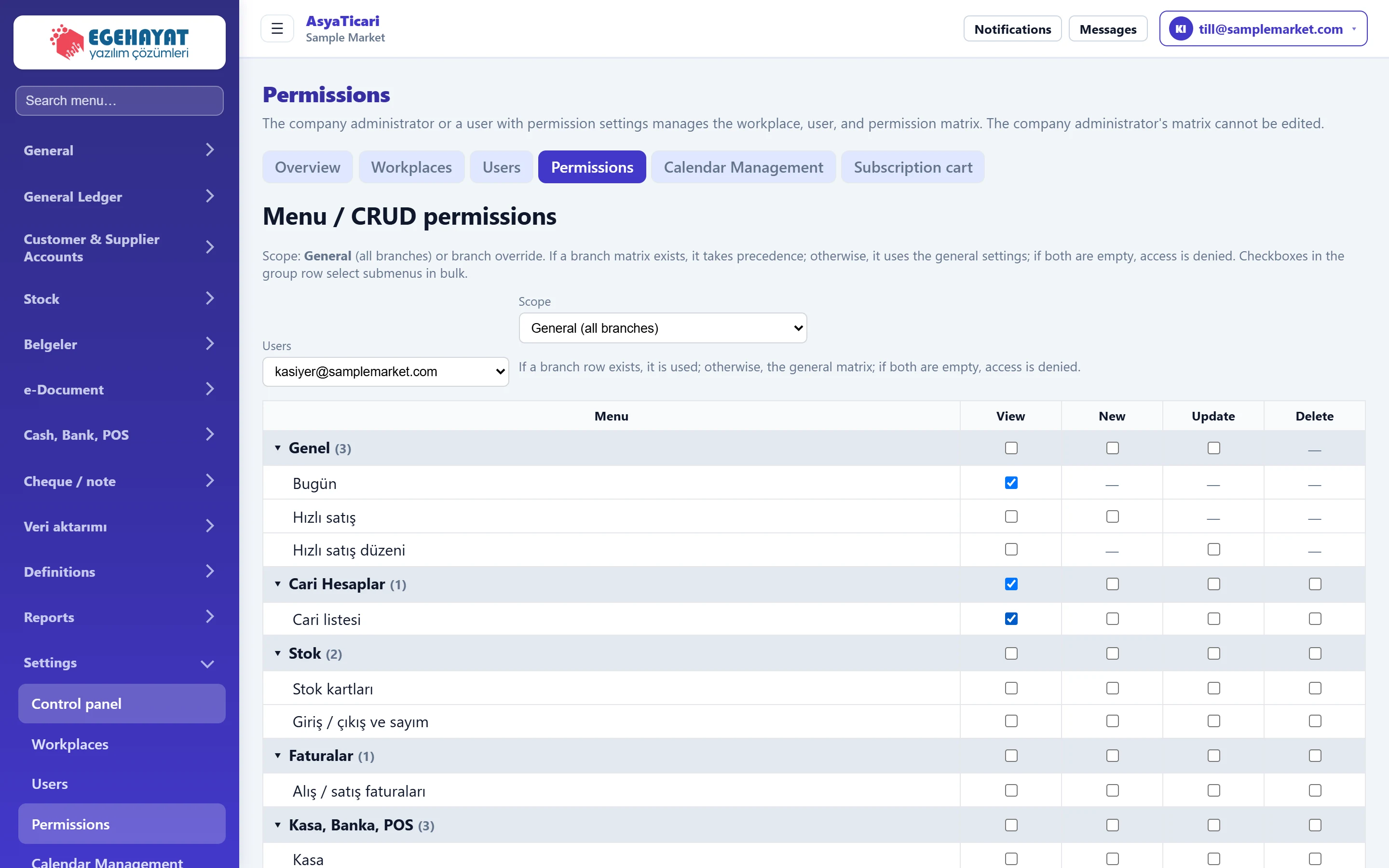
- 1User The user whose permissions are edited.
- 2Scope General (all branches) or permissions for a single branch.
- 3Permission columns View, New, Update, Delete.
- 4Menu group The box on a group row ticks all screens in the group at once.
Choosing the user and scope
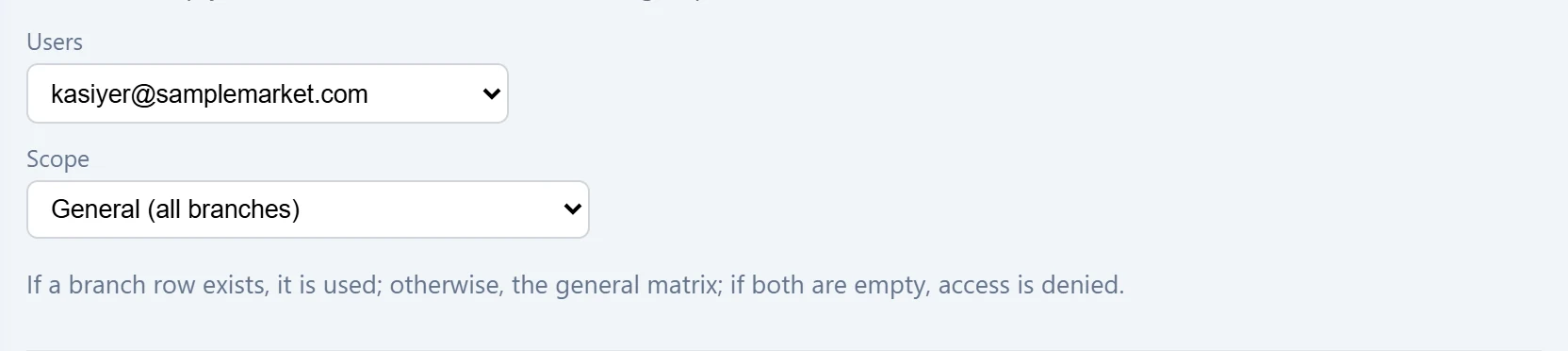
- 1Rule A branch matrix is used if it exists, otherwise the general matrix; if both are empty there is no access.
| Field | Sign in | Description |
|---|---|---|
| Users | Choice list | Users of the company; company administrators are shown with «(Admin)». Options: — Select — · admin@samplemarket.com (Admin) · kasiyer@samplemarket.com · tezgah@samplemarket.com |
| Scope | Choice list | «General (all branches)» is the matrix valid in all workplaces. If a branch is selected, a separate (override) matrix is edited for that branch only. Options: — Select — · General (all branches) · Main shop (MRK-0) — branch override |
Permission matrix
The matrix shows the application's side menu in groups. Each row has four columns: View, New, Update, Delete. A dash (—) means that action does not exist on that screen.
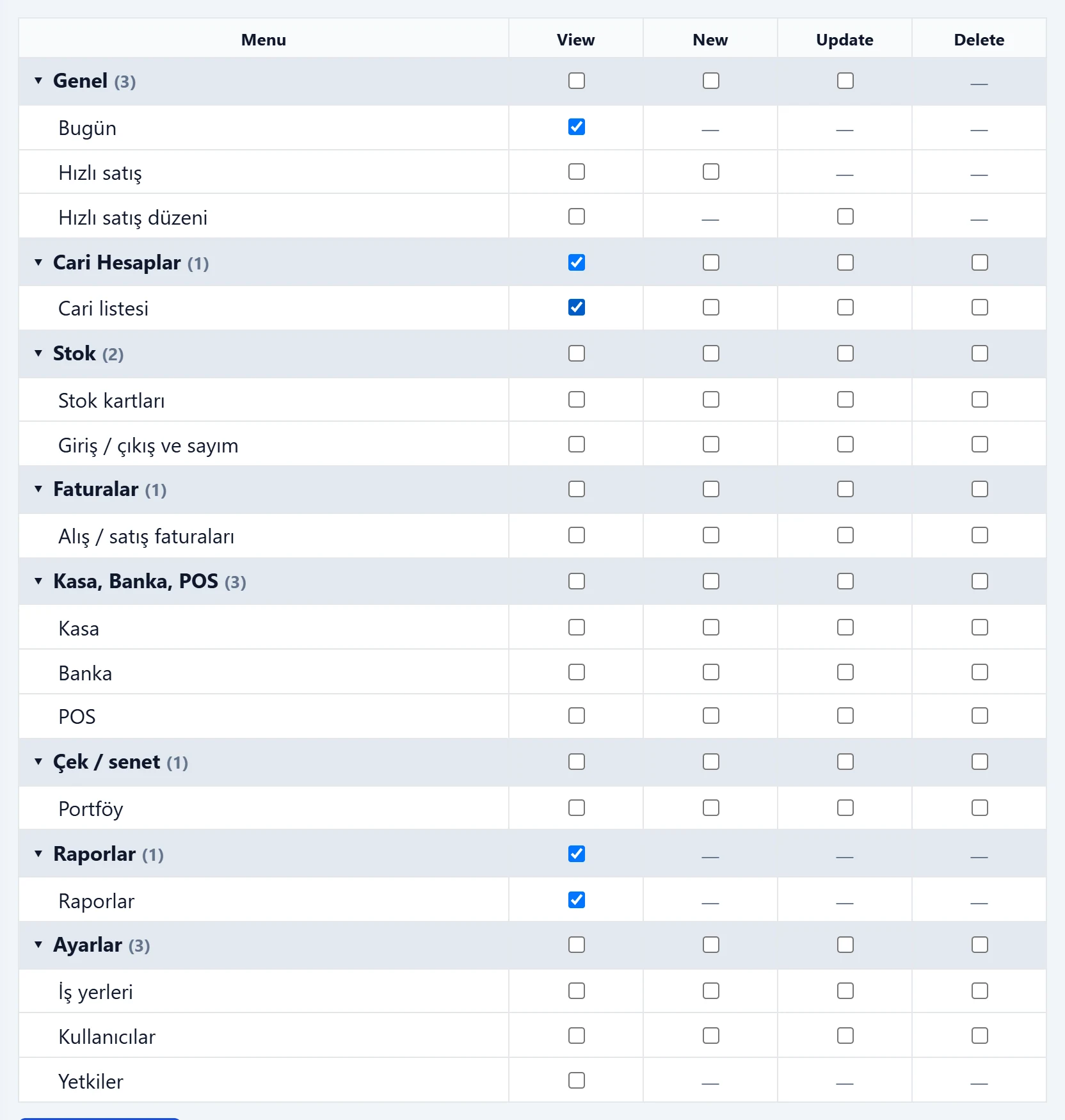
- 1▾ Genel (3) Opens / closes the group; the number in brackets is the screen count.
- 2View The screen appears in the menu and can be opened.
- 3Screen with a single option Dash (—): this action does not exist on this screen.
- 4Delete Permission to delete records.
- A group row (e.g. Stock) ticks / unticks all screens of the group at once.
- Some screens share the same permission (e.g. Today and Reports); ticking one ticks the other.
- The arrow left of the group name opens / closes the group; the number in brackets is the number of screens.
Granting permissions: step by step
- Choose the user in User.
- In Scope, choose General (all branches) or the branch for a single branch.
- Tick the permissions to grant in the matrix.
- Press Save permissions under the matrix. A message confirms that the general (or branch) permissions were saved.
- The change takes effect the next time the user signs in.
A user with a branch matrix works in that branch only according to the branch matrix; without a branch matrix the general matrix applies. If both are empty, the user cannot open any screen.
The matrix of a company administrator cannot be edited; administrators always have all permissions. To restrict one, first untick Company administrator on the Users screen.
Common messages
| Message | Cause | Solution |
|---|---|---|
| The company administrator has all menu and CRUD permissions; the matrix is not edited. | The selected user is a company administrator. | If needed, remove the administrator flag. |
| The company administrator's permission matrix is not edited. They have all permissions. | An attempt was made to save an administrator's matrix. | — |
| No user selected. | Saved without choosing a user. | Choose a user first. |
| Permissions could not be saved. | Connection or server error. | Refresh the page and try again. |
| You do not have permission for these settings. | No permission to manage permissions. | Contact the company administrator. |