
 AsyaTicari
 AsyaRestoran
 AsyaOtel
 AsyaCrm
 AsyaKlinik
 AsyaSpor
 AsyaSSH
 AsyaEmlak
 AsyaFilo
 AsyaPuantaj
 AsyaİSG
 AsyaİHD
 Kolay Öğren
AsyaCrm · Stock
Stock in / out slip
Recording non-invoice receipts, consumption issues and waste on a single multi-line slip by scanning barcodes.
The Check-in / Check-out screen is for stock movements without an invoice: sample or opening receipts, internal use (consumption) issues, spoiled goods (waste). Add rows by scanning a barcode or choosing from the list; all rows are saved on a single slip.
Opening the screen
In the side menu click Stock → Check-in / Check-out.
ortak · /stok/islem
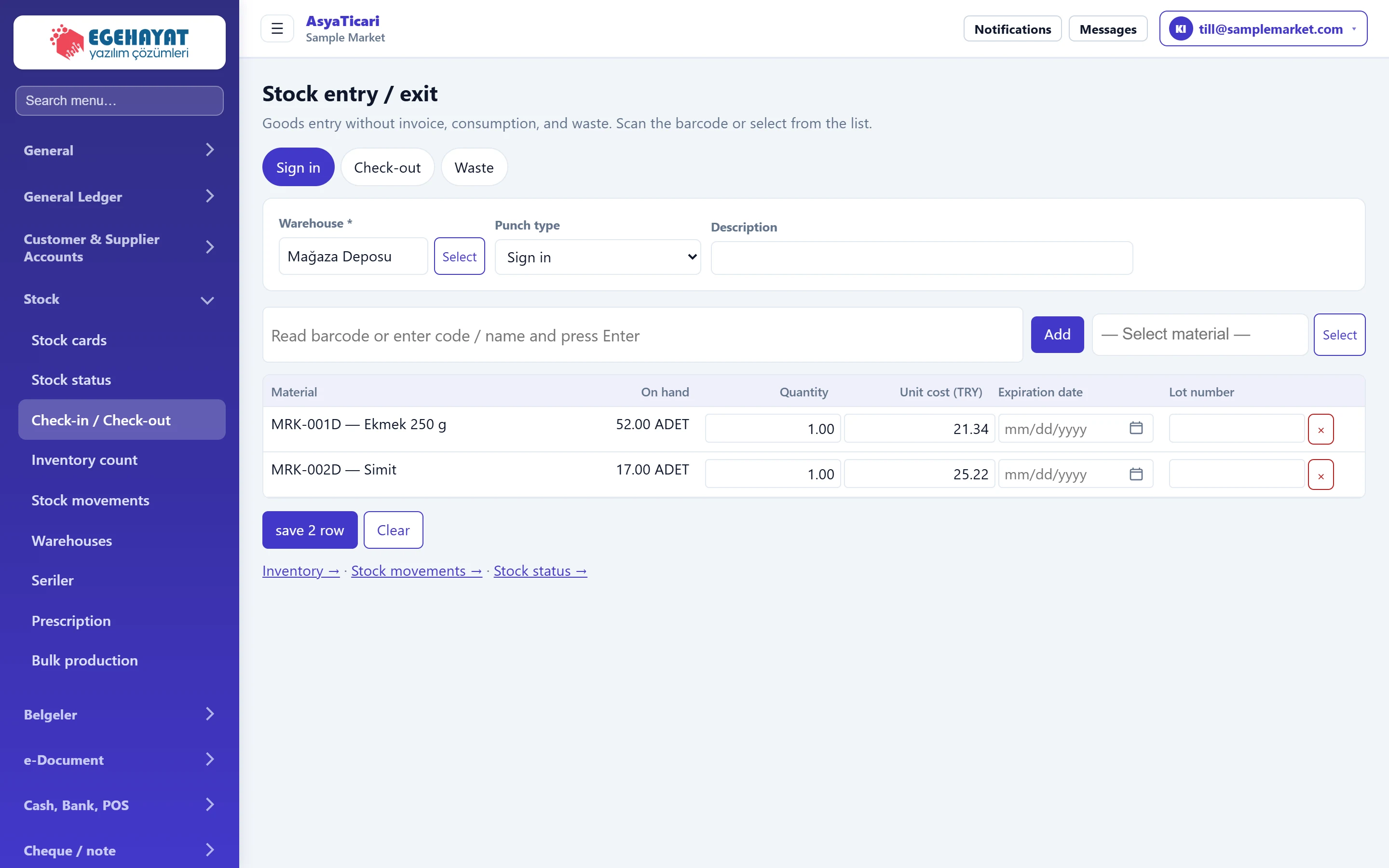
- 1Transaction type Receipt, Issue or Waste.
- 2Slip details Warehouse, movement type and slip description.
- 3Barcode Scan a barcode or type a code / name and press Enter.
- 4Select material Adds a material by choosing it from the list.
- 5Rows Added rows; quantity and cost are corrected here.
- 6save 2 row Saves all rows on a single slip.
Slip details
First choose the operation with the tab at the top: Receipt (labelled «Sign in»), Issue (labelled «Check-out») or Waste.
Part of the screenSlip details
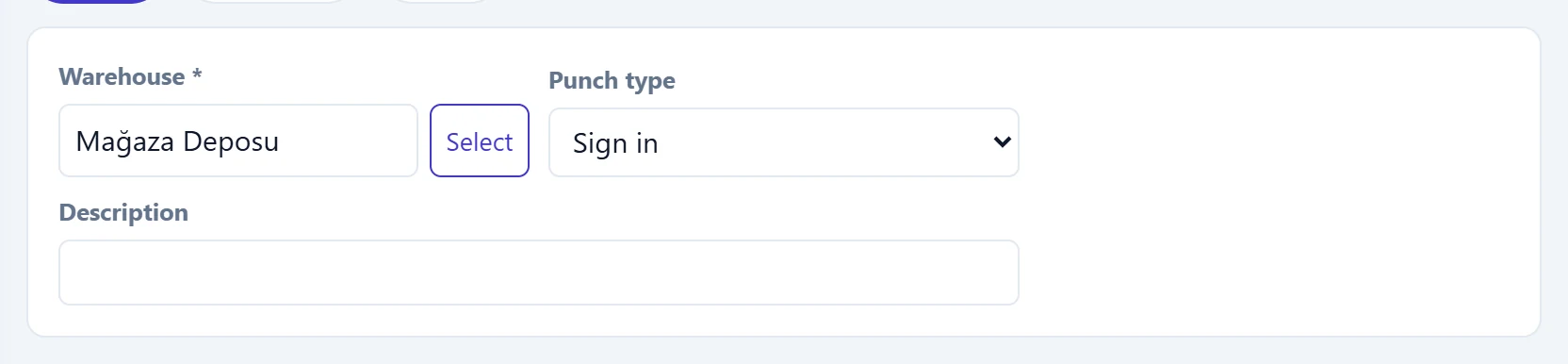
| Field | Sign in | Description |
|---|---|---|
| Warehouse required | Text | Warehouse for the movement; defaults to the default warehouse. Placeholder: «— Select warehouse —» |
| Punch type | Choice list | Options depend on the tab: receipt types, issue / consumption or waste. Options: Sign in · Opening |
| Description | Text | Slip description (e.g. «Supplier sample»). |
Adding rows: step by step
- With the cursor in the barcode box, scan the product barcode or type its code / name and press Enter. Scanning the same product again adds 1 to the quantity.
- If the barcode is not found, products matching what you typed are listed below the box; click one. You can also use the Select button on the right to pick from the list.
- Correct the Quantity in the rows. For receipts also enter Unit cost, Expiration date and Lot number.
- Press save N row. The message «A receipt with N lines has been saved.» appears.
Part of the screenRows
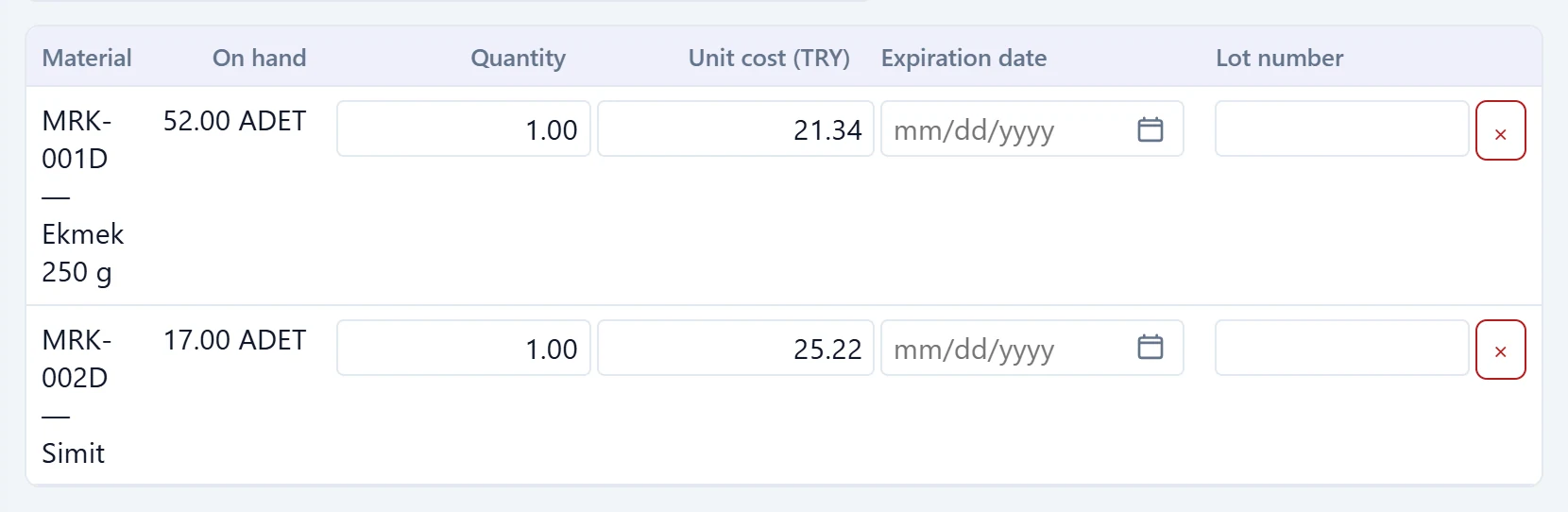
- 1On hand Quantity currently in the warehouse.
- 2Quantity Scanning the same barcode again adds 1; you can also type it.
- 3Unit cost Receipt only: unit cost.
- 4Open calendar Deletes the row.
Clear removes all rows without saving. To delete a single row press × at the end of the row.
Common messages
| Message | Cause | Solution |
|---|---|---|
| Barcode not found: … | The scanned barcode is on no card. | Open the card on Stock cards or add the barcode to it. |
| Select warehouse. | Warehouse is empty. | Choose a warehouse with Select in the Warehouse field. |
| Quantity must be greater than zero. | A row has zero quantity. | Correct the quantity or delete the row. |
| Please define a warehouse first. | The company has no warehouse. | Add one under Stock → Warehouses. |
| A receipt can have a maximum of 500 lines. | More than 500 rows. | Split the slip in two. |