
 AsyaTicari
 AsyaRestoran
 AsyaOtel
 AsyaCrm
 AsyaKlinik
 AsyaSpor
 AsyaSSH
 AsyaEmlak
 AsyaFilo
 AsyaPuantaj
 AsyaİSG
 AsyaİHD
 Kolay Öğren
AsyaSpor · Cheque / note
New cheque / note entry
Recording a cheque / note received from a customer or issued by you; account, serial no, amount, due date, bank, cheque book and cheque image.
This screen changed recently. Screenshots will be retaken after the code change of 2026-11-19; the text is current, some images may look outdated.
The New Cheque / Note Entry window records cheques and promissory notes you receive from customers or give to suppliers. The window opens above the portfolio screen; when you close it, the Portfolio list is shown.
- A cheque / note received from a customer is posted to the account as a collection and enters the portfolio.
- An own cheque / note is posted to the account as a payment; on the due date it is debited from your bank account.
Direction and type
Use the tabs at the top of the window to choose the direction first (Received from customer / Own cheque / note), then the type (Cheque / Note). The fields change with the choice; nothing is saved until a direction is chosen.
Cheque received from a customer
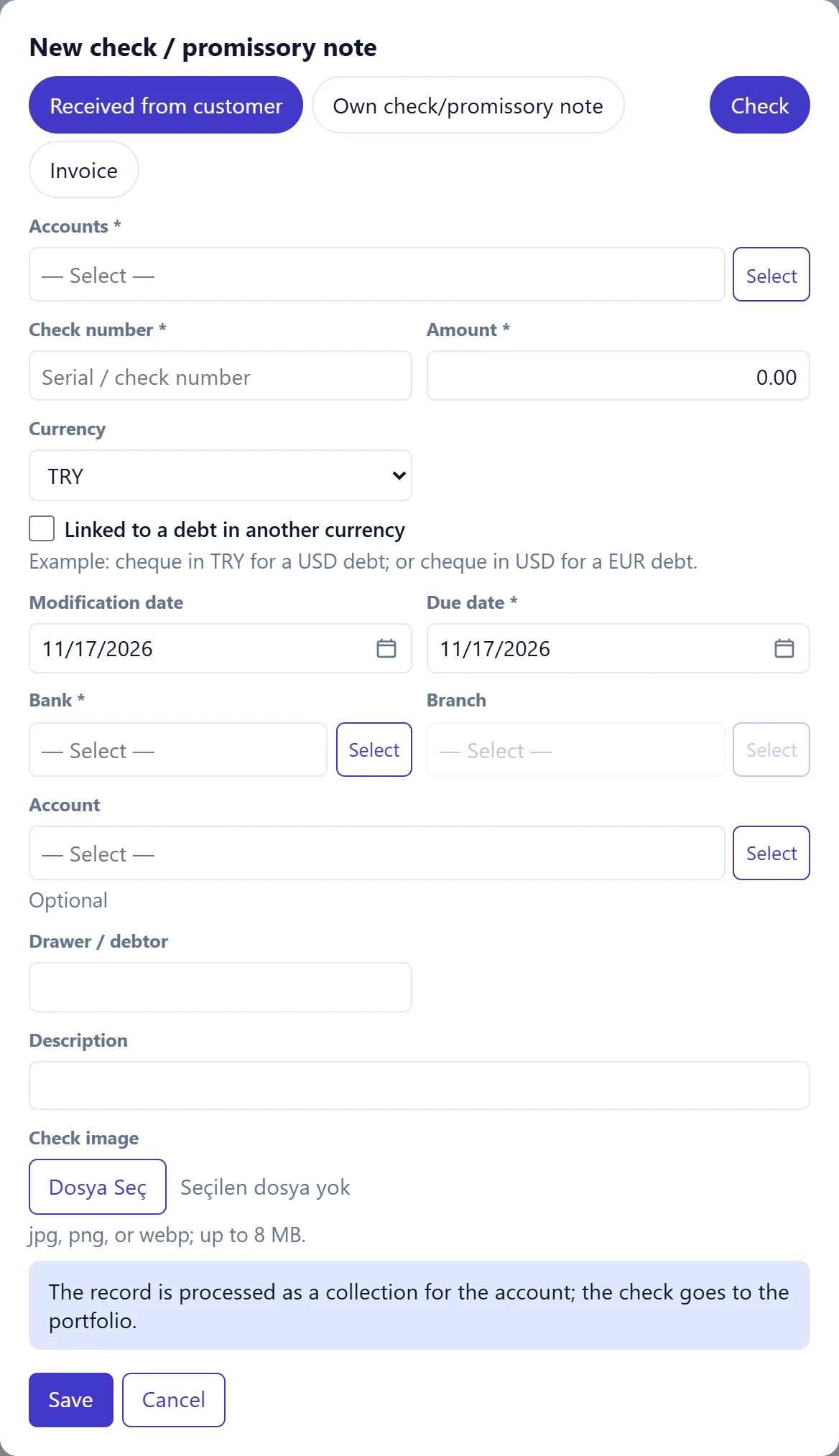
- 1Received from customer Cheque / note received from a customer; goes into the portfolio.
- 2Own check/promissory note Cheque / note you issue; debited from the bank on the due date.
- 3Check Cheque.
- 4Invoice Promissory note.
- 5Info Explains how the record is posted to the account.
| Field | Sign in | Description |
|---|---|---|
| Accounts required | Text | Customer giving the cheque. Recorded as a receipt on this account. Placeholder: «— Select —» |
| Check number required | Text | Serial / cheque number on the cheque. Placeholder: «Serial / check number» |
| Amount required | Text | Cheque amount. Must be greater than zero. |
| Currency | Choice list | Cheque currency; a rate field opens for currencies other than TRY. Options: USD · EUR · GBP · TRY |
| Linked to a debt in another currency | Checkbox | Tick if the cheque is in one currency but settles a debt in another; debt currency, amount and conversion rate are asked. |
| Modification date | Text | Date the cheque was written. Placeholder: «mm/dd/yyyy» |
| Due date required | Text | Date the cheque is payable; cannot be before the issue date. Placeholder: «mm/dd/yyyy» |
| Bank required | Text | Bank of the cheque. If missing, add it under Definitions → Banks. Placeholder: «— Select —» |
| Branch | Text | Branch of the cheque. Placeholder: «— Select —» |
| Account | Text | Account number of the cheque. Placeholder: «— Select —» |
| Drawer / debtor | Text | Person / company that drew the cheque (may differ from the customer). |
| Description | Text | Short note. |
| Check image | Text | Photo of the cheque (jpg, png, webp; max. 8 MB). Shown as a thumbnail in the details. |
When Note is selected, the bank fields are hidden and the number field is renamed to the note number; Drawer / debtor remains.
Step by step: receiving a cheque from a customer
- Open Cheque / note → New Cheque / Note Entry.
- Choose the Received from customer and Cheque tabs.
- Use Select next to the account field to find the customer.
- Enter the cheque number, Amount and due date from the cheque.
- Select the bank, branch and account number of the cheque; if the drawer is not the customer, fill in Drawer / debtor.
- Optionally add a photo of the cheque with the cheque image field.
- Click Save. The cheque enters the portfolio with the status «In portfolio» and is deducted from the customer's balance.
Our own cheque
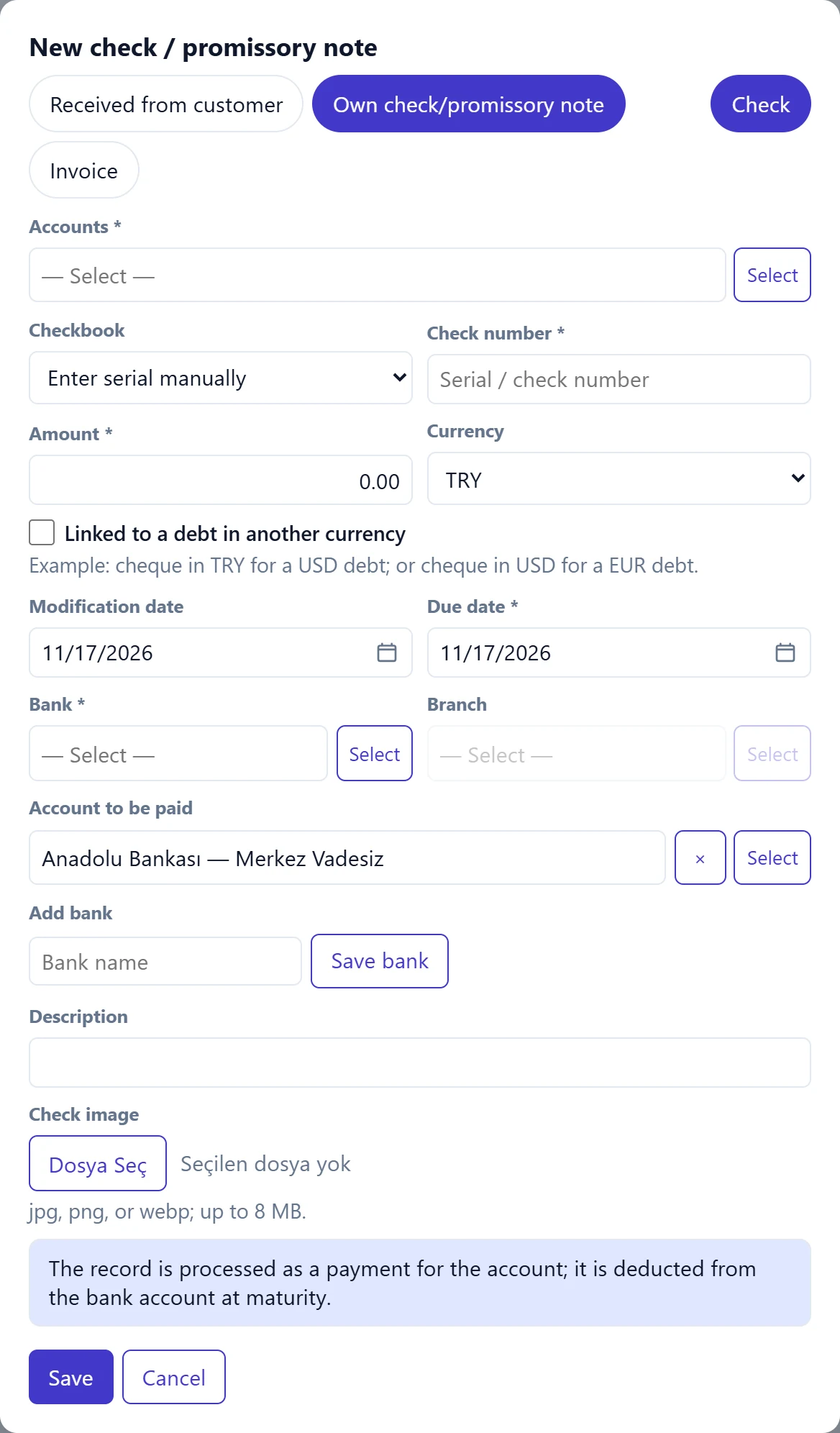
- 1Cheque book Choosing a book fills in the next leaf number.
- 2Save Saves the cheque.
| Field | Sign in | Description |
|---|---|---|
| Accounts required | Text | Account you give the cheque to (supplier etc.). Recorded as a payment on this account. Placeholder: «— Select —» |
| Checkbook | Choice list | If a book is chosen, the next free leaf number is filled in. Choose «Enter serial manually» to type it. Options: Enter serial manually · RBO Çek Defteri A (23 sheet) · RBO Çek Defteri B (10 sheet) |
| Check number required | Text | Cheque number; suggested if a book is selected. Placeholder: «Serial / check number» |
| Amount required | Text | Cheque amount. |
| Currency | Choice list | Cheque currency. Options: USD · EUR · GBP · TRY |
| Linked to a debt in another currency | Checkbox | Tick if the cheque settles a debt in another currency. |
| Modification date | Text | Date the cheque was written. Placeholder: «mm/dd/yyyy» |
| Due date required | Text | Date the cheque is payable. Placeholder: «mm/dd/yyyy» |
| Bank required | Text | Your bank the cheque is drawn on (from registered banks). Placeholder: «— Select —» |
| Branch | Text | Bank branch. Placeholder: «— Select —» |
| Account to be paid | Text | Your bank account debited on the due date. Placeholder: «— Select —» |
| Add bank | Text | Quickly register a bank missing from the list. Placeholder: «Bank name» |
| Description | Text | Short note. |
| Check image | Text | Photo of the cheque (max. 8 MB). |
If you choose a book under Checkbook, the number of the next free leaf is filled in. If you change the number, you are asked to confirm skipped leaves or a number outside the book's range:
- Skipped cheque leaves: asks whether the leaves in between should be voided. Void and continue voids them; Do not void, continue leaves them available.
- Number not in the book: one option adds the number to the book and continues; Save without chequebook (keep number) saves the cheque without linking it to a book.
If you define your cheque books in advance on Cheque / note → Cheque books, you don't have to type cheque numbers and you can see who received each leaf.
Foreign currency and debt in another currency
- If a Currency other than TRY is chosen, a Rate field opens with that day's rate. If no rate is found, «Exchange rate not found for this date; enter the rate manually.» is shown.
- If Linked to a debt in another currency is ticked, Debt currency, Debt amount and Conversion rate are asked. Example: cheque in TRY for a USD debt; or cheque in USD for a EUR debt.
If the due date and issue date are the same day, saving stops on the first attempt with «Due date is the same as the issue date. Save again if approved.»; if correct, click Save again.
Common messages
| Message | Cause | Solution |
|---|---|---|
| Select received or issued. | No direction tab selected. | Choose Received from customer or Own cheque / note. |
| Select cheque or promissory note. | No type selected. | Choose cheque or note. |
| Select account. | The account is empty. | Select the account. |
| Serial / check number is required. | The number is empty. | Enter the cheque / note number. |
| Amount must be greater than zero. | The amount is empty or zero. | Enter the amount. |
| Due date cannot be before the issue date. | The due date is before the issue date. | Correct the dates. |
| Exchange rate not found for this date; enter the rate manually. | No rate for a foreign currency cheque. | Enter the Rate manually. |
| Enter the debt currency and amount. | Linked to a debt in another currency is ticked but the fields are empty. | Fill in the debt currency and amount. |
| This serial number is already registered. Confirm to save it anyway. | A cheque with the same number already exists. | Check the number; if correct, confirm and save. |
| Cheque number does not match this chequebook prefix. | The letter part differs from the book's prefix. | Correct the book or the number. |
| This cheque leaf is not available. | The chosen leaf is used or void. | Choose another leaf. |
| The image can be up to 8 MB. | The cheque image is too large. | Choose a smaller photo. |