
 AsyaTicari
 AsyaRestoran
 AsyaOtel
 AsyaCrm
 AsyaKlinik
 AsyaSpor
 AsyaSSH
 AsyaEmlak
 AsyaFilo
 AsyaPuantaj
 AsyaİSG
 AsyaİHD
 Kolay Öğren
AsyaSSH · Stok
Stock cards
Listing, searching and creating material (stock) cards: identity, price and VAT, stock tracking, product picture, units and barcodes, allergens.
This screen changed recently. Screenshots will be retaken after the code change of 2026-11-19; the text is current, some images may look outdated.
The Stock cards screen holds the cards of the products you sell and buy: code, name, barcode, unit set, price, VAT, critical stock, lot / serial tracking and product picture. With the tabs at the top you can also switch to service, unit, unit set and currency definitions.
Opening the screen
In the side menu click Stock → Stock cards.
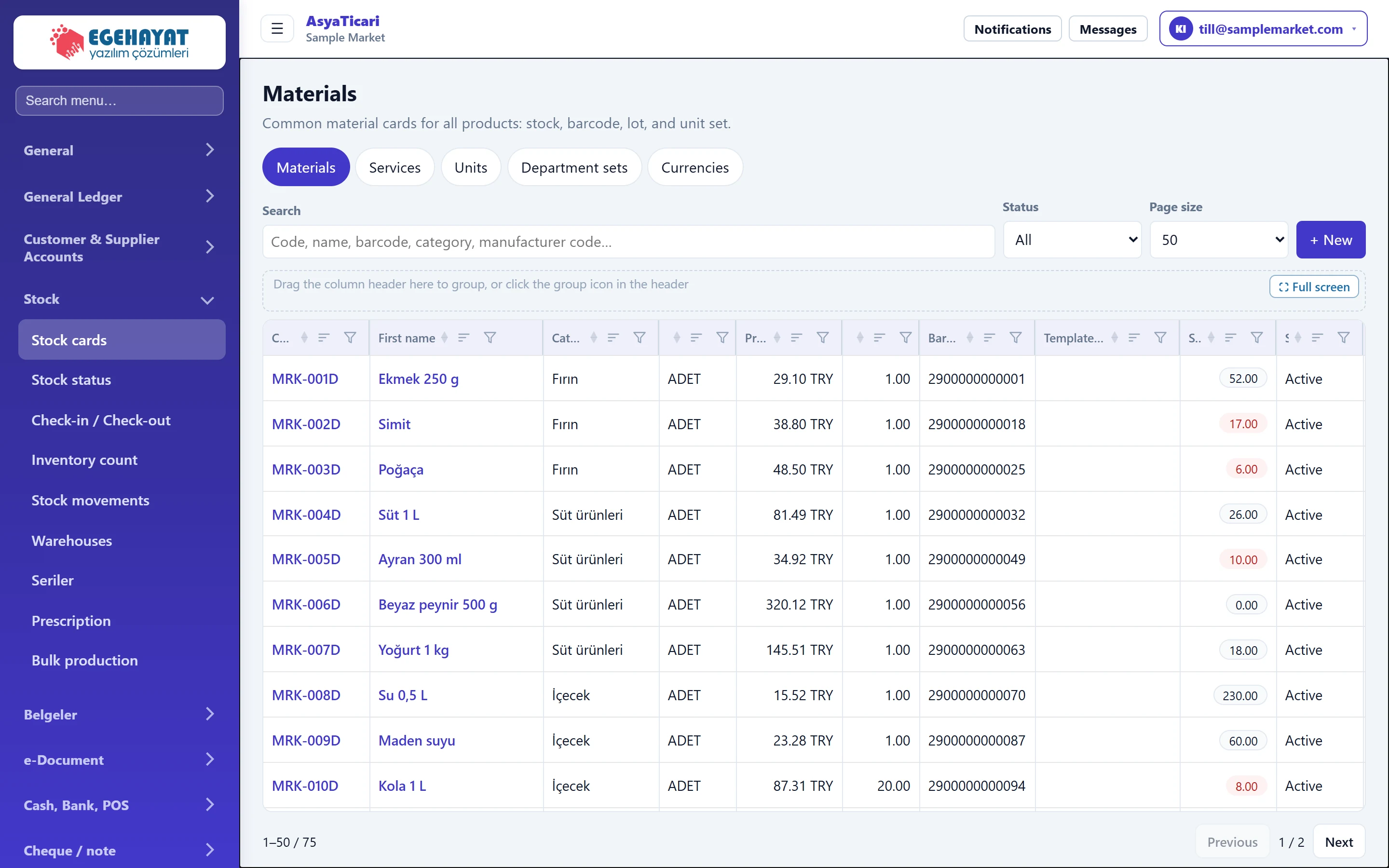
- 1Materials Screen title.
- 2Tabs Switches between material, service, unit, unit set and currency definitions.
- 3Search Filters by code, name, barcode, category or manufacturer code.
- 4Status Active / inactive cards.
- 5+ New Opens a new stock card.
- 6Stock Quantity on hand in all warehouses.
- 7Actions Edit, copy, stock in / out, movements.
Search and filter

- 1+ New Opens the new card form.
| Field | Sign in | Description |
|---|---|---|
| Search | Text | Part of the code, name, barcode, category or manufacturer code. Placeholder: «Code, name, barcode, category, manufacturer code…» |
| Status | Choice list | All, active only or inactive only cards. Options: All · Active · Inactive |
| Page size | Choice list | How many cards to show per page. Options: Automatic · 25 · 50 · 100 · 200 · All |
In the list, the Stock column shows the quantity on hand in all warehouses, and Template variants shows variants created from a code template. Click a column header to sort, or drag a column to the grouping area to group.
Row actions
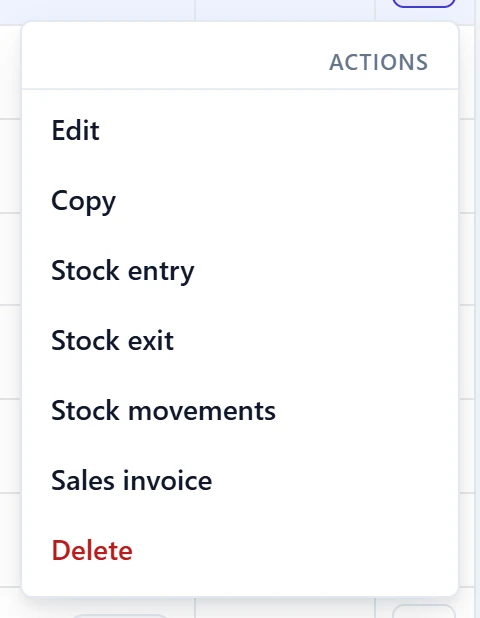
- 1Edit Edits the card.
- 2Copy Opens a new card as a copy.
- 3Stock entry Opens the stock-in form for this material on the Stock status screen.
- 4Stock movements Stock movements of the material.
- 5Sales invoice Sales invoice with the material line ready.
New stock card: step by step
- Press + New.
- In the Identity panel fill in Code, Name and Unit set (labelled «Department set» on screen); scan the barcode.
- In the Price / tax panel enter the sales price and VAT rate.
- In the Stock panel set the critical stock level and tracking options; upload a product picture if you like.
- Press Save.
The form consists of panels; click a panel header to collapse / expand it.
Manufacturer
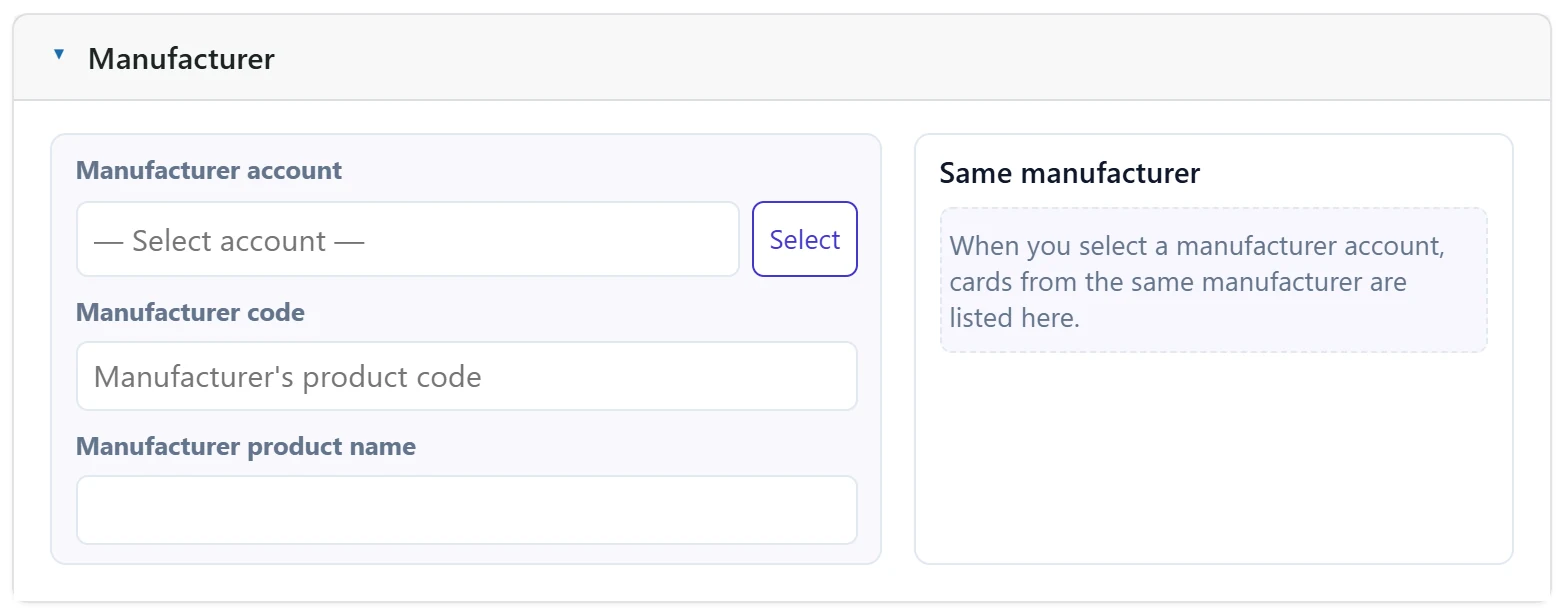
- 1Matching cards Cards of the same manufacturer; prevents duplicates.
| Field | Sign in | Description |
|---|---|---|
| Manufacturer account | Text | Company that makes the product (account card). Once selected, that manufacturer's cards are listed on the right. Placeholder: «— Select account —» |
| Manufacturer code | Text | Manufacturer's own product code; also used in search. Placeholder: «Manufacturer's product code» |
| Manufacturer product name | Text | Name the manufacturer gives the product. |
Identity
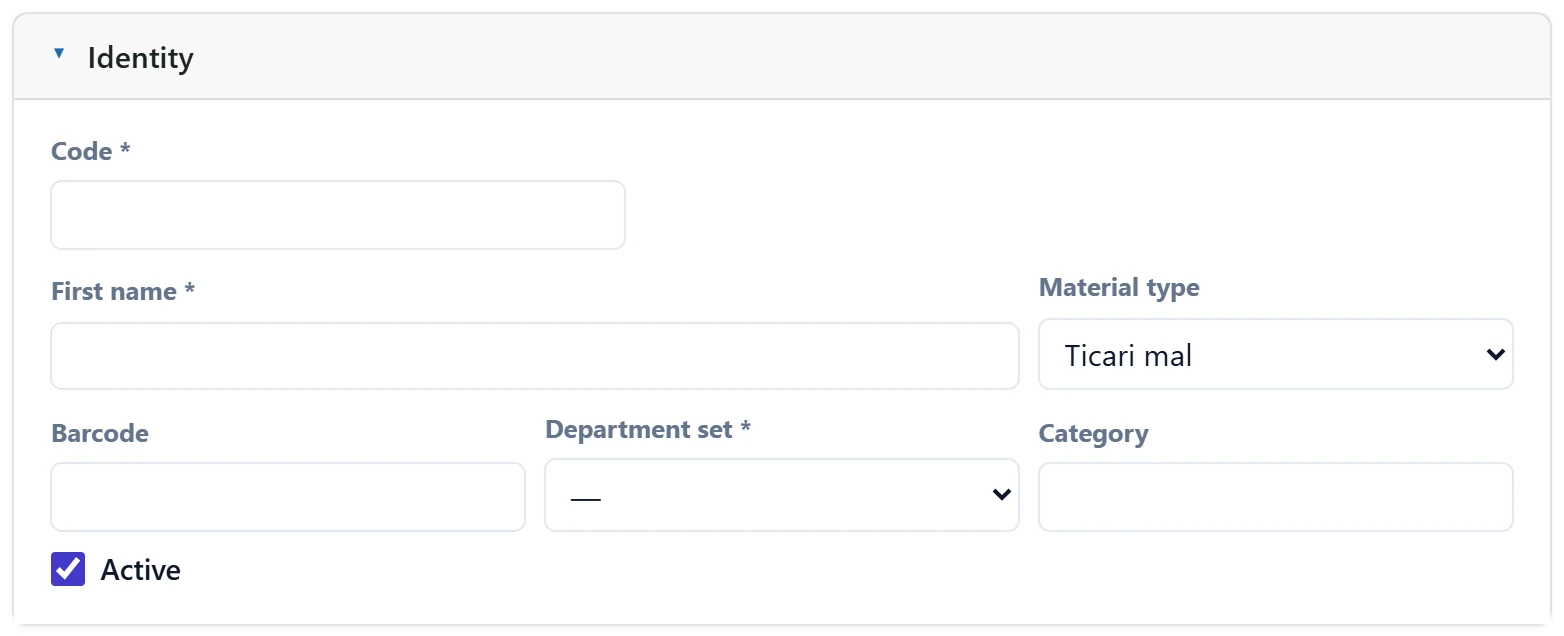
- 1Identity Panel header; click to collapse / expand.
| Field | Sign in | Description |
|---|---|---|
| Code required | Text | Stock code. Required; suggested if a code template exists. |
| First name required | Text | Product name; shown on sales screens and invoices. Required. |
| Material type | Choice list | Trade good, finished, semi-finished, raw material, mixed box… Recipes are only available for finished, semi-finished, mixed box and set menu. Options: Ticari mal · Hammadde · Yarı mamul · Mamul · Tüketim malzemesi · Karma koli · Set menü · Sanal ürün |
| Barcode | Text | Product's main barcode; scanned on quick sale and stock screens. |
| Department set required | Choice list | Product units (piece, box, kg…). Required. Options: DMO-ADET-K12 — Adet + Koli (12) · DMO-SAAT — Saat · SYS-ADET-PAKET — Adet / paket / koli · SYS-KG-CUVAL — Kilogram / çuval · SYS-LT-PET — Litre / pet / bidon |
| Category | Text | Product group (e.g. «Dairy»); groups items on quick sale and in reports. |
| Active | Checkbox | An unticked card cannot be chosen on new documents. |
Price / tax
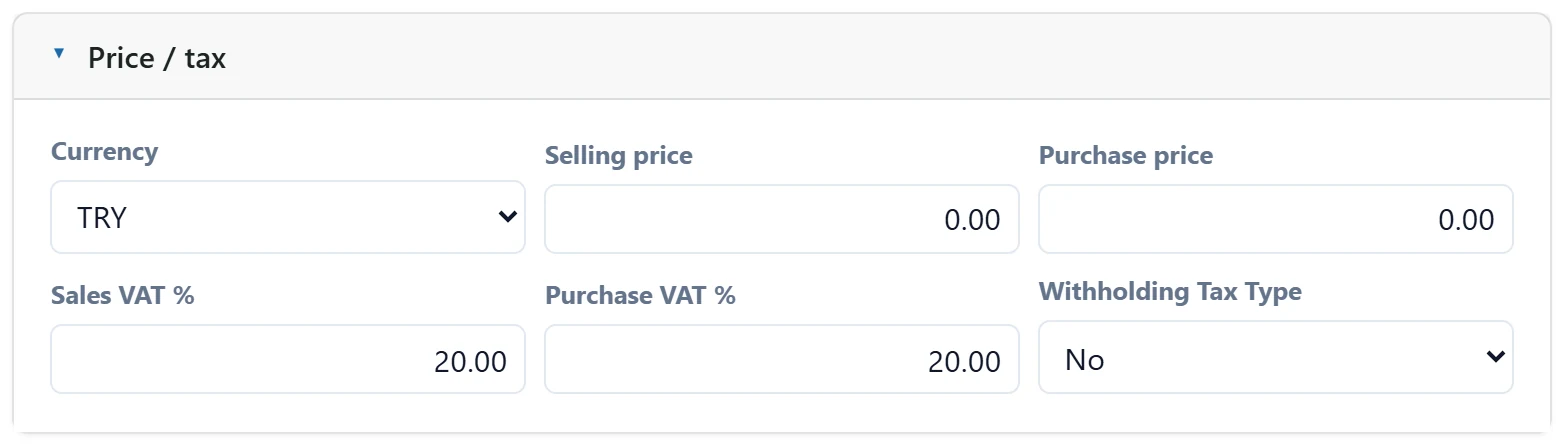
- 1Price / tax Panel header.
| Field | Sign in | Description |
|---|---|---|
| Currency | Choice list | Currency of the prices. Options: TRY · EUR — Euro · GBP — İngiliz Sterlini · TRY — Türk Lirası · USD — ABD Doları |
| Selling price | Text | Default sales price on documents and quick sale. |
| Purchase price | Text | Default price on purchase documents. |
| Sales VAT % | Text | VAT rate on sales (default 20%). |
| Purchase VAT % | Text | VAT rate on purchases. |
| Withholding Tax Type | Choice list | Withholding code for products subject to VAT withholding. |
In retail, prices are usually entered including VAT. In that case tick Sales price including VAT in the Stock panel; otherwise VAT is added on top of the price.
Stock
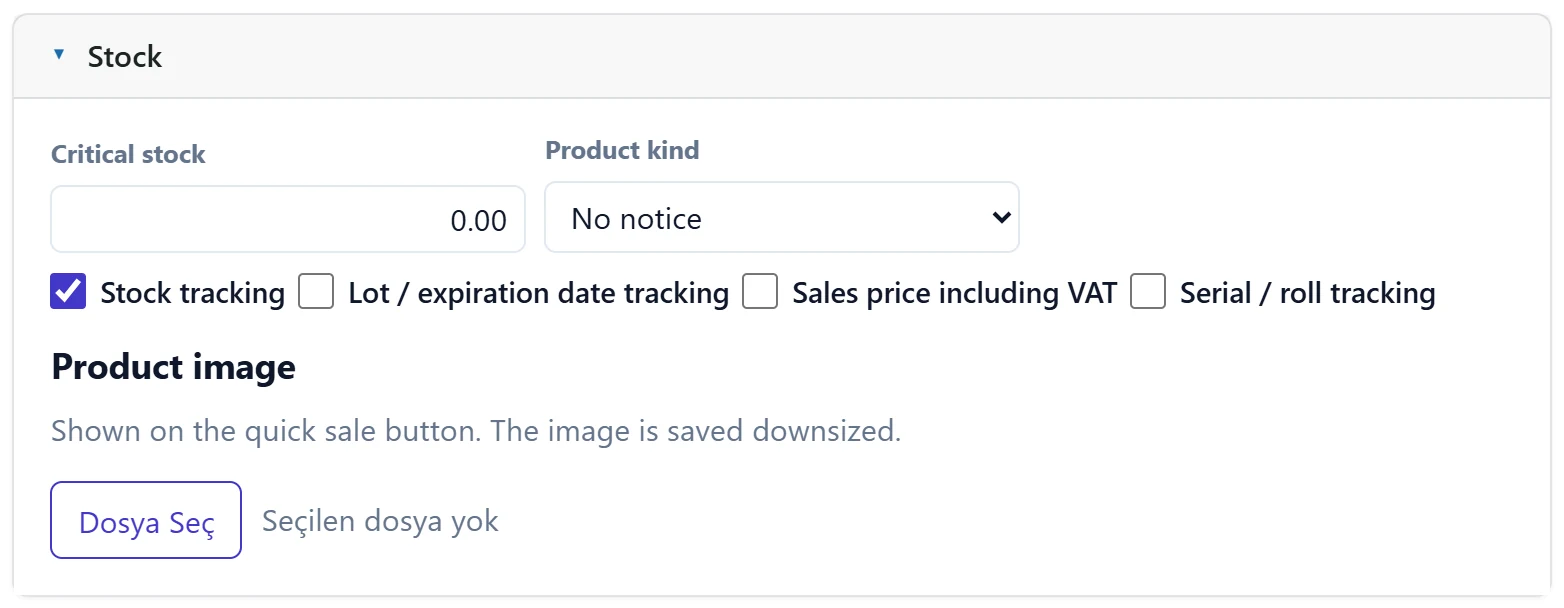
- 1Product picture Product picture; shown on the quick sale button.
| Field | Sign in | Description |
|---|---|---|
| Critical stock | Text | When stock falls below this, a warning appears on Stock status and Today. |
| Product kind | Choice list | Select plant protection or fertiliser for reporting obligations. Options: No notice · Plant protection · Fertilizer |
| Stock tracking | Checkbox | If ticked, stock decreases / increases on sales and purchases. Untick for service-like products. |
| Lot / expiration date tracking | Checkbox | Lot and expiry date are asked on receipt; Stock status warns about expiry. |
| Sales price including VAT | Checkbox | Tick if the sales price includes VAT (usual in retail). |
| Serial / roll tracking | Checkbox | Each unit / roll is tracked with its own serial code (Stock → Serials). |
Sub-materials / services
Defines the card's content (e.g. yarn ratios); separate from the production recipe.
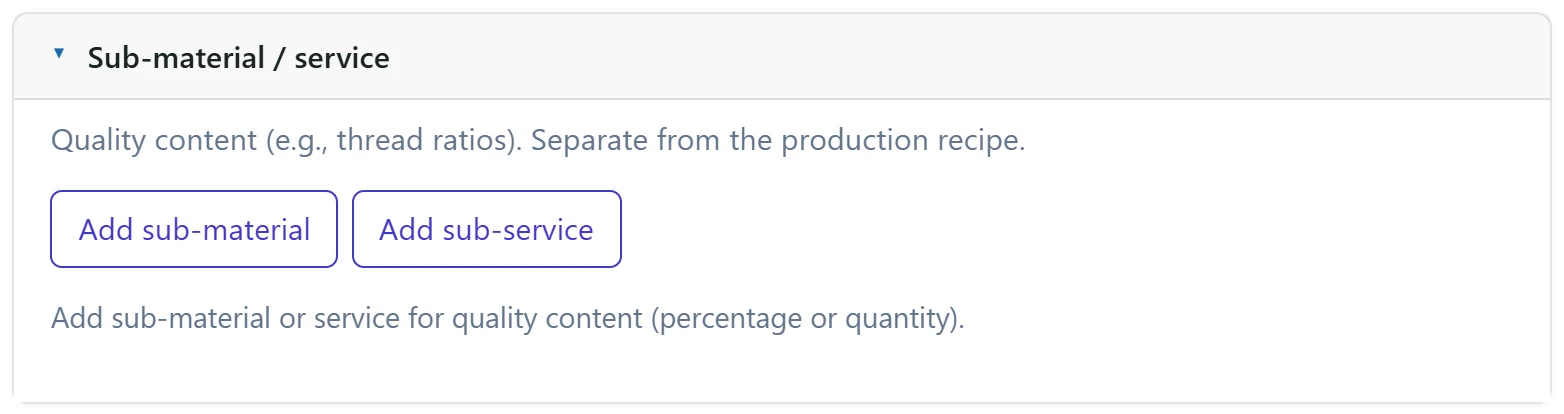
- 1Add sub-material Adds a sub-material as content (by percentage or quantity).
- 2Add sub-service Adds a service as content.
Units
Once a Unit set (labelled «Department set» on screen) is chosen, its units (piece, box…) are listed here. You can give each unit its own barcode and mark whether it is used in sales / purchases. Stock is always kept in the base unit.
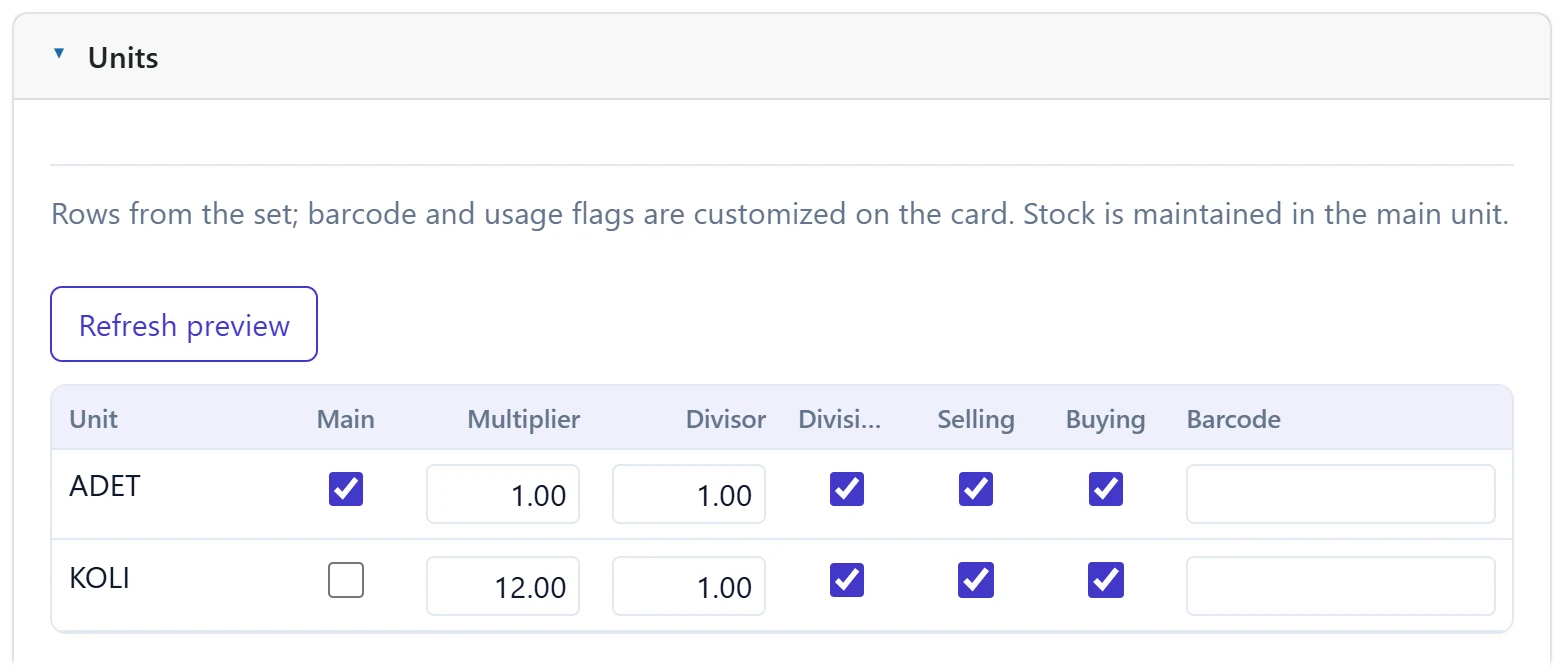
- 1Unit rows Rows from the unit set; barcode and usage flags are adjusted on the card.
- 2Columns Unit, factor, barcode and use in sales / purchases / recipes.
Workplace / description
Enter the product description, energy per portion and allergen information. If Contains is ticked for an allergen, a warning appears at sale; Trace is shown more faintly.
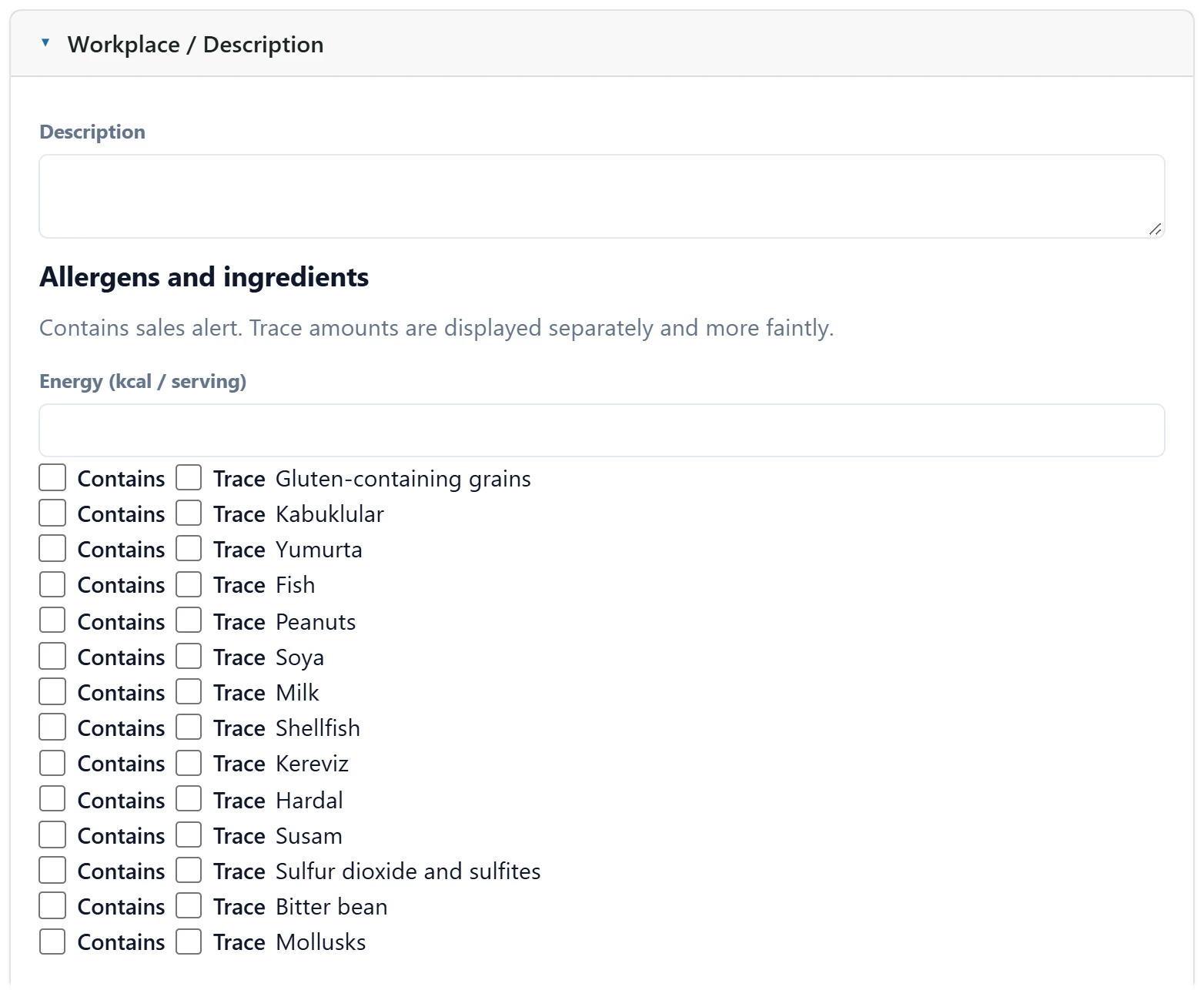
- 1Description Product description.
- 2Energy Energy per portion (kcal).
- 3Allergens For each allergen, «Contains» or «Traces» is ticked; a warning appears at sale.
Instead of deleting a card, untick Active. An inactive card still appears on old documents but cannot be chosen on new ones.
Common messages
| Message | Cause | Solution |
|---|---|---|
| Code and name are required. | Code or Name is empty. | Fill in both fields. |
| Unit set is required. | No Unit set (labelled «Department set» on screen) was chosen. | Choose a unit set from the list (e.g. Piece). |
| A record with the same attributes already exists; you cannot open a card this way. Continue with "Assign new serial". | A card with the same code template choices already exists. | Use the existing card or get a new number. |
| Image could not be read; select a smaller file. | The image is too large or damaged. | Choose a smaller JPG / PNG. |
| Failed to load department set rows. | The rows of the chosen unit set could not be read. | Choose the unit set again; if it persists, check Definitions → Unit sets. |