
 AsyaTicari
 AsyaRestoran
 AsyaOtel
 AsyaCrm
 AsyaKlinik
 AsyaSpor
 AsyaSSH
 AsyaEmlak
 AsyaFilo
 AsyaPuantaj
 AsyaİSG
 AsyaİHD
 Kolay Öğren
AsyaOtel · Kasa, Banka, Pos
Cash register
Defining cash registers; receipts, payments, expenses, deposits, transfers, end-of-day count and register transactions.
This screen changed recently. Screenshots will be retaken after the code change of 2026-11-18; the text is current, some images may look outdated.
On the Cash register screen you manage your business's cash: record cash received from customers, money paid to suppliers and daily expenses, move money between registers and banks, and count the till at the end of the day. Cash receipts from sales documents and quick sale also appear here automatically.
Opening the screen
Open Cash, Bank, POS → Cash register in the side menu. The first register in the list is selected and its transactions are shown below.
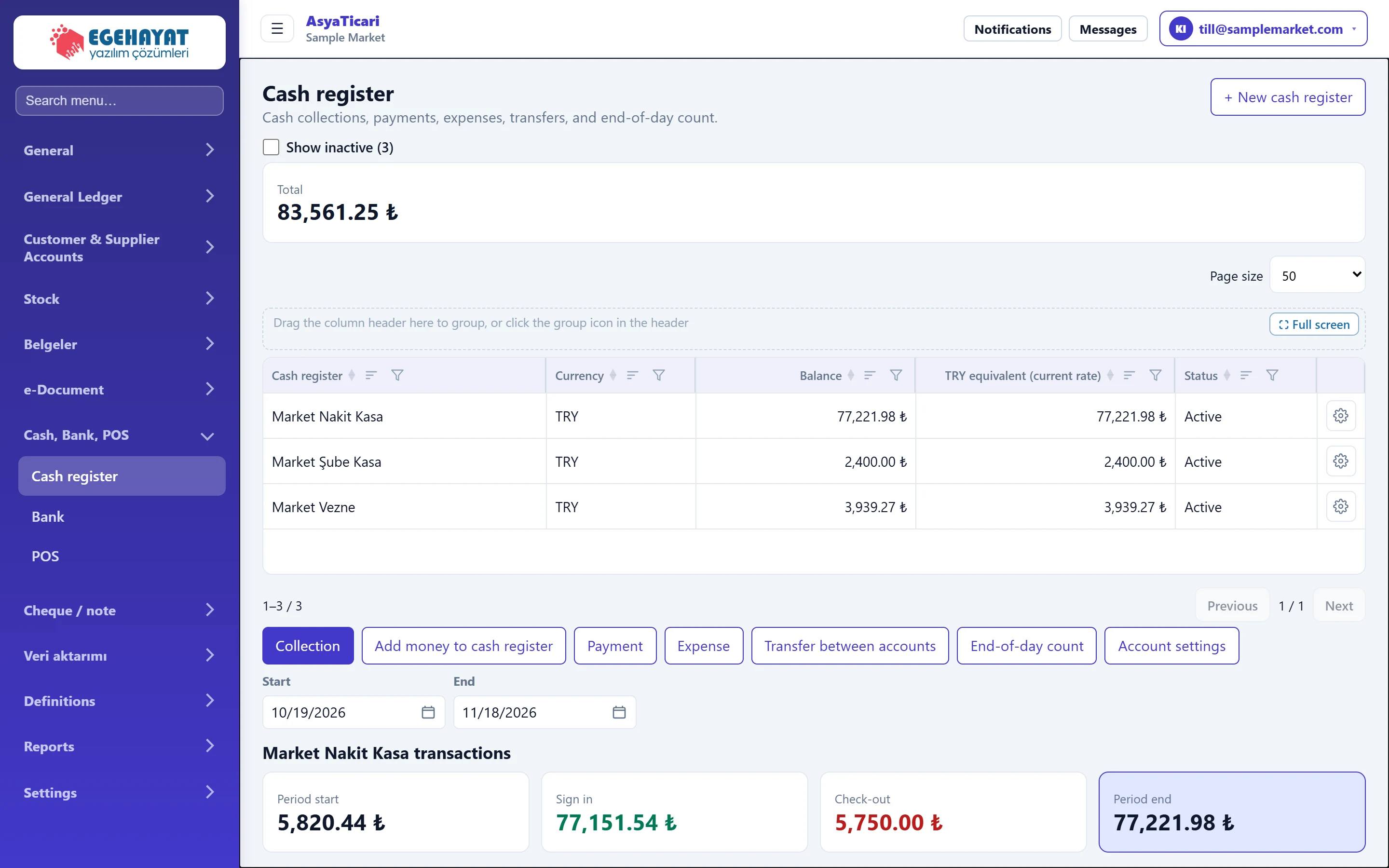
- 1Cash register Screen title and short description.
- 2+ New cash register Creates a new cash register (e.g. a second branch till, a foreign currency till).
- 3Show inactive Also lists closed (inactive) registers.
- 4Total Total balance of the listed registers.
- 5Register list Cash registers; click a row to open its transactions below.
- 6Action buttons Actions for the selected register.
- 7Transactions Transactions of the selected register in the date range.
Register list
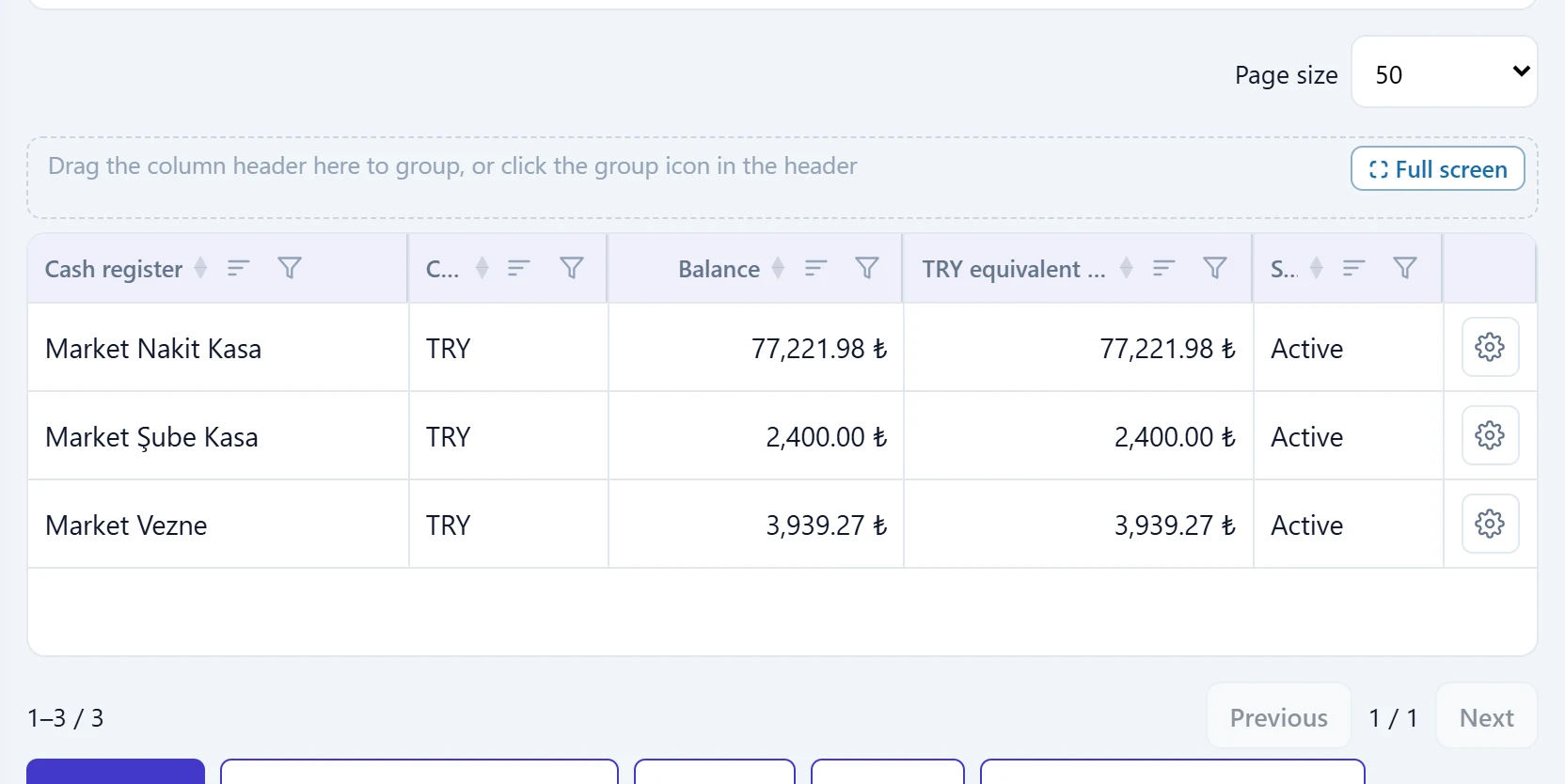
- 1Register Register name; inactive registers show «Inactive» next to the name.
- 2Balance Current cash in the register (all transactions incl. opening).
- 3Register row Click a row to select the register; its transactions and action buttons open below.
- 4Row menu Row menu: Receipt, Payment, Expense, Transfer, End-of-day count, Transactions, Account settings.
- Click a row to select that register; the action buttons and transactions refresh for it.
- The gear menu at the end of the row holds all the action buttons shown below, in the same groups (Money in, Money out, Transfer and checks, Account), and opens them without selecting the account first. The menu also has Transactions.
- If there are inactive registers, a Show inactive box appears above the list; tick it to list them too.
- Balance is in the register's own currency ($ for a USD register). TRY equivalent (current rate) converts a foreign-currency balance to TRY at today's rate; the Total above is the sum of this column.
Action buttons and date range

- 1Collection Cash received from a customer; if an account is selected it reduces that account's debt.
- 2Money into this cash register from a bank, anot… Money into the register from a bank, another register, a partner or other income.
- 3Payment Cash payment to an account (supplier etc.).
- 4Expense Expense not linked to an account (rent, utilities, meals …).
- 5Transfer between accounts Transfer from this register to another register or a bank.
- 6End-of-day count Count the cash and compare it with the system balance.
- 7Account settings Register name, currency and active / inactive status.
| Field | Sign in | Description |
|---|---|---|
| Start | Text | First day of the transaction list. Default: 30 days ago. Placeholder: «mm/dd/yyyy» |
| End | Text | Last day of the transaction list. Default: today. Placeholder: «mm/dd/yyyy» |
Transactions
The transactions of the selected register in the Start – End range are listed with a period summary.

- 1Opening Balance before the start date.
- 2In Total money in during the range.
- 3Out Total money out during the range.
- 4Closing Balance at the end date.
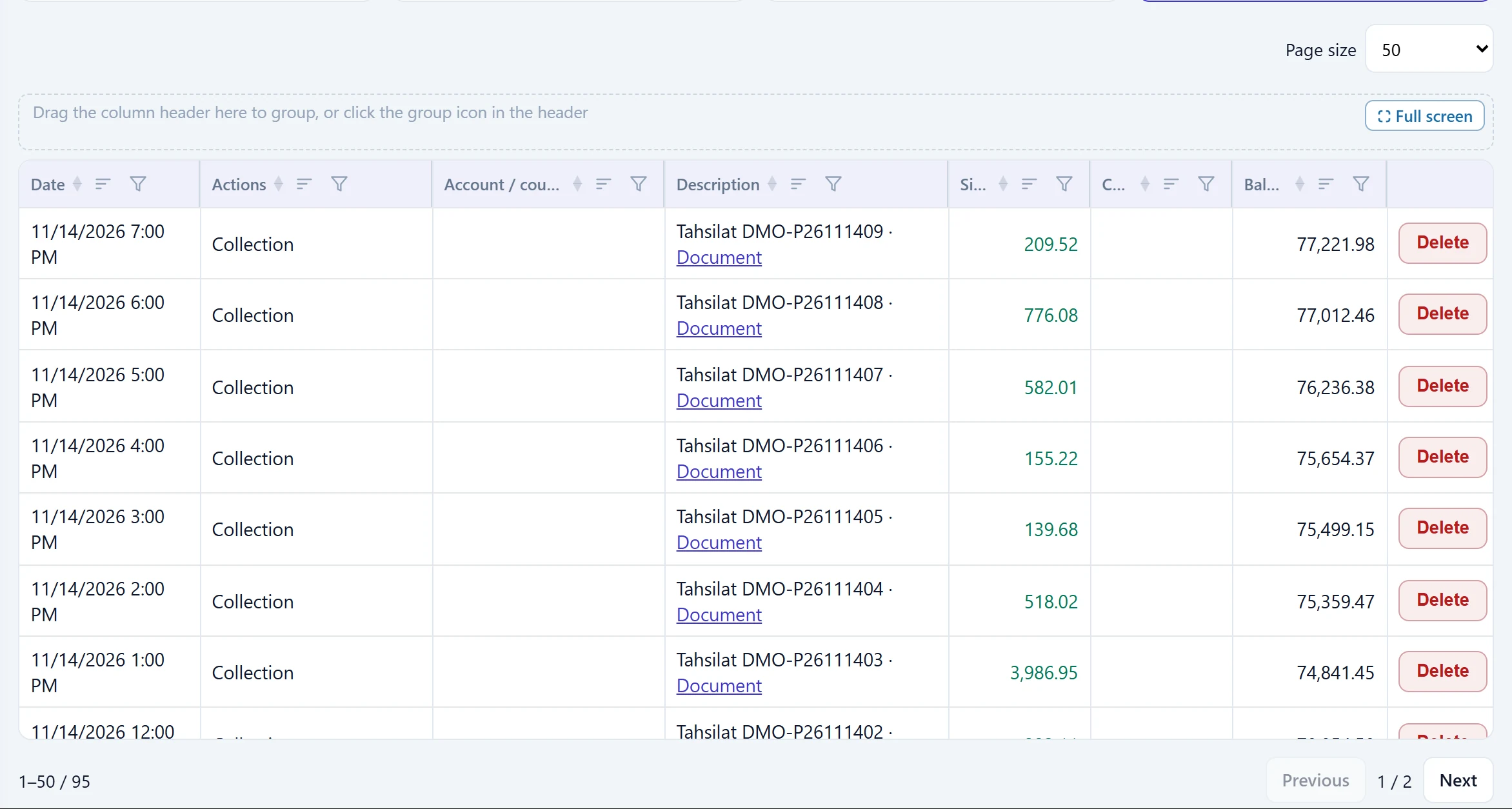
- 1Type Transaction type (Receipt, Payment, Expense, Transfer …).
- 2Account / counter account The account of the transaction or the other side of a transfer.
- 3Description Description; transactions from a document link to it.
- 4Balance Running balance after each transaction.
- 5Row menu Menu to delete the transaction.
For a transaction coming from a sales document, the document link in the description opens the document. Delete in the row menu removes the transaction permanently; a cheque / note's own movements (portfolio entry, collection, payment …) cannot be deleted here — undo them on the cheque / note screen. A collection entered with a Collection receipt and linked to a cheque is an ordinary transaction and can be deleted here.
Collection and payment
Collection records cash received from a customer, Payment records cash paid to an account. Both windows have the same fields.
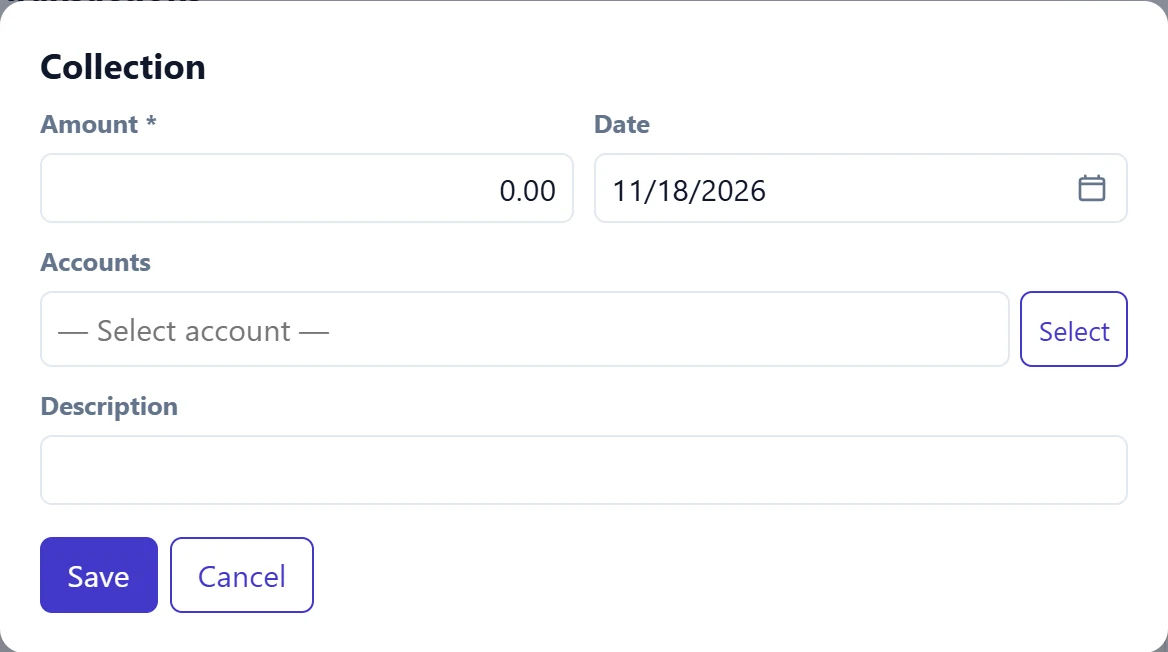
- 1Save Saves the movement.
- 2Cancel Closes without saving.
| Field | Sign in | Description |
|---|---|---|
| Amount required | Text | Money received. Must be greater than zero. |
| Date | Text | Transaction date; defaults to today. Placeholder: «mm/dd/yyyy» |
| Accounts | Text | The customer paying. If selected, the amount reduces the account's debt; if empty, it is a cash entry without an account. Placeholder: «— Select account —» |
| Description | Text | Short note shown in the transaction list. |
When an account is selected, an Automatically match with the oldest open invoices box appears at the bottom. If ticked, the amount is spread over the account's oldest open invoices, which become paid / partially paid.
Step by step: cash collection
- Select the register in the list.
- Click Collection.
- Enter the Amount; change the Date if needed.
- Use Select next to Accounts to find the customer.
- To close invoices, tick Automatically match with the oldest open invoices.
- Click Save. A confirmation appears and the transaction is added to the list.
Add money to cash register
For money coming into the register from a source other than an account (the button is Add money to cash register).
This window records money coming into the register. If you deposited cash into the bank, use Transfer instead (source: register, target: bank); otherwise the money appears to move from the bank into the register.
In the window, choose where the money comes from with the tabs at the top; the fields change accordingly.
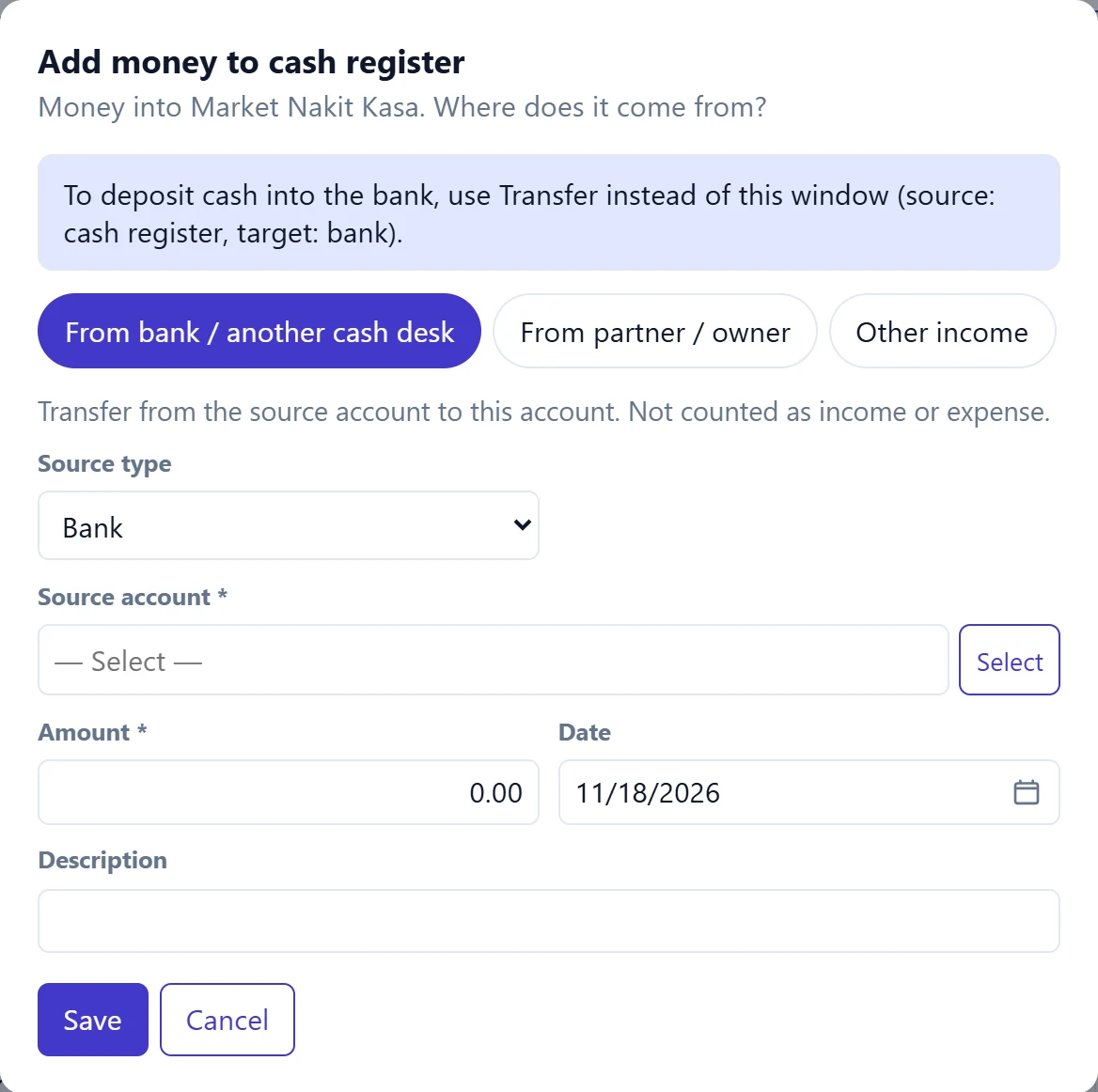
- 1From bank / another cash desk Transfer from another register / bank; not counted as income.
- 2From partner / owner Money put in by a partner / owner; posted to the partner's account.
- 3Other income Income not linked to an account (interest, rental income …).
| Field | Sign in | Description |
|---|---|---|
| Source type | Choice list | Type of the source account: Register or Bank. Options: Cash register · Bank |
| Source account required | Text | The register or bank account the money comes from; cannot be this register. Placeholder: «— Select —» |
| Amount required | Text | Amount deposited. Must be greater than zero. |
| Date | Text | Transaction date; defaults to today. Placeholder: «mm/dd/yyyy» |
| Description | Text | Short note shown in the transaction list. |
- From bank / another cash desk: a transfer between two accounts; not counted as income.
- From partner / owner: asks for the Partner / owner account. The money is not income; it is posted to the partner's account and shown as owed to them. When paying it back, enter a Payment to the same account.
- Other income: asks for the Income type (e.g. interest, rental income); shown as «Other income» on the home screen.
Expense
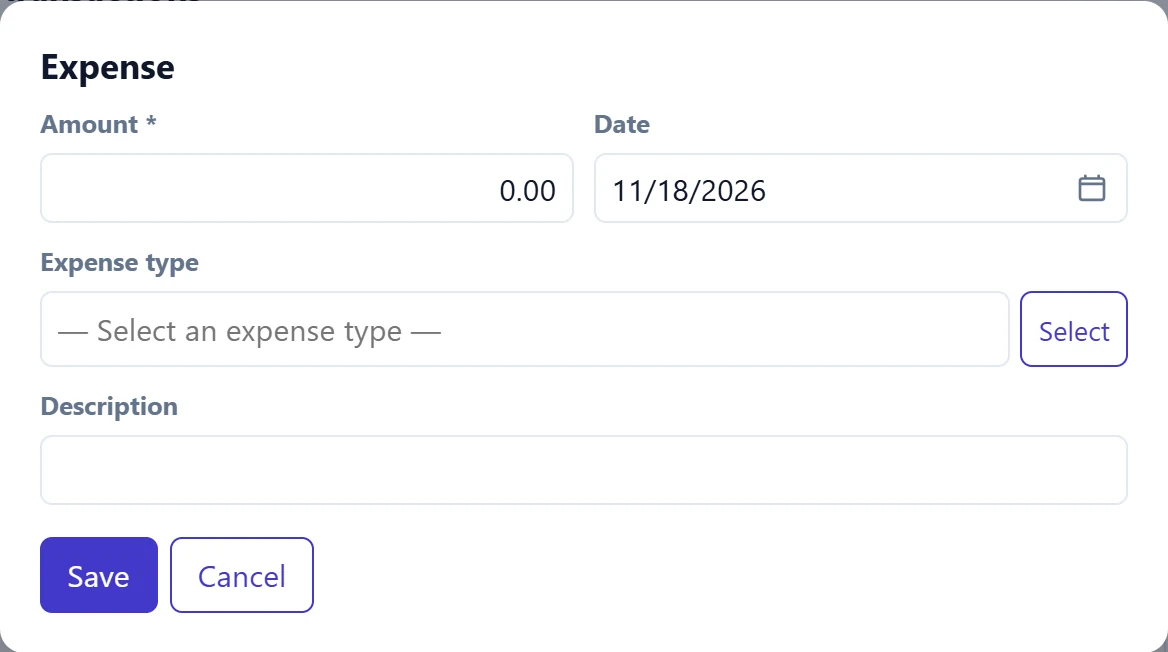
- 1Expense type Chosen from Definitions → Expense types.
| Field | Sign in | Description |
|---|---|---|
| Amount required | Text | Expense amount paid. |
| Date | Text | Expense date; defaults to today. Placeholder: «mm/dd/yyyy» |
| Expense type | Text | Pick from the list or type a new type to add it (e.g. «Rent»). Reports group expenses by this type. Placeholder: «— Select an expense type —» |
| Description | Text | Expense description (e.g. «November electricity bill»). |
If the expense type is not in the list, type it in the box to add it as a new type. Types are also managed under Definitions → Expense types.
Transfer between accounts
Moves money from the register to another register or bank (e.g. the day's takings deposited at the bank). A transaction is created in both accounts; it is neither income nor expense.
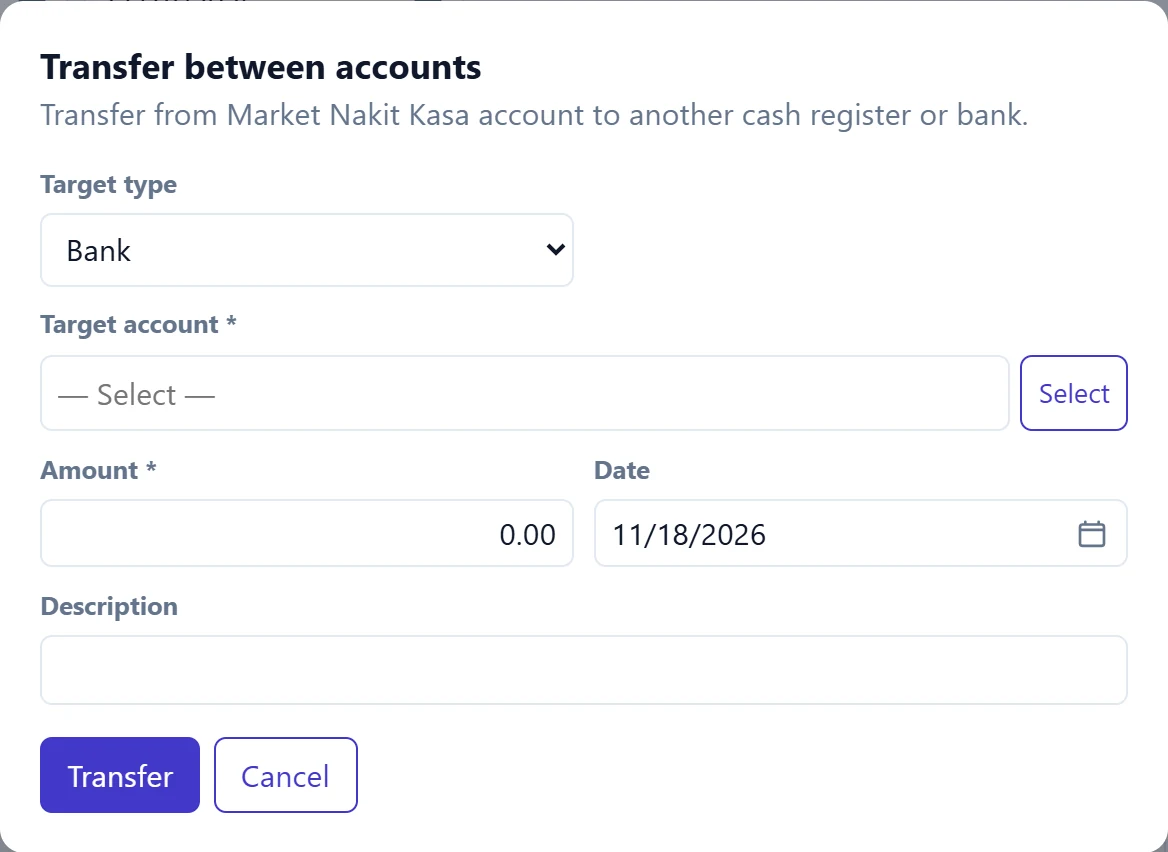
- 1Transfer Creates a transaction in both accounts.
| Field | Sign in | Description |
|---|---|---|
| Target type | Choice list | Type of the target account: Register or Bank. Options: Cash register · Bank |
| Target account required | Text | The register or bank account to transfer to. Placeholder: «— Select —» |
| Amount required | Text | Amount to transfer. |
| Date | Text | Transfer date. Placeholder: «mm/dd/yyyy» |
| Description | Text | E.g. «End-of-day bank deposit». |
For a foreign-currency register or bank account, transactions and the period cards (Opening, In, Out, Closing) are in the account's own currency; the TRY equivalent appears under the cards and in the TRY amount (recorded rate) column. In the end-of-day count of a foreign-currency register, Expected and Difference are also in the register's currency; the difference is posted in that currency with its TRY equivalent at today's rate.
End-of-day count
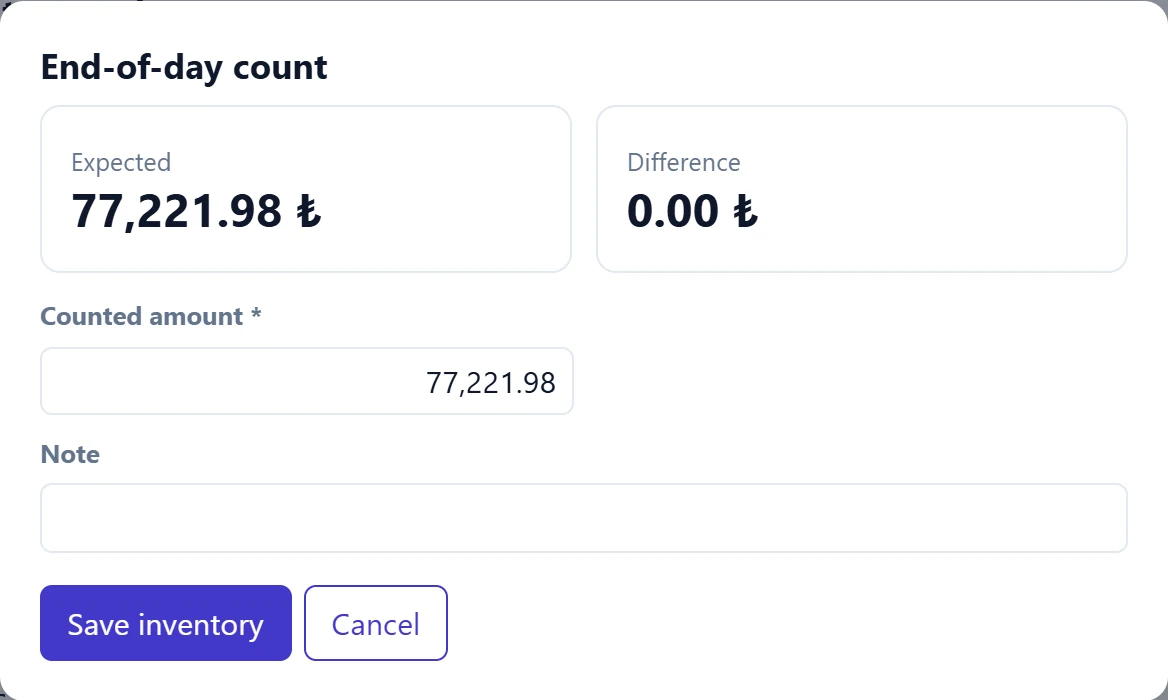
- 1Expected Register balance in the system.
- 2Difference Counted − expected; plus is surplus, minus is shortage.
| Field | Sign in | Description |
|---|---|---|
| Counted amount required | Text | The cash you actually counted. Difference updates as you type. |
| Note | Text | Note about the count (e.g. «coins short»). |
If the counted amount differs from the expected one, the window shows that the difference will be posted to the register as a count difference. Save inventory writes the difference as a transaction and sets the register balance to the counted amount. Counts are listed in the End-of-day counts table under the transaction list (expected, counted, difference, note).
A count difference changes the register balance. Before counting, make sure all of the day's receipts and payments have been entered.
New register and account settings
+ New cash register opens a new register; Account settings edits the selected register.
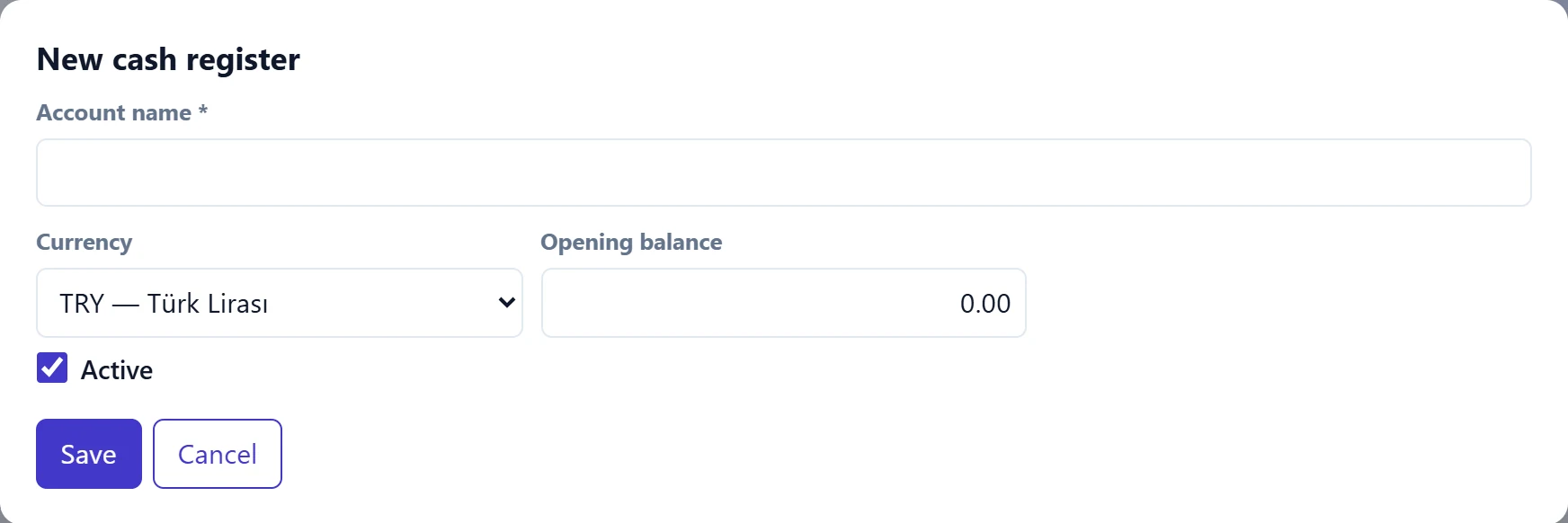
| Field | Sign in | Description |
|---|---|---|
| Account name required | Text | Register name (e.g. «Main till», «Euro till»). Required. |
| Currency | Choice list | Register currency; do not change it once there are transactions. Options: EUR — Euro · GBP — İngiliz Sterlini · TRY — Türk Lirası · USD — ABD Doları |
| Opening balance | Text | Cash in the register at the start. Asked only for a new register. |
| Active | Checkbox | Unticking makes the register inactive; it no longer appears in lists and pickers. |
Common messages
| Message | Cause | Solution |
|---|---|---|
| Amount must be greater than zero. | The amount is empty or zero. | Enter the amount. |
| Account name is required. | The name of the new register is empty. | Fill in Account name. |
| Select the source account. | No source register / bank selected for the deposit. | Select the Source account. |
| Source and destination cannot be the same. | The same register was chosen in a deposit or transfer. | Choose a different account. |
| Select the partner / owner account. | The account is empty on the From partner / owner tab. | Select the partner's account. |
| Select the target account. | The target account is empty in a transfer. | Select the Target account. |
| The amount listed cannot be negative. | A negative amount was entered in the count. | Correct the counted amount. |
| Check/promissory note transactions cannot be deleted from here; revert from the check/promissory note screen. | The transaction comes from a cheque / note. | Open the cheque in Cheque / note → Portfolio and use Undo last transaction. |