
 AsyaTicari
 AsyaRestoran
 AsyaOtel
 AsyaCrm
 AsyaKlinik
 AsyaSpor
 AsyaSSH
 AsyaEmlak
 AsyaFilo
 AsyaPuantaj
 AsyaİSG
 AsyaİHD
 Kolay Öğren
AsyaEmlak · Definitions
Currencies, rate types and exchange rates
Currencies used in prices, the rate types that can be used in documents, and daily exchange rates fetched from the central bank (TCMB) or entered manually.
This screen changed recently. Screenshots will be retaken after the code change of 2026-11-19; the text is current, some images may look outdated.
Working with foreign currency needs three definitions: which currencies are used, which rate type (buying, selling, banknote) can be chosen in documents, and the exchange rate of each day. The default rate type and date mode for documents come from the exchange-rate usage setting in Settings → Control panel.
Currencies
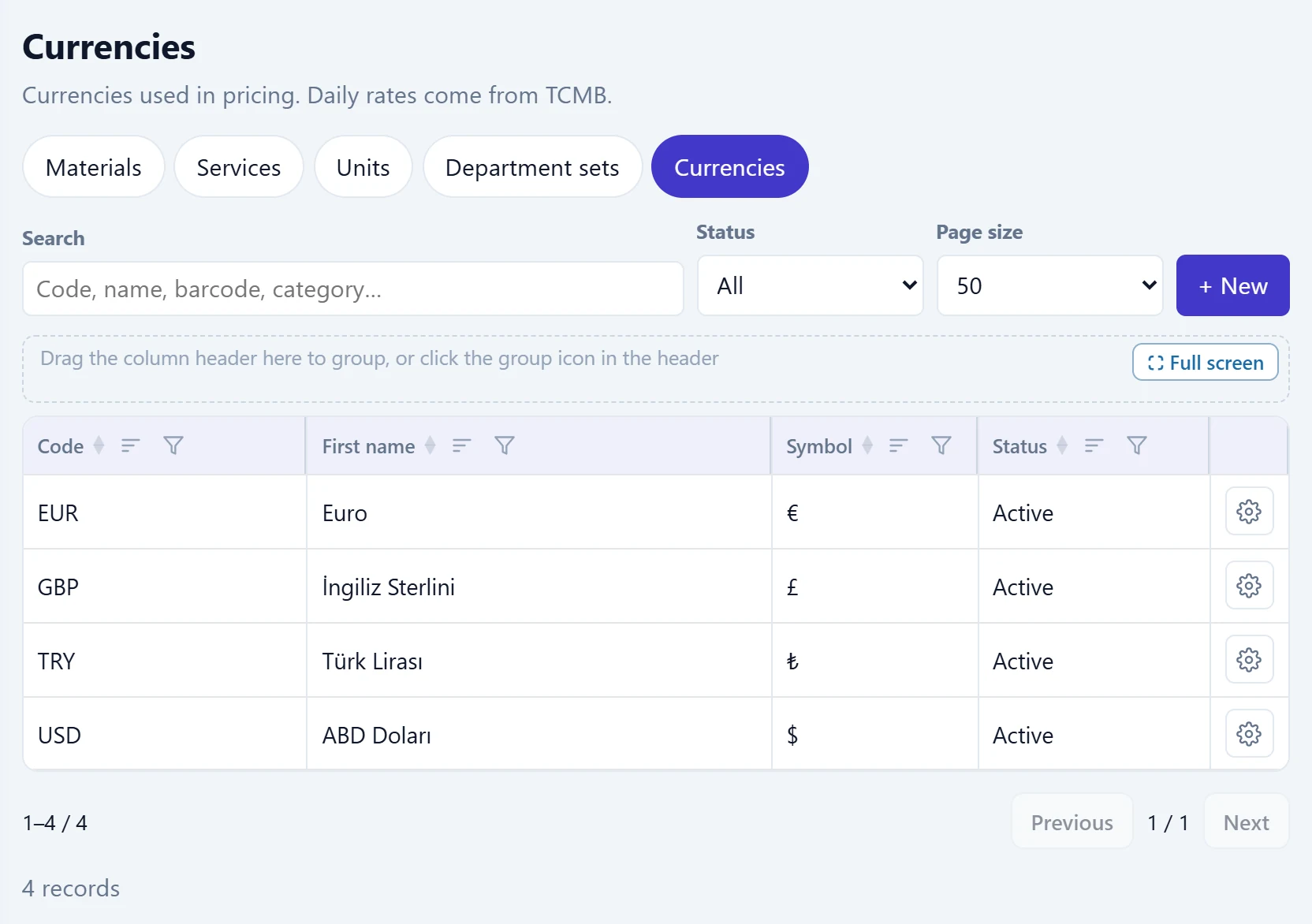
- 1+ New Opens the new currency form.
- 2Currency row Code, name, symbol and status.
The list is part of the same catalogue screen as Materials / Services / Units. TRY exists in every company; here you define the other currencies to be chosen on cards and documents.
New currency
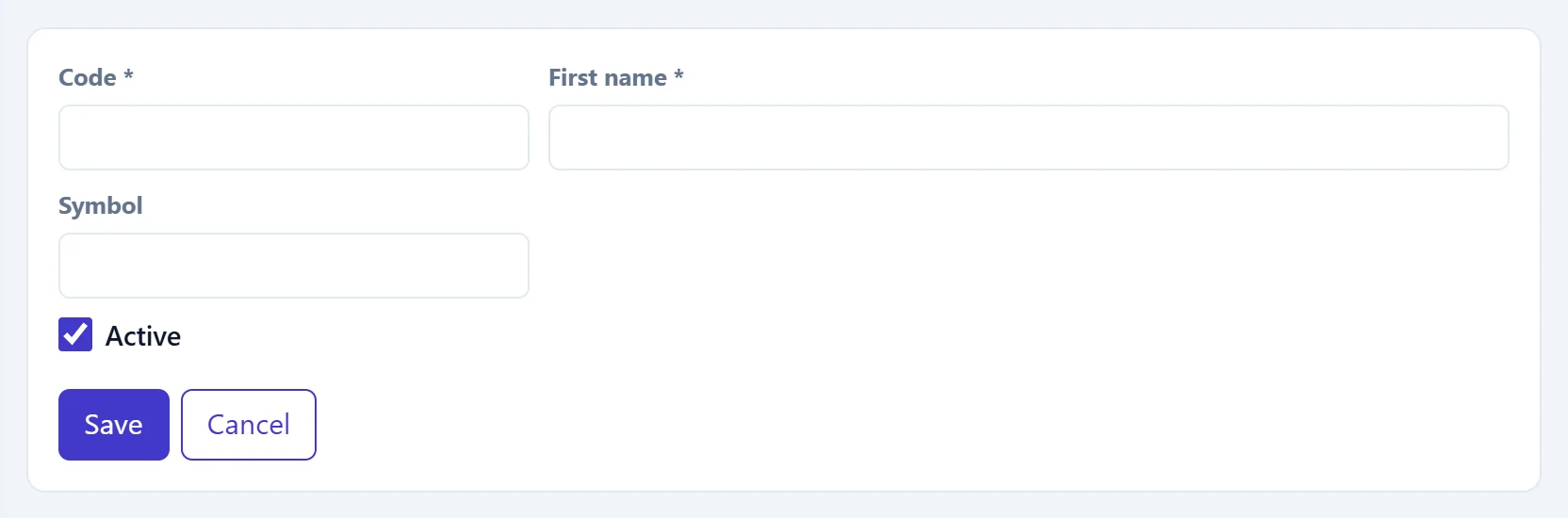
- 1Save Saves the currency.
| Field | Sign in | Description |
|---|---|---|
| Code required | Text | ISO currency code (e.g. USD, EUR, GBP). Central bank (TCMB) rates are matched by this code. |
| First name required | Text | Currency name (e.g. «US dollar»). |
| Symbol | Text | Sign shown next to amounts (e.g. $, €). |
| Active | Checkbox | If off, the currency cannot be chosen on cards and documents. |
Rate types
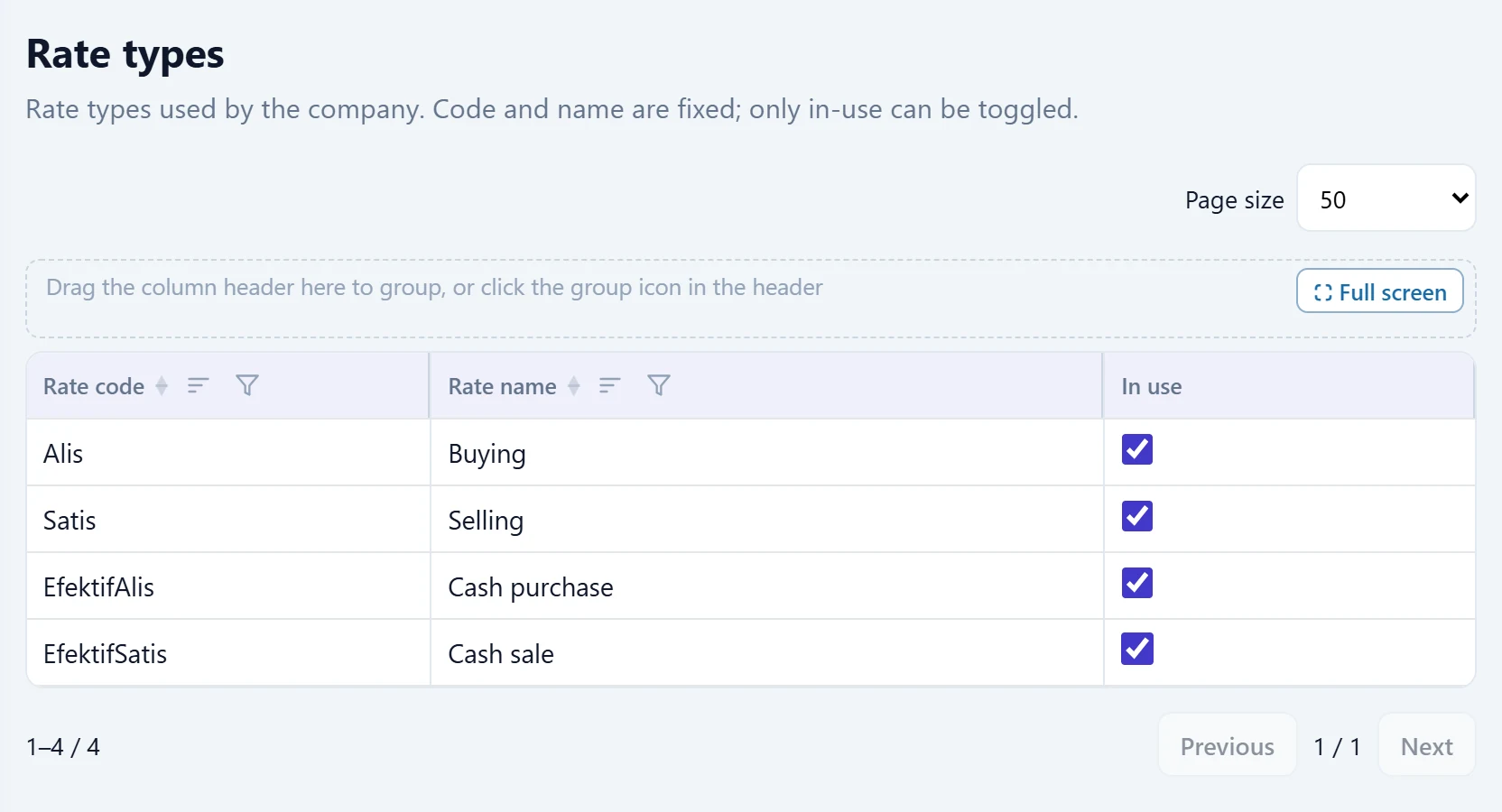
- 1Rate code Fixed rate code (Buying, Selling, Banknote buying, Banknote selling).
- 2In use Ticked rate types can be chosen in documents; changes are saved immediately.
The code and name of rate types are fixed; only the In use tick can be changed. The change is saved immediately without a save button and «Saved.» appears.
Exchange rates
The central bank (TCMB) daily rates are fetched automatically every business day. On this screen you see the rates of a day, fetch a missing day again from TCMB or enter a rate manually.
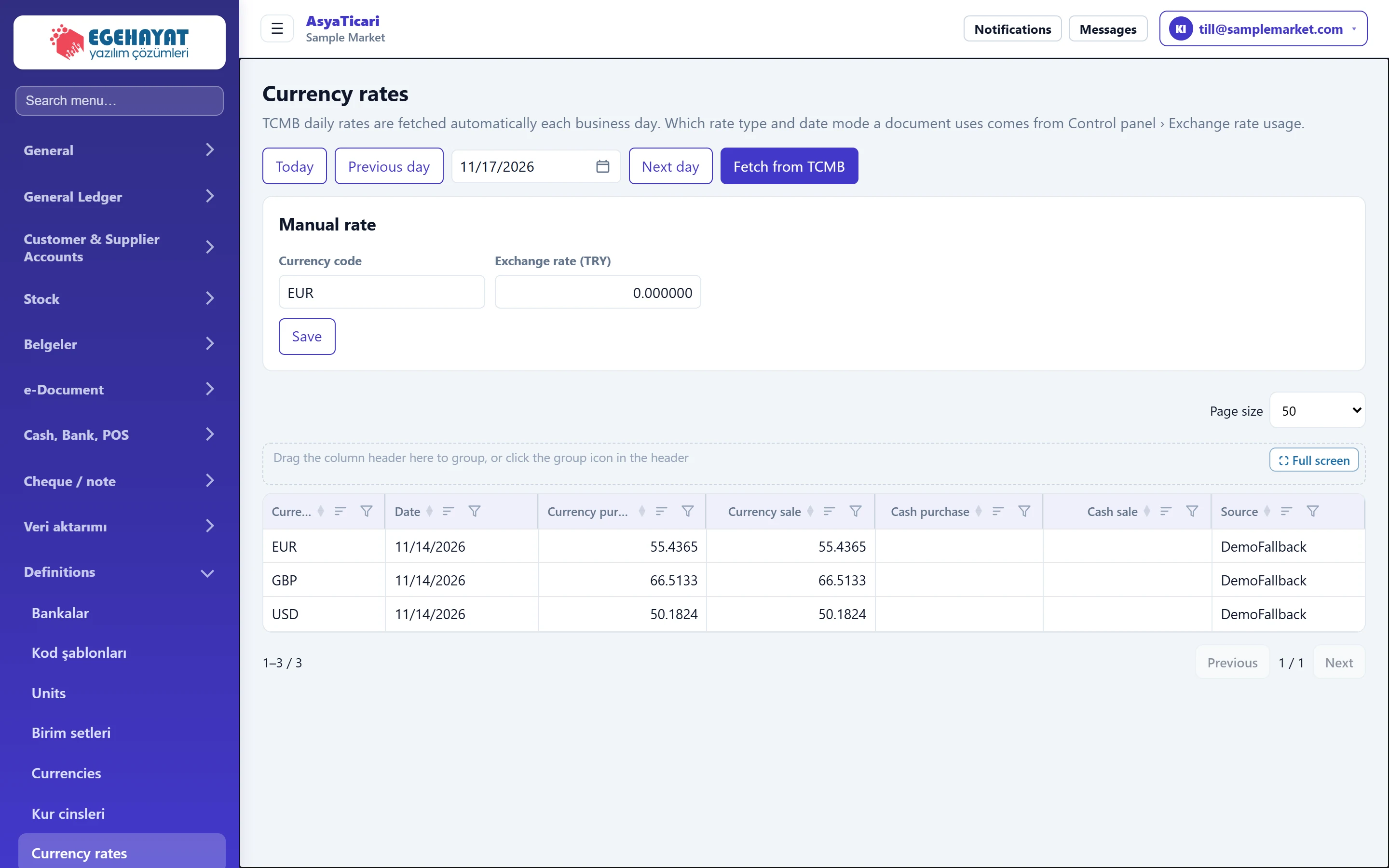
- 1Today Returns to today's rates.
- 2Date Day whose rates are shown; also changed with the previous / next day buttons.
- 3Fetch from TCMB Fetches the selected day's rates from the central bank (TCMB) again.
- 4Manual rate Enters a rate manually for a currency not published by TCMB or as a correction.
- 5Rate row Buying / selling, banknote buying / selling and source.
Table columns: currency, date, buying, selling, banknote buying, banknote selling and the Source of the rate (TCMB or manual).
Manual rate
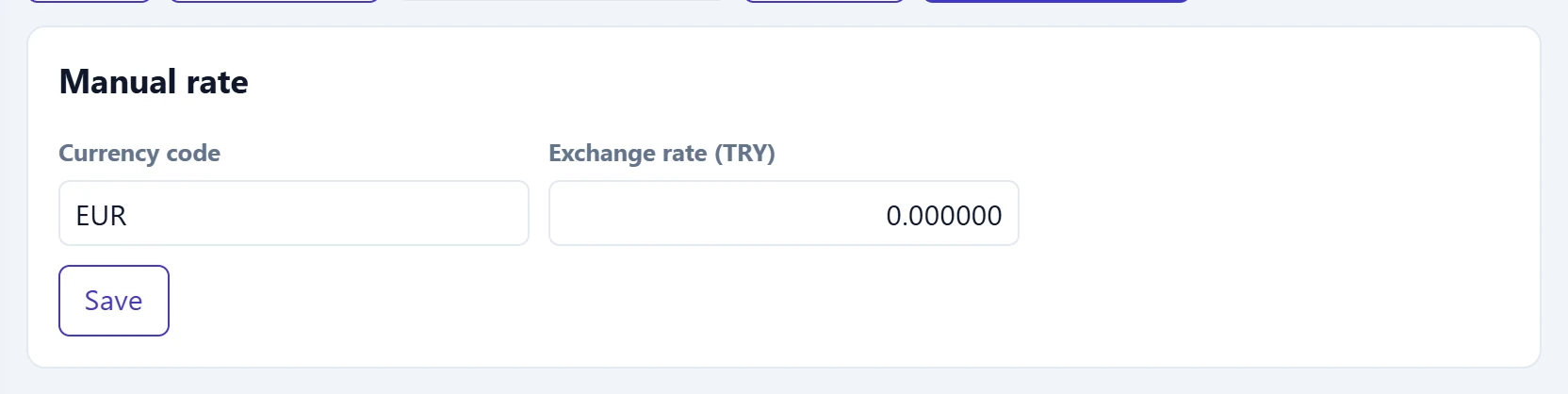
- 1Save Saves the rate for the selected date.
| Field | Sign in | Description |
|---|---|---|
| Currency code | Text | Code of the currency to enter (e.g. EUR). |
| Exchange rate (TRY) | Text | Value of 1 unit of currency in TRY; must be greater than zero. Saved for the selected date. |
Step by step: completing a missing day's rate
- On Currency rates, choose the day with the date box or Previous day / Next day.
- Press Fetch from TCMB; if rates arrive, «Exchange rates updated.» appears and the table fills.
- For a currency TCMB does not publish, enter Currency code and Exchange rate (TRY) in the Manual rate panel and press Save.
TCMB does not publish rates on weekends and public holidays; documents on those days use the rate of the last business day.
Common messages
| Message | Cause | Solution |
|---|---|---|
| Exchange rate must be greater than zero. | The manual rate is zero or negative. | Enter a valid rate. |
| No currency. | No rate exists for the selected day. | Use Fetch from TCMB or enter it manually. |
| Code and name are required. | Code or name is empty in the currency form. | Fill in both fields. |
| This currency is used in the material or service card. | The currency to delete is used on a card. | Make the currency inactive. |
| Invalid rate type. | An undefined rate type was changed. | Refresh the page and try again. |