
 AsyaTicari
 AsyaRestoran
 AsyaOtel
 AsyaCrm
 AsyaKlinik
 AsyaSpor
 AsyaSSH
 AsyaEmlak
 AsyaFilo
 AsyaPuantaj
 AsyaİSG
 AsyaİHD
 Kolay Öğren
AsyaSSH · e-Belge
Incoming e-documents
Listing incoming e-Invoices and e-Waybills from suppliers, previewing them, sending accept / reject responses and turning them into purchase documents.
This screen changed recently. Screenshots will be retaken after the code change of 2026-11-19; the text is current, some images may look outdated.
The Incoming e-documents screen queries your e-document provider (integrator) for e-Invoices and e-Waybills issued to your company's tax number. Here you view a document, send an Accept / Reject response to a commercial invoice and create a purchase document with one click, without retyping lines.
The screen needs an e-document integration account for the company. Without one the list stays empty.
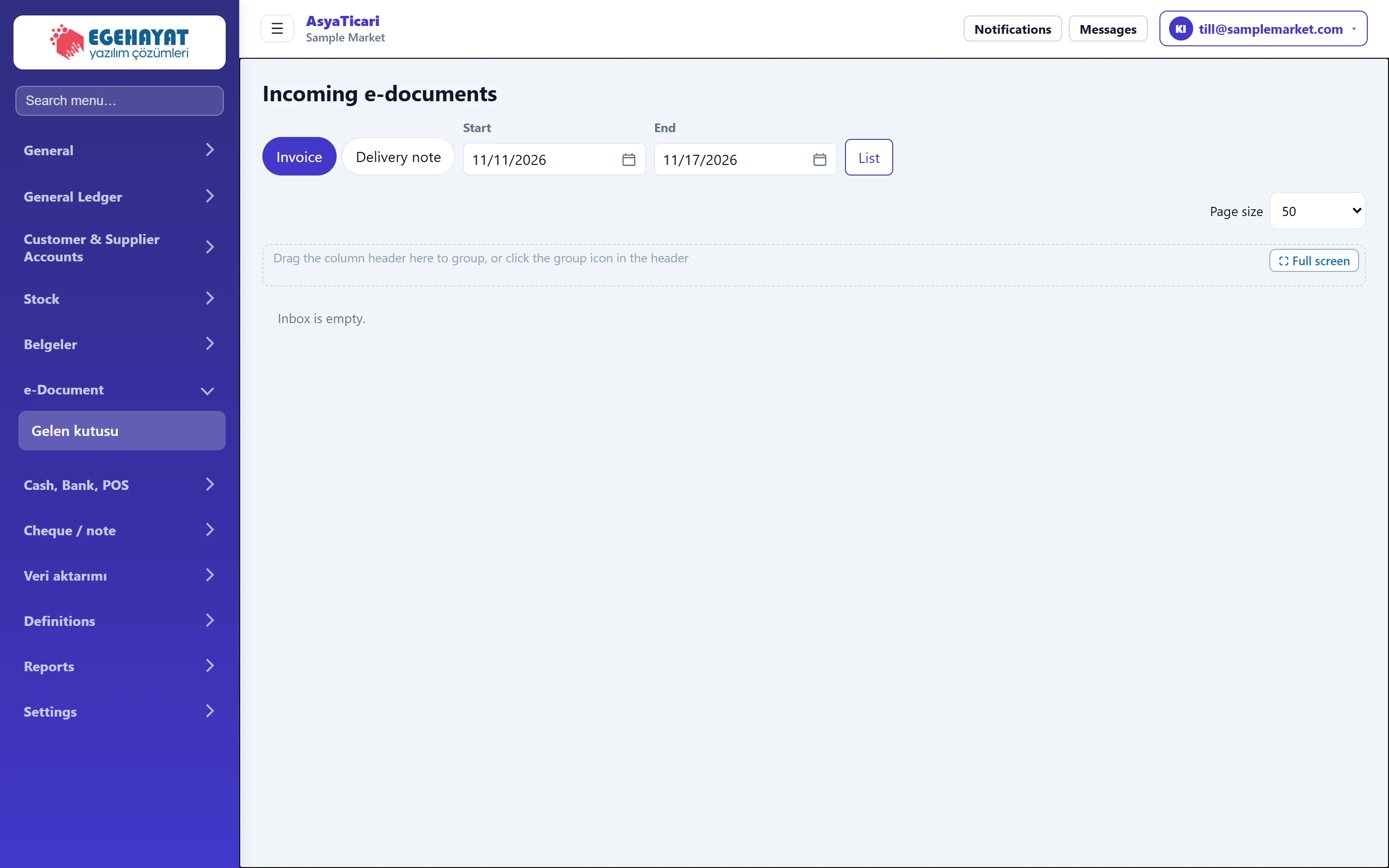
- 1Invoice / Waybill Incoming e-Invoices or incoming e-Waybills.
- 2Date range Last 7 days on opening.
- 3List Queries the provider again for the selected range.
- 4Incoming documents Tick rows to accept / reject / create purchase documents in bulk.
Query bar

- 1Invoice Incoming e-Invoices.
- 2Delivery note Incoming e-Waybills.
- 3List Loads the list.
| Field | Sign in | Description |
|---|---|---|
| Start | Text | First day to query; 6 days ago on opening. Placeholder: «mm/dd/yyyy» |
| End | Text | Last day to query; today on opening. Placeholder: «mm/dd/yyyy» |
After changing the dates, press List. Switching between the Invoice / Delivery note tabs refreshes the list automatically. The integration user used for the query is shown above the list as «Query account: …».
List
Columns: No, Sender, Tax no., Date, Amount, Status. At the end of each row:
- Preview: opens the document in the provider's layout. The preview window has Print, Download XML, Accept, Reject and Create purchase document; Esc closes it.
- ⋯ menu: Accept, Reject, Create purchase document.
Ticking the boxes at the start of rows shows a selection bar: Accept selected items, Reject selected items, Create purchase document, Print selected (max. 30 documents) and Clear selection.
Processing an incoming invoice: step by step
- Open e-Document → Inbox; incoming invoices of the last 7 days are listed.
- If needed change Start / End and press List.
- Review the invoice with Preview on its row.
- For a commercial invoice give Accept if it is correct, Reject if not.
- Press Create purchase document. A purchase document with the invoice lines is created and opened; match the lines with stock cards and confirm it.
An Accept / Reject response to a commercial invoice is forwarded to the sender via the tax authority and cannot be undone. A rejection must be given within the legal period (8 days); basic invoices need no response.
When a purchase document created from the inbox is cancelled, the screen takes you back to the inbox so that you can process the invoice again.
Common messages
| Message | Cause | Solution |
|---|---|---|
| Inbox is empty. | No documents in the selected range, or no e-document account. | Widen the date range; without an account, set up the e-document integration under Settings → Control panel. |
| List could not be loaded | The provider could not be reached or user name / password is wrong. | Read the details in the error box; check user name and password in the integration settings. |
| Company tax number not defined; the inbox cannot be opened without buyer verification. Please enter the tax number in the control panel → Company information. | The company's tax number is empty. | Enter the tax number in the company information. |
| … document(s) hidden because the recipient tax number is not this company's. Check the Veriban account (…). | The provider account contains documents of another company. | Make sure the integration account belongs to this company. |
| E-document provider not defined. | No e-document integration in the company. | Set up the e-document integration in the control panel. |
| Preview could not be obtained. | The provider did not return the document view. | Download the document with Download XML or try again later. |