
 AsyaTicari
 AsyaRestoran
 AsyaOtel
 AsyaCrm
 AsyaKlinik
 AsyaSpor
 AsyaSSH
 AsyaEmlak
 AsyaFilo
 AsyaPuantaj
 AsyaİSG
 AsyaİHD
 Kolay Öğren
AsyaTicari · Belgeler
Document lists
Listing, filtering and creating quotes, orders, waybills, invoices, returns, service slips, pro formas and retail sales by type.
This screen changed recently. Screenshots will be retaken after the code change of 2026-11-19; the text is current, some images may look outdated.
Every link in the Documents menu opens the same list screen; only the selected document type changes. All documents shows every type together. Here you search for documents, open them and start new ones.
Document types and when to use them:
| Menu | Used for |
|---|---|
| Contract | Customer contract with start and end dates (end dates are followed on Contract tracking). |
| Sales quote | Price offer to a customer; does not affect stock or balance. |
| Sales order | Order confirmed by the customer; converts to a waybill or invoice. |
| Sales waybill / Purchase waybill | Goods leaving / arriving; moves stock and converts to an invoice. |
| Sales invoice / Purchase invoice | Updates the account balance and stock; can be sent as e-Invoice / e-Archive. |
| Return waybill / Return invoice | Goods coming back or sent back. |
| Service slip | Sale of services without stock. |
| Pro forma | Preliminary invoice; no effect on balance or stock. |
| Retail sale | Retail slip from the quick sale screen or entered by hand; can later be converted to an invoice. |
If a document type is missing from the menu, it is switched off for your company or you have no permission to view documents. The Contract type only appears in companies with the «Contract» feature enabled.
Parts of the screen
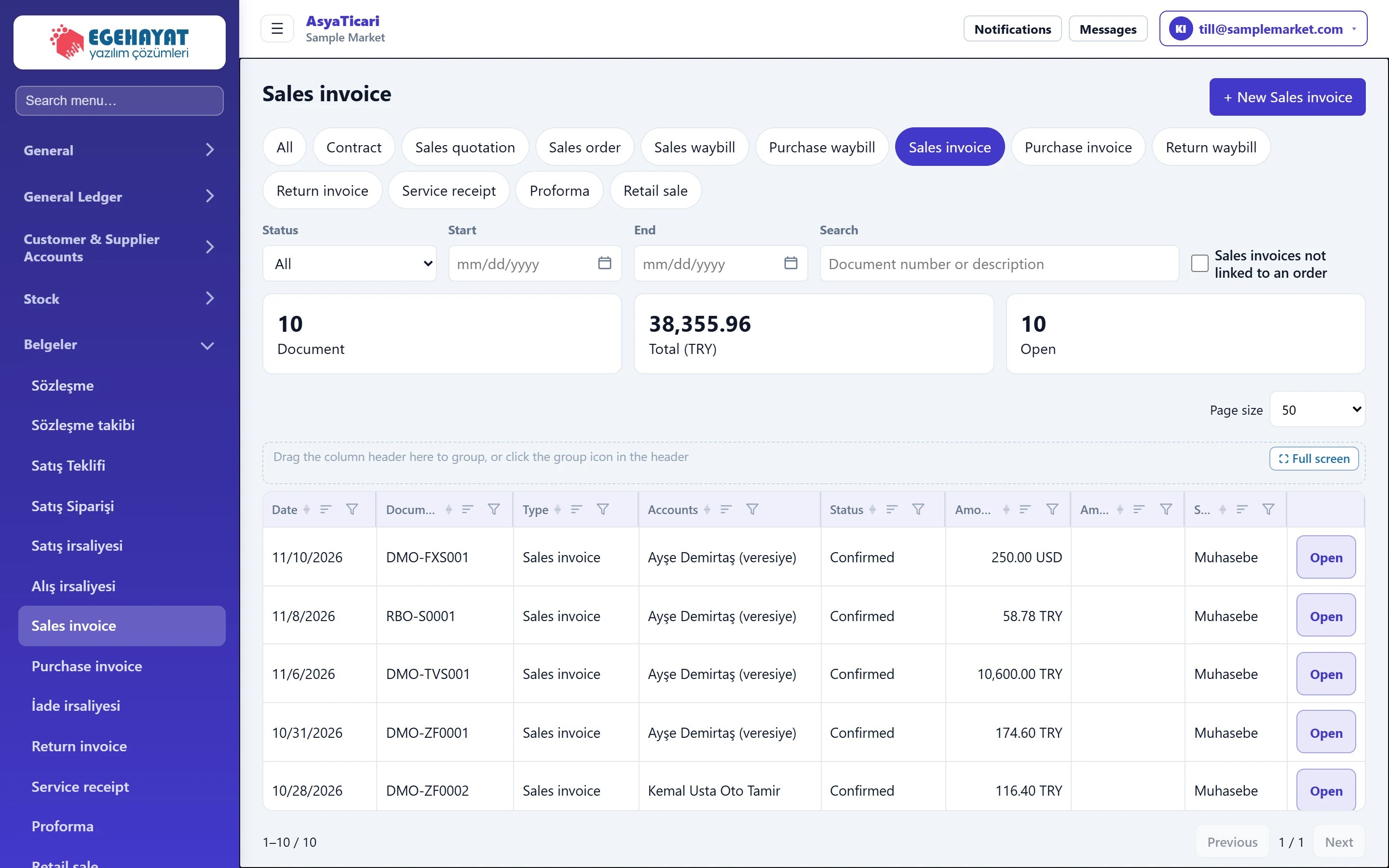
- 1Sales invoice Name of the selected document type.
- 2+ New Sales invoice Opens a new document of this type.
- 3Document type tabs All and each document type; the same as the document links in the side menu.
- 4Filters Status, date range and search by document no. / description.
- 5Summary Number of listed documents, TRY total and number of open documents.
- 6Document row Click a row to open the document.
The tabs match the document links in the side menu: clicking a tab is the same as choosing that type in the menu.
Creating a new document
On a type tab, the + New … button at the top right opens an empty document of that type. On the All tab the button is called + New document and asks for the type first:
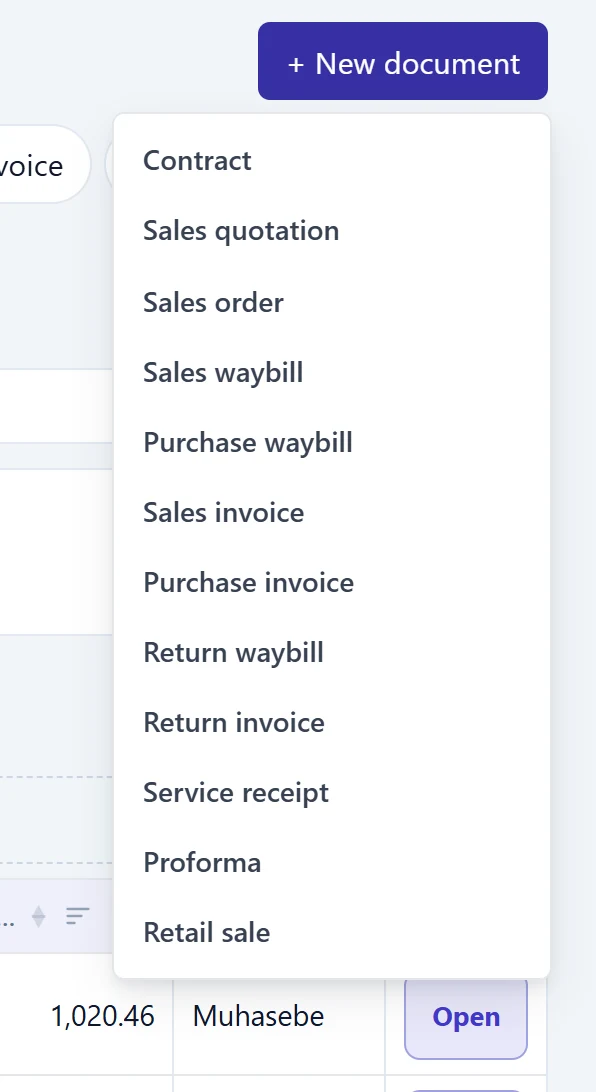
- 1+ New document On the All tab you are asked for the document type.
- 2Contract Opens an empty document of the chosen type.
If you have no permission to write documents, the label «You do not have permission to create documents» appears instead of the button. If the type is switched off for your company, «This document type is disabled in your company.» is shown.
Filling in a document is explained in Creating and editing documents.
Filters

- 1Status Filters by document status.
- 2Search Document no. or description.
| Field | Sign in | Description |
|---|---|---|
| Status | Choice list | Draft, Sent, Accepted, Rejected, Converted, Posted, Cancelled, Paid, Partially paid. The list is filtered as soon as you choose. |
| Start | Text | Documents dated before this day are not listed. Placeholder: «mm/dd/yyyy» |
| End | Text | Documents dated after this day are not listed. Placeholder: «mm/dd/yyyy» |
| Search | Text | Part of the document no. or description; applied when you press Enter or leave the box. Placeholder: «Document number or description» |
| Sales invoices not linked to an order | Checkbox | If ticked, only invoices not linked to any order are listed (only on the All, Sales invoice and Purchase invoice tabs). |
On the Sales order tab, if the company has more than one order type, an extra Order type filter and an Order type column appear.
The three cards under the filters summarise the listed documents: number of Documents, Total (TRY) excluding cancelled ones, and the number of documents not yet closed (Open).
Document grid
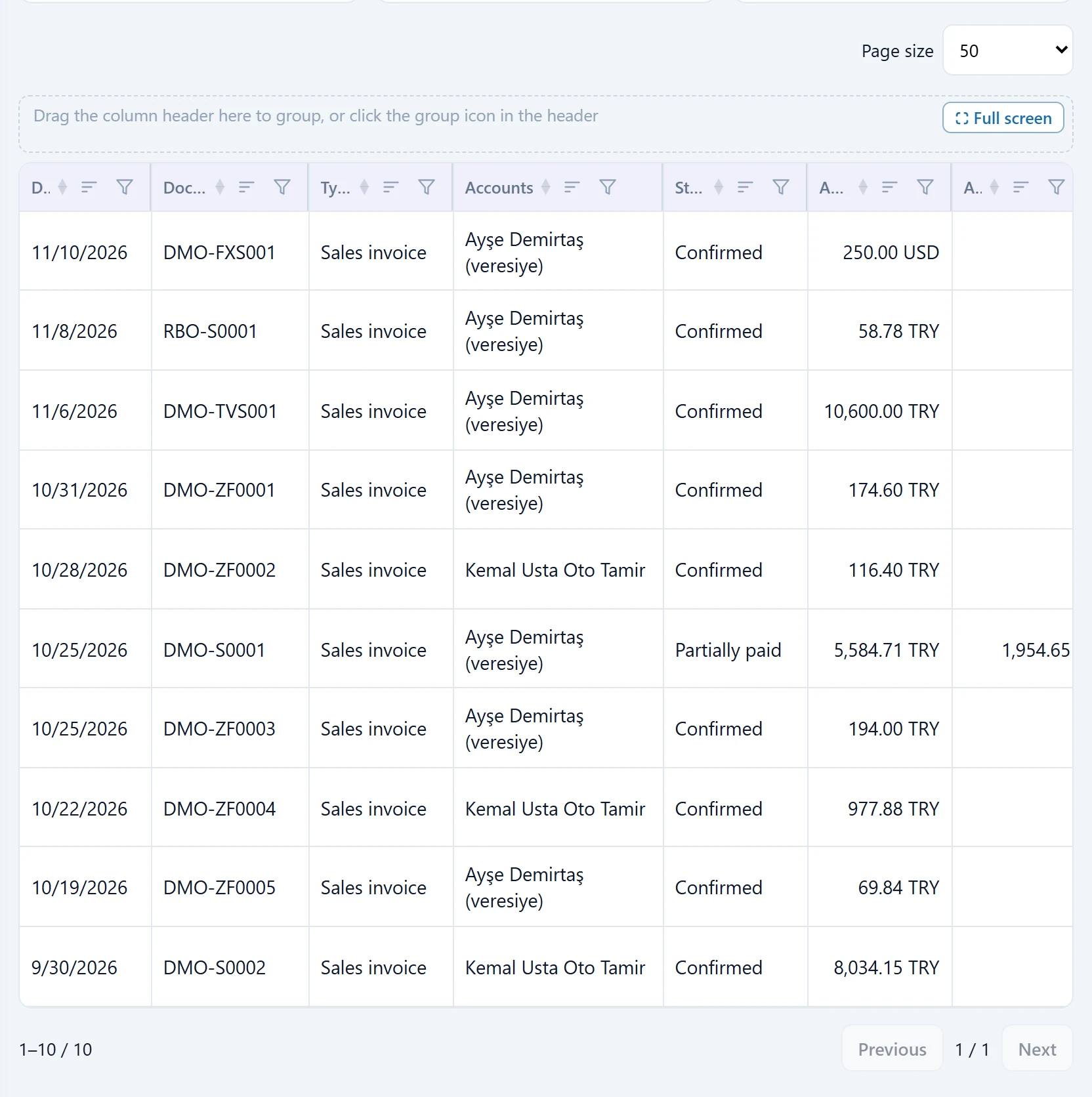
- 1Page size How many documents are shown per page.
- 2Grouping area Drag a column header here to group the list by that column (e.g. Account).
- 3Column header Click to sort; the funnel icon adds a column filter.
- 4Open Opens the document. Draft / cancelled documents also show «Delete permanently».
Columns: Date, Document no. («(draft)» for drafts, «· Recurring» for recurring documents), Type, Account, Status, Amount (in the document currency), Paid and Source, which shows the application the document came from (e.g. Muhasebe, Klinik, e-belge).
- Sorting: Click a column header; a second click reverses the order.
- Grouping: Drag a header onto the dashed area (e.g. group by Account).
- Page size and column layout are remembered in this browser separately for each document type.
- The menu at the end of the row has Open. If the document is a draft or cancelled and has no payment, Delete permanently also appears.
Finding a document: step by step
- In the side menu, choose the document type under Documents (or All documents).
- If needed, choose a Status (e.g. «Partially paid» for invoices not fully collected).
- Narrow the date range with Start and End.
- Type part of the document number or description in Search and press Enter.
- Click the row to open the document.
Delete permanently cannot be undone; the document disappears from the list entirely. Instead of deleting a posted document, open it and use Cancel; stock and account movements are then reversed and a trace remains.
Common messages
| Message | Cause | Solution |
|---|---|---|
| You do not have permission to create documents | The user has no permission to write documents. | Ask your administrator for document write permission under Settings → Permissions. |
| This document type is disabled in your company. | The feature the type depends on (quote, order, waybill, contract…) is not enabled for your company. | Ask your reseller or the platform administrator to enable it (Platform Admin › company › features). |
| Only draft or cancelled documents can be permanently deleted. Cancel first. | You tried to delete a posted document. | Open the document and press Cancel first. |
| Documents with payments cannot be permanently deleted; refund payments first. | A collection / payment is linked to the document. | Reverse the payment in the cash / bank screen. |
| Derived chain documents exist; cancel or permanently delete them first. | An order / invoice was created from the document. | Cancel the following documents in the chain first. |
| Documents with stock movements cannot be permanently deleted; cancel first. | The document still has stock movements. | Reverse stock with Cancel, then delete. |
| Documents with e-document or fiscal sale data cannot be permanently deleted; clear or cancel first. | The document has an e-document number / ETTN. | Cancel the e-document or clear it with Reset e-document. |