
 AsyaTicari
 AsyaRestoran
 AsyaOtel
 AsyaCrm
 AsyaKlinik
 AsyaSpor
 AsyaSSH
 AsyaEmlak
 AsyaFilo
 AsyaPuantaj
 AsyaİSG
 AsyaİHD
 Kolay Öğren
AsyaİSG · Veri aktarımı
Excel import
Importing your own Excel file into accounts, items, services, documents, cheques / notes and cash / bank movements with column mapping; preview and undo.
This screen changed recently. Screenshots will be retaken after the code change of 2026-11-19; the text is current, some images may look outdated.
The Excel import screen loads the Excel list you already have (an account list exported from another program, a price list, a policy list…) as it is. You define once which column goes to which field, save the definition and reuse it for later files. Before importing, the preview shows what will happen to each row; an import can be undone from the Recent imports list.
The screen consists of four collapsible panels that you fill in from top to bottom.
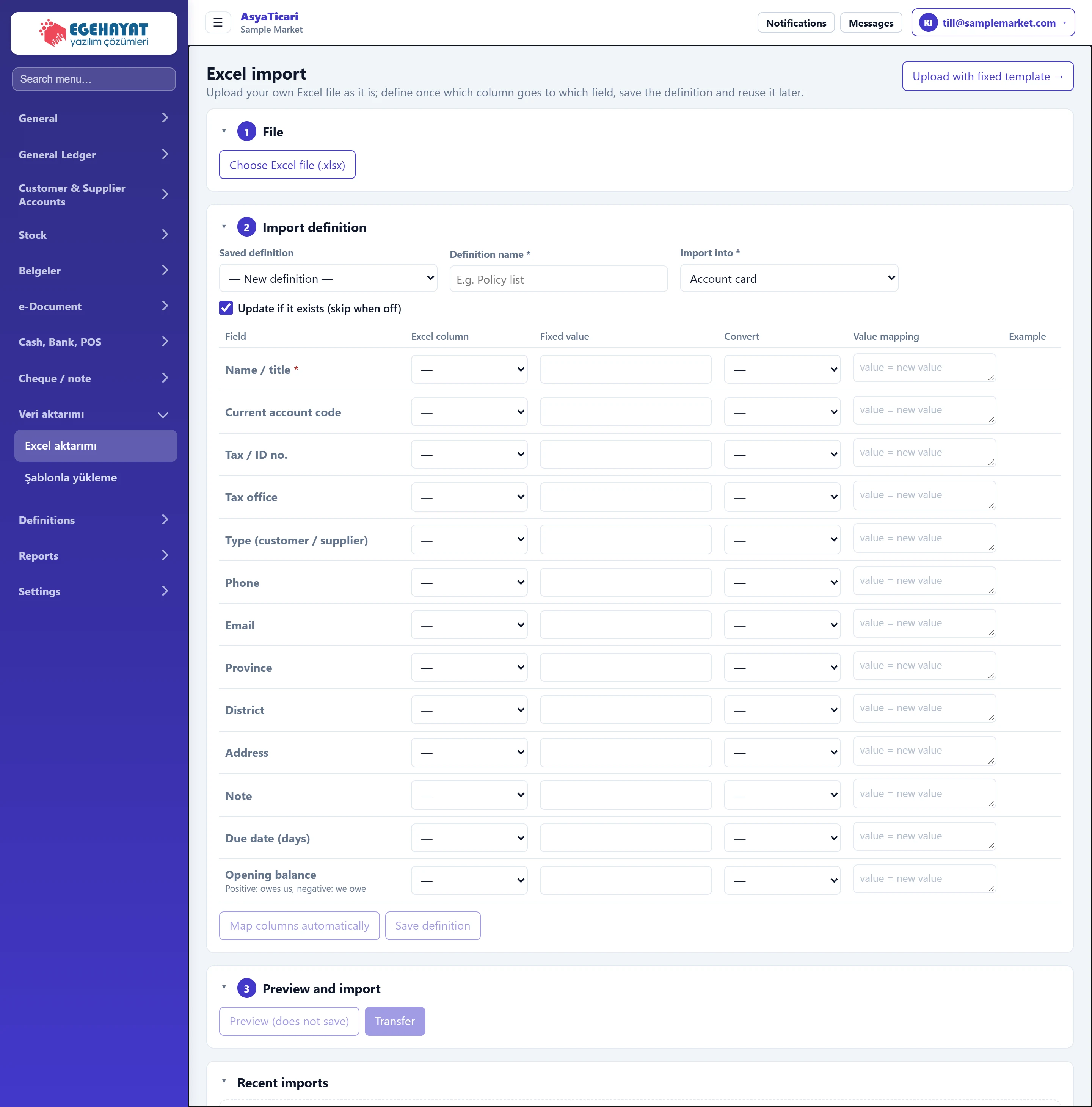
- 1Excel import Screen title and short description.
- 2Upload with fixed template → Switches to the fixed-template upload screen.
- 31 The step where you choose the Excel file.
- 42 The step where you define which column goes to which field.
- 53 First test-runs without saving, then imports.
If you don't have a list yet, the Upload with fixed template → link at the top right opens the Template upload screen, which provides an empty template to fill in.
1. File
Choose your file with Choose Excel file (.xlsx). The file is read; the sheet list and the first four rows of the selected sheet are shown as a sample. Nothing is saved at this step.
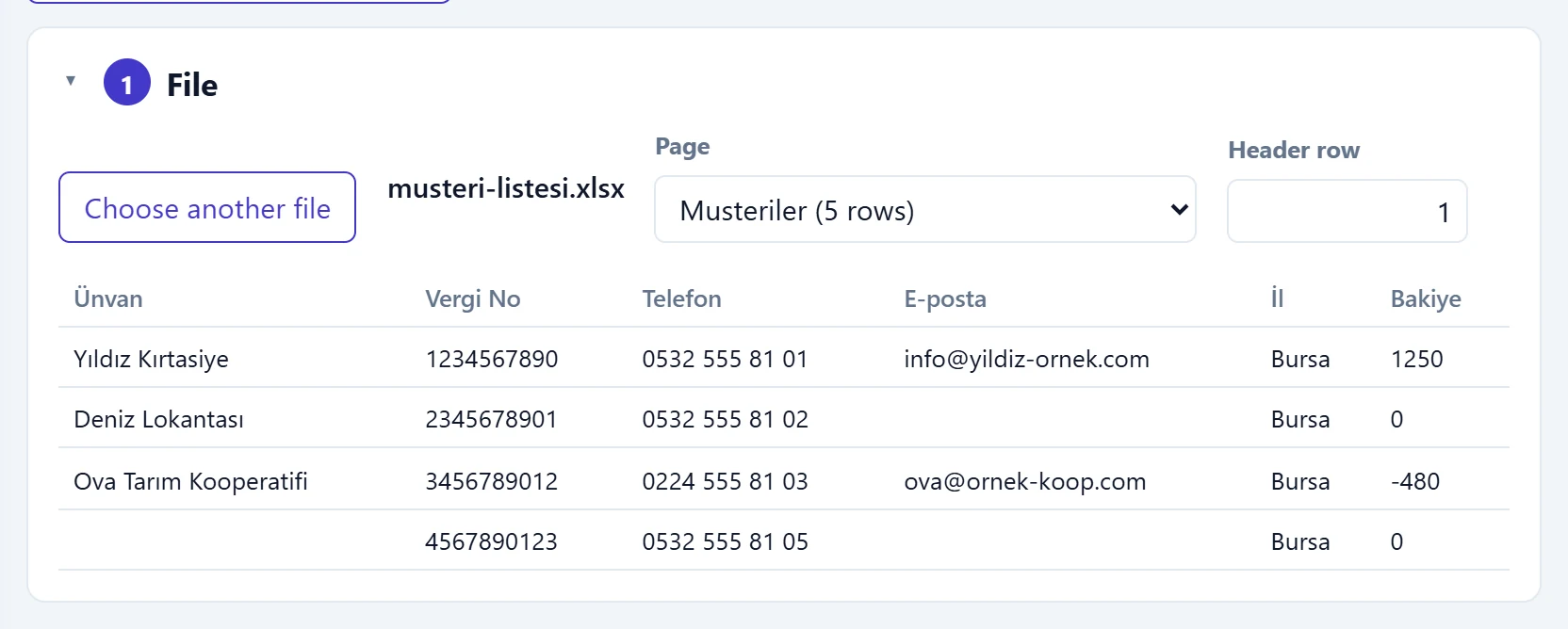
- 1Choose file Selects an .xlsx file from your computer (max. 10 MB).
- 2Selected file Name of the uploaded file.
- 3Sample rows Headers and first four rows of the selected sheet.
| Field | Sign in | Description |
|---|---|---|
| Choose another file | Text | Replaces the selected file; sheets and columns are read again for the new file. |
| Page | Choice list | If the file has several sheets, the sheet to import. The number of data rows is shown in brackets. |
| Header row | Text | Row number containing the column names (default 1). Increase it if there are title / logo rows above. |
2. Import definition
First choose the target in Import into; the mapping table fills with that target's fields. Then Map columns automatically compares the headers with the field names and maps them. Correct any field that is not mapped or mapped wrongly in the table.
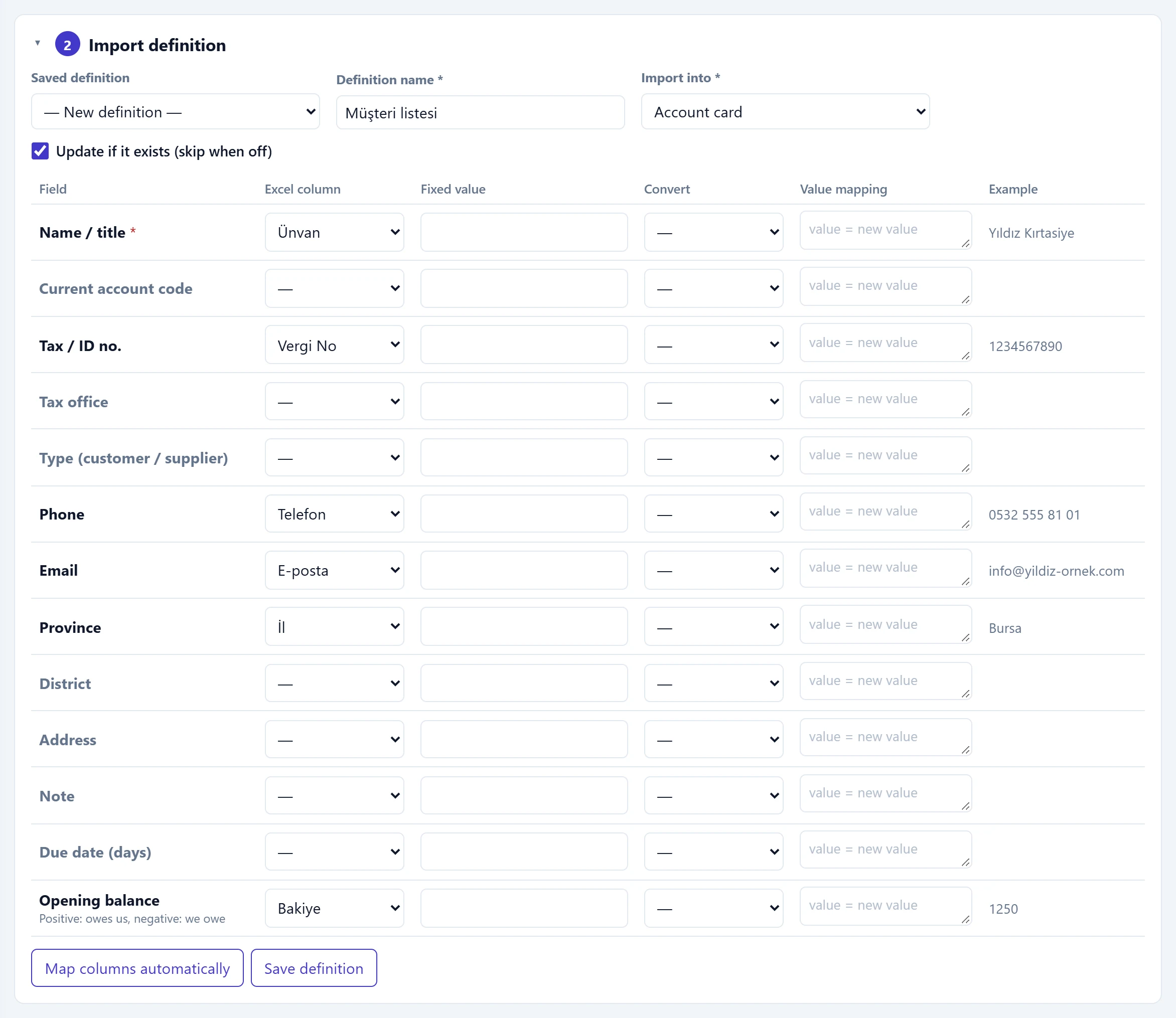
- 1Excel column The Excel column the field value is read from.
- 2Fixed value A fixed value written to every row instead of a column.
- 3Convert Upper / lower case or digits-only conversion.
- 4Value mapping One mapping per line: value in Excel = value to write.
- 5Example The value read from the first row according to the mapping.
- 6Map columns automatically Maps fields automatically by looking at the column headers.
- 7Save definition Saves the mapping under its name for reuse with later files.
| Field | Sign in | Description |
|---|---|---|
| Saved definition | Choice list | Recalls a mapping you saved earlier. «— New definition —» starts with an empty definition. |
| Definition name required | Text | Name used to save the definition (e.g. «Customer list»). Two definitions cannot share a name. Placeholder: «E.g. Policy list» |
| Import into required | Choice list | What each row becomes: account card, material, service, account opening / voucher, contract, quote, order, invoice, cheque / note or cash / bank movement. |
| Update if it exists (skip when off) | Checkbox | If on, a card with the same code / tax number is updated; if off, the row is skipped. |
Columns of the mapping table:
| Column | Purpose |
|---|---|
| Field | Field of the target record. Fields marked with * are required; the grey text below is a hint. |
| Excel column | The column the value is read from. With «—» the field stays empty. |
| Fixed value | A value written to every row when the file has no such column (e.g. «Bursa» for the province). |
| Convert | UPPER CASE, lower case, Title Case or Digits only (for phone and tax numbers). |
| Value mapping | One mapping per line: value in Excel = value to write (e.g. S = Supplier). |
| Example | The value read from the first row of the file after mapping. |
The options on screen depend on the target:
| Target | Extra options |
|---|---|
| Account card, Item card, Service card | Update if it exists (skip when off) |
| Contract, quote, sales order, sales / purchase invoice | Link to the existing account if found, Create a new account if not found; for contracts and quotes Confirm on import (do not leave as draft). Invoices and orders are created as drafts. Add extra field defines extra fields such as plate or policy number. |
| Account opening balance / voucher, Cheque / note portfolio, Cash / bank movement | Create a new account if not found and a short target-specific explanation |
Save definition stores the mapping under the Definition name. For the next file, simply choose it from Saved definition. While a saved definition is selected, Delete definition also appears; deleting does not affect records already imported.
3. Preview and import
Preview (does not save) test-runs the file with the definition and shows the result without writing anything. The counters show how many rows will be added, updated, skipped and how many have errors; the table shows the result of each Excel row and any error text. The import button (Transfer on the English screen) is enabled only when the preview has rows to add or update.
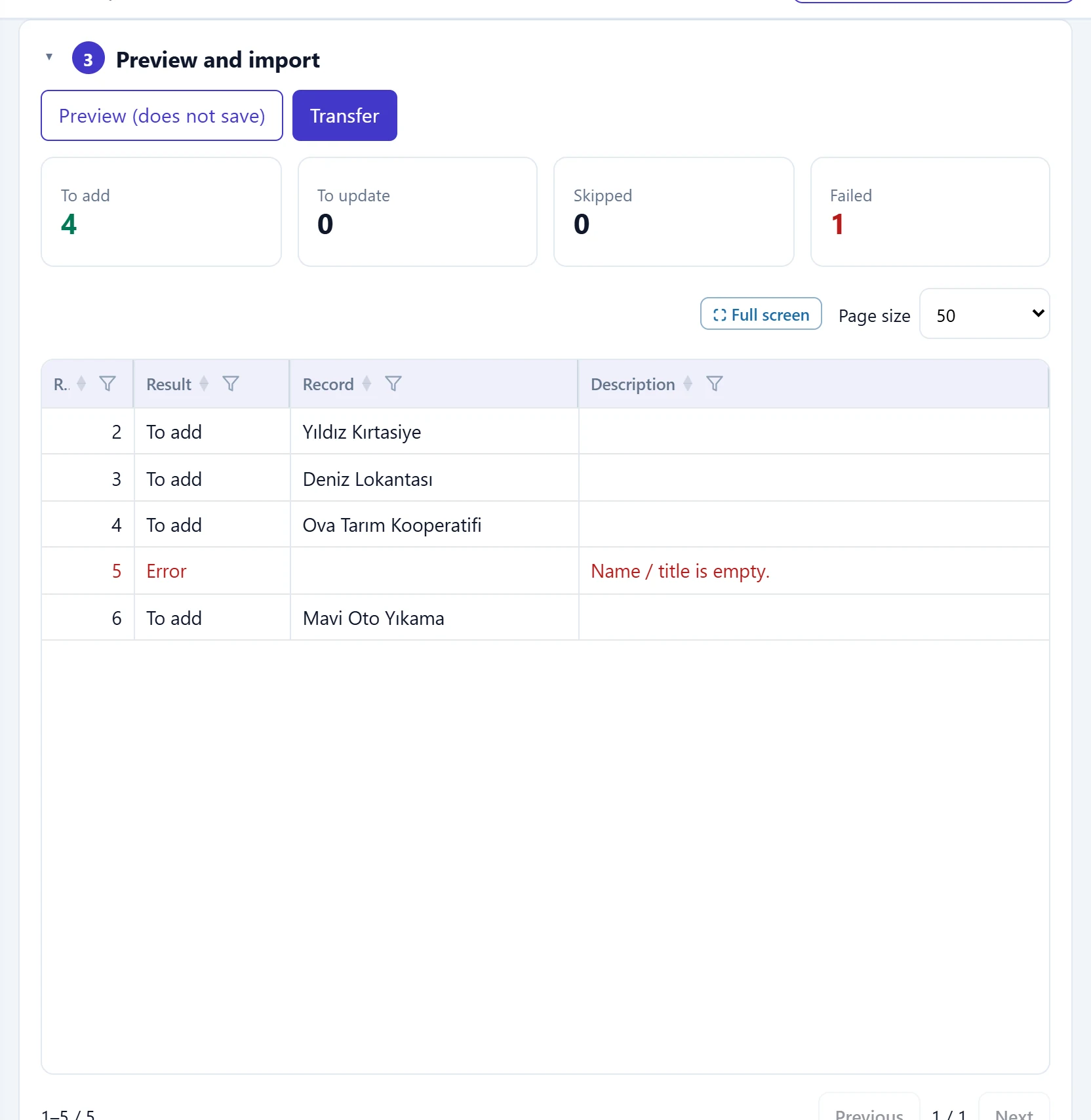
- 1Preview (does not save) Test-runs the file with the definition; writes nothing.
- 2Transfer Enabled when the preview has rows to add / update; asks for confirmation and writes the records.
- 3Result counters Number of rows to add, to update, skipped and with errors.
- 4Row result Result and explanation for each Excel row.
Recent imports
The bottom panel lists the imports with date, definition, target, file and the number of successful and failed rows. Undo reverses an import: created records are deleted, updated cards return to their previous state and created documents are cancelled. An undone import shows «Undone» and the time.
Step by step: importing an account list
- Choose the list with Choose Excel file (.xlsx); check that the right sheet is selected and look at the sample rows.
- If the headers are not on the first row, correct the Header row number.
- Choose Account card in Import into.
- Press Map columns automatically; check that required fields such as Name / title are mapped.
- If needed, correct values with Convert and Value mapping; look at the Example column.
- Enter a Definition name and press Save definition (optional).
- Look at the result with Preview (does not save); correct failed rows in Excel and choose the file again.
- Press the import button, check the numbers in the confirmation window and confirm.
When importing opening balances, a positive amount means «owes us» and a negative amount «we owe» (hint under the field).
Once confirmed, the records are written immediately. Instead of fixing a wrong import by hand, use Undo in Recent imports, so that created cards, documents and balances are reversed together.
Common messages
| Message | Cause | Solution |
|---|---|---|
| The file cannot be larger than 10 MB. | The selected file is larger than 10 MB. | Split the file or delete unneeded sheets. |
| The file could not be opened as Excel (.xlsx). | The file is .xls, .csv or damaged. | Save it again as «.xlsx» in Excel. |
| Definition name is required. | Save definition was pressed with an empty name. | Give the definition a name. |
| A definition with this name already exists. | A saved definition has the same name. | Use another name or select and update the saved definition. |
| Name / title is empty. | The name column of the row is empty (account import). | Fill in the name in Excel or delete the row. |
| Code and name are required. | Code or name missing on an item / service row. | Map and fill both columns. |
| Exists; updating is off. | The card exists and Update if it exists is off. | Tick the option if you want to update. |
| No lines: map an amount, unit price or line description. | No line information mapped for a document import. | Map amount or unit price and the line columns. |
| This account already has an opening balance. To change it, cancel it from the statement first. | The account already has an opening entry. | Cancel the old opening in the statement and import again. |
| This serial number is already registered. | The portfolio already has a cheque / note with this serial number. | Remove the row from the file. |
| Cash / bank account is empty. | The account column is empty in a cash / bank movement. | Write the account name exactly like the defined cash register / bank. |