
 AsyaTicari
 AsyaRestoran
 AsyaOtel
 AsyaCrm
 AsyaKlinik
 AsyaSpor
 AsyaSSH
 AsyaEmlak
 AsyaFilo
 AsyaPuantaj
 AsyaİSG
 AsyaİHD
 Kolay Öğren
AsyaCrm · Stock
Stock count
Counting a warehouse by barcode, comparing system and counted quantities and posting the differences to stock.
On the Inventory count screen you count the products in a warehouse by scanning barcodes, see the difference from the system quantity and, once you confirm, set stock to the counted quantity.
Opening the screen
In the side menu click Stock → Inventory count.
ortak · /stok/sayim
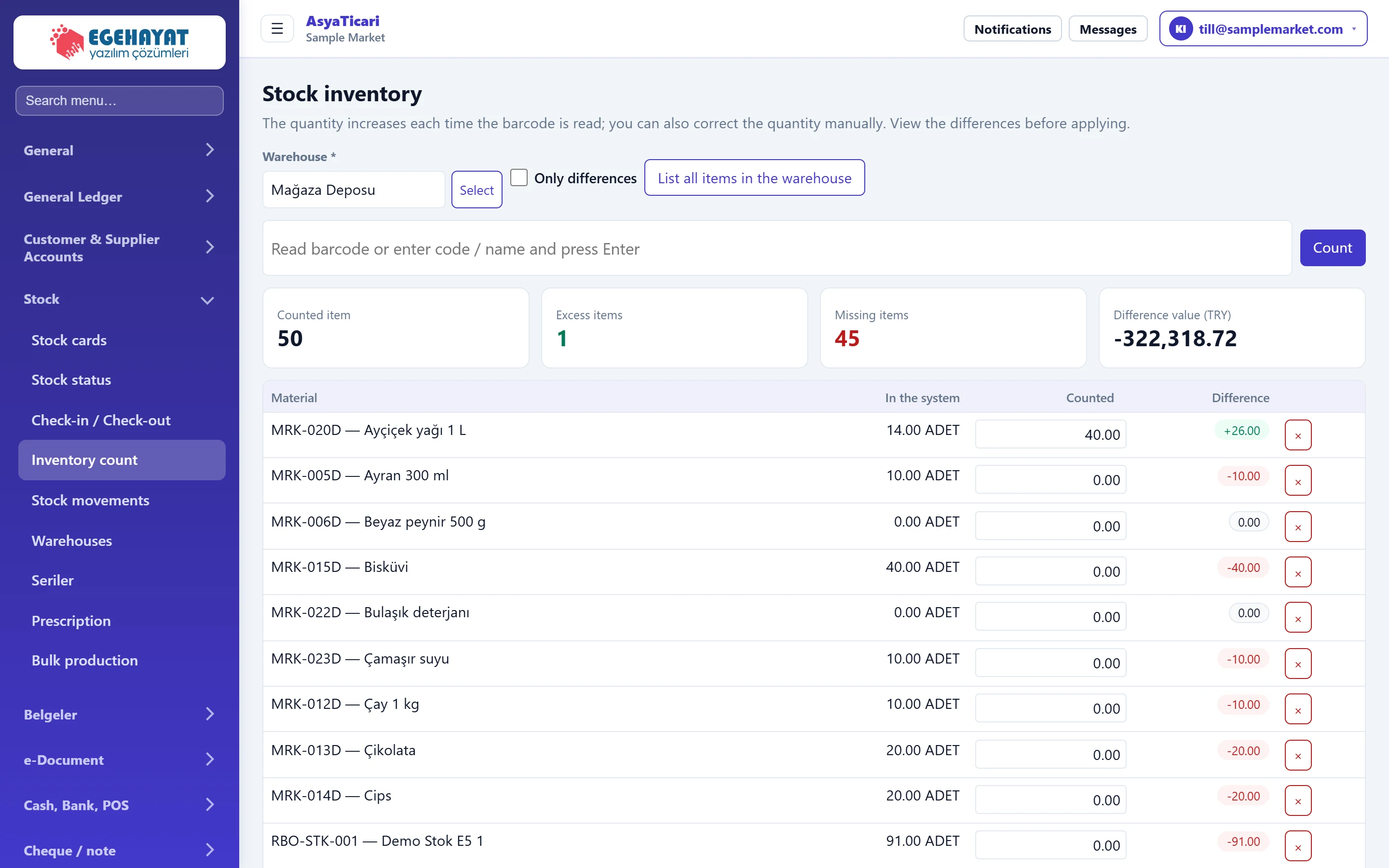
- 1Warehouse Warehouse being counted.
- 2List all items in the warehouse Lists every item in the warehouse with its system quantity.
- 3Barcode Each scan adds 1 to the counted quantity.
- 4Summary Counted, surplus and missing items and the difference value.
- 5Difference Counted − system; plus is surplus, minus is missing.
- 6Apply inventory Brings the differences up for confirmation; once confirmed, stock equals the counted quantity.
Warehouse and listing
Part of the screenWarehouse and listing

- 1List all items in the warehouse Lists all items with counted = 0; fill them in as you count.
| Field | Sign in | Description |
|---|---|---|
| Warehouse required | Text | Warehouse being counted. Apply or clear the count before changing it. Placeholder: «— Select warehouse —» |
| Only differences | Checkbox | If ticked, only rows where system and counted quantities differ are shown. |
Count summary
Part of the screenCount summary

- 1Counted item Number of items in the list.
- 2Excess items Items counted above the system quantity.
- 3Missing items Items counted below the system quantity.
- 4Difference value (TRY) Value of the differences at cost.
Counting: step by step
- Choose the Warehouse.
- Scan product barcodes or type a code / name and press Enter (or Count). Each scan adds 1 to the counted quantity; you can also correct it in the row.
- To cover the whole warehouse, press List all items in the warehouse; products not counted are listed with 0.
- Check the Difference column and the summary cards. Only differences shows just the rows with a difference.
- Press Apply inventory, then Yes, apply in the confirmation. The message «Inventory difference processed for N item.» appears.
Applying the count sets stock to the counted quantity. If you used List all items in the warehouse, products you did not count are treated as 0; delete or count those rows before applying.
Common messages
| Message | Cause | Solution |
|---|---|---|
| Barcode not found: … | The scanned barcode is on no card. | Add the barcode to the card or search the product by name. |
| There is a difference in N item. It will be equalized to the counted stock amount when the count is applied. | Confirmation question. | If correct, Yes, apply; otherwise Cancel. |
| Please define a warehouse first. | The company has no warehouse. | Add one under Stock → Warehouses. |