
 AsyaTicari
 AsyaRestoran
 AsyaOtel
 AsyaCrm
 AsyaKlinik
 AsyaSpor
 AsyaSSH
 AsyaEmlak
 AsyaFilo
 AsyaPuantaj
 AsyaİSG
 AsyaİHD
 Kolay Öğren
AsyaTicari · Stock
Bulk production
Producing recipe products in bulk based on sales or stock shortage; consumption and waste slips are issued automatically.
The Bulk production screen produces recipe products in bulk based on a period's sales or the stock shortage. The produced item enters stock; raw materials are reduced according to the recipe and consumption and waste slips are issued automatically.
The screen appears in the menu only when the recipe feature is enabled for the company.
Opening the screen
In the side menu click Stock → Bulk production.
ortak · /stok/uretim
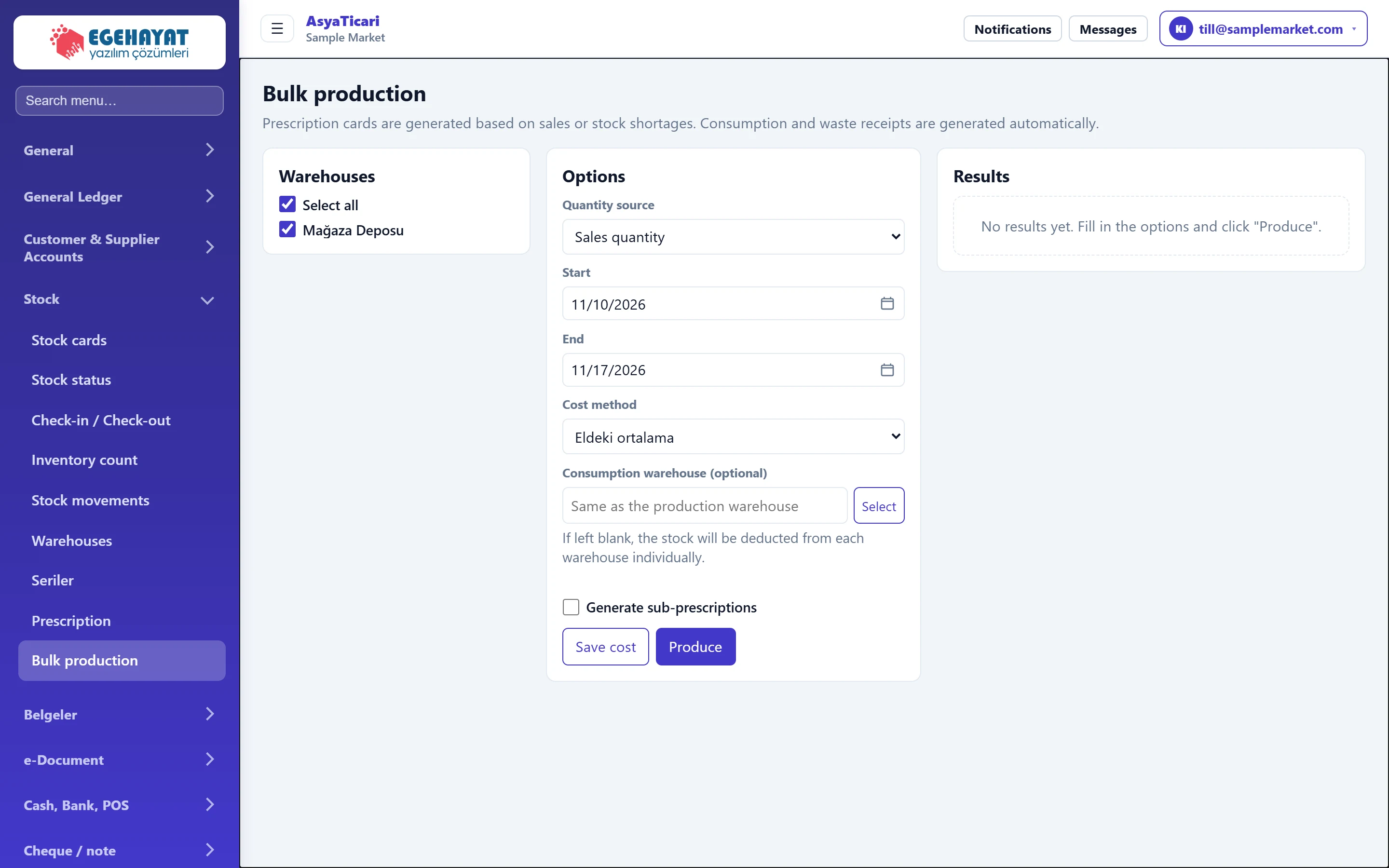
- 1Warehouses Warehouses where production takes place.
- 2Options Quantity source, date range and costing method.
- 3Produce Starts production; consumption and waste slips are issued automatically.
- 4Results Produced items, quantity and cost.
Warehouses and options
Part of the screenWarehouses and options
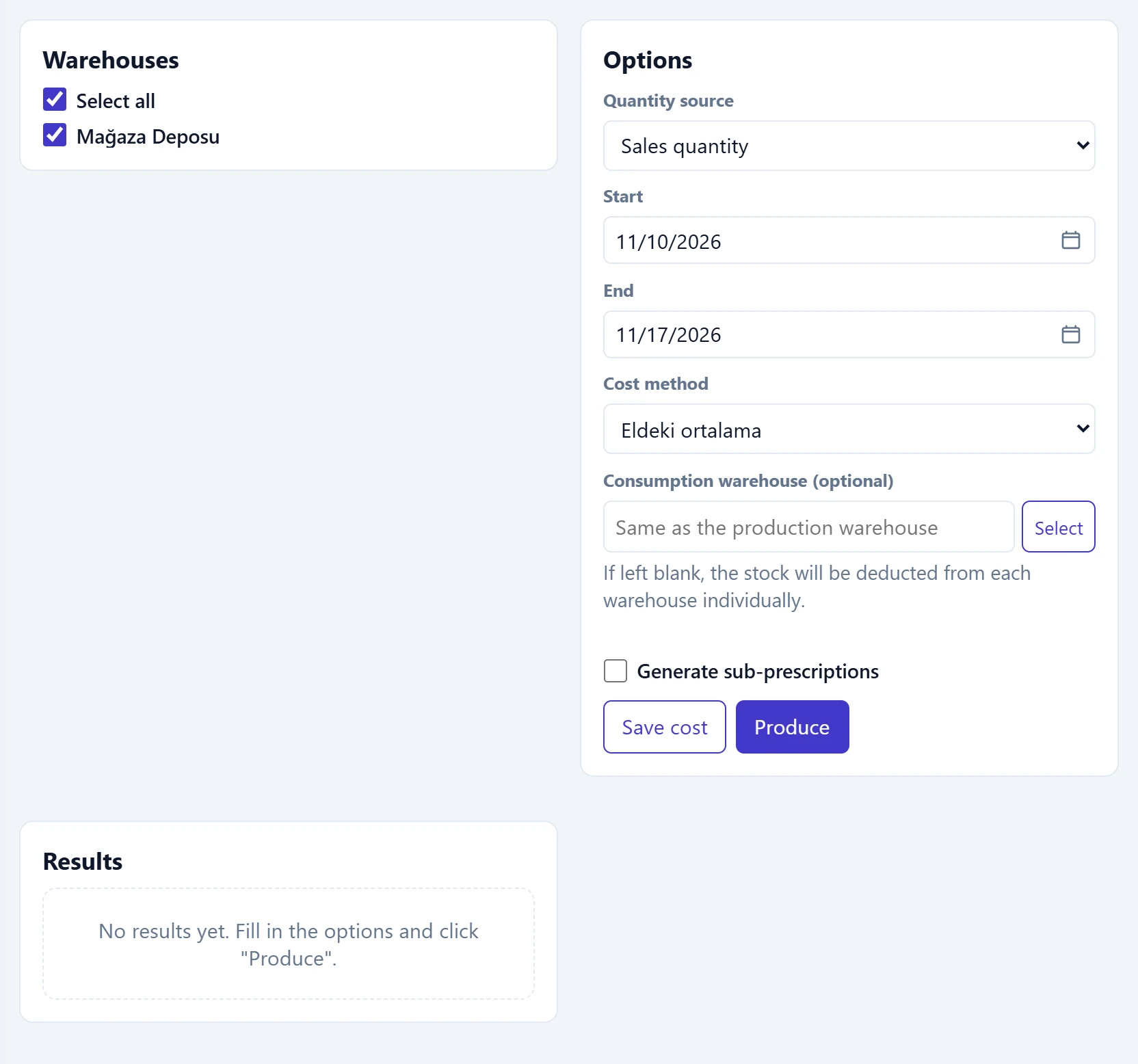
- 1Save cost Makes the selected costing method the company default.
- 2Produce Runs production.
| Field | Sign in | Description |
|---|---|---|
| Select all | Checkbox | Selects / clears all warehouses. |
| Mağaza Deposu | Checkbox | Warehouse list: production takes place in ticked warehouses. |
| Quantity source | Choice list | Sales quantity, stock shortage, sales minus production or sales minus transfer. Options: Sales quantity · Stock shortage · Sales minus production · Sales minus transfer |
| Start | Text | First day of the period for sales-based sources (defaults to 7 days ago). Placeholder: «mm/dd/yyyy» |
| End | Text | Last day of the period. Placeholder: «mm/dd/yyyy» |
| Cost method | Choice list | How the finished product cost is calculated; «Save cost» makes it the company default. |
| Consumption warehouse (optional) | Text | Warehouse raw materials are taken from; if blank, each warehouse uses its own stock. Placeholder: «Same as the production warehouse» |
| Generate sub-prescriptions | Checkbox | Also produces semi-finished products with their own recipes. |
Running production: step by step
- In the Warehouses panel tick the warehouses where production takes place.
- Choose the Quantity source:
- Sales quantity: as much as was sold in the period is produced.
- Stock shortage: as much as is missing / negative is produced.
- Sales minus production and Sales minus transfer: earlier production or transfers are deducted from sales.
- Choose the Start and End dates and the Cost method.
- If raw materials should be taken from another warehouse, choose the Consumption warehouse (optional).
- Press Produce. The Results panel lists the produced items, quantities and costs; the message «Bulk production completed.» appears.
Production creates stock movements. If you run it twice for the same period with the Sales quantity source, the products are produced twice; use Sales minus production for the second run.
Common messages
| Message | Cause | Solution |
|---|---|---|
| Select warehouse. | No warehouse is ticked. | Tick at least one warehouse. |
| Production quantity not found. | No sales / shortage of recipe products in the chosen source and period. | Change the date range or quantity source. |
| Production quantity must be greater than zero. | The calculated quantity is zero. | Check the source / period. |
| This card has no prescription. | The product to produce has no recipe. | Define one under Stock → Recipe. |
| Prescription and production are disabled for this company. | The feature is off. | Your administrator enables it in the Control panel. |