
 AsyaTicari
 AsyaRestoran
 AsyaOtel
 AsyaCrm
 AsyaKlinik
 AsyaSpor
 AsyaSSH
 AsyaEmlak
 AsyaFilo
 AsyaPuantaj
 AsyaİSG
 AsyaİHD
 Kolay Öğren
AsyaİSG · Cheque / note
Cheque / note portfolio and details
List, summaries and filters of received and issued cheques / notes; on the detail screen endorse, collect, bounce, return, edit and undo.
This screen changed recently. Screenshots will be retaken after the code change of 2026-11-19; the text is current, some images may look outdated.
The Portfolio screen shows all received and issued cheques / notes in one list. Click a row to open the detail screen, where you carry out the next steps of the cheque (endorse, hand over for collection, collected, bounced, return …). Each step creates the account and cash / bank records automatically.
Opening the screen
Open Cheque / note → Portfolio in the side menu.
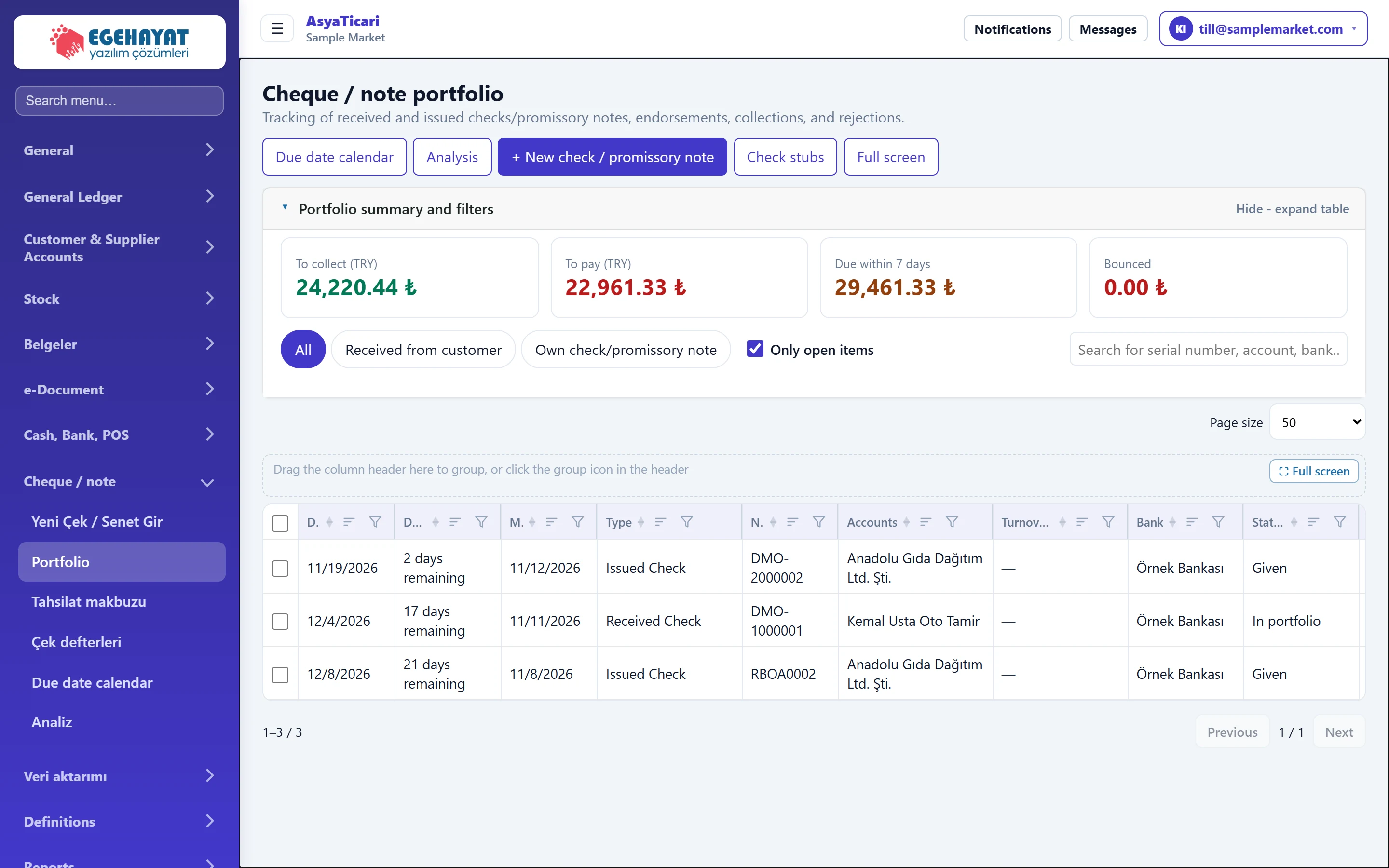
- 1Due date calendar Day-by-day calendar by due date.
- 2Analysis Daily / weekly / monthly summary.
- 3+ New check / promissory note Window for entering a new cheque / note.
- 4Check stubs Shows your own cheque books and their leaves.
- 5Summary and filters Hides the summary cards and filters; the table gets bigger.
- 6Portfolio list Cheques / notes; click a row to open the details.
Portfolio summary and filters
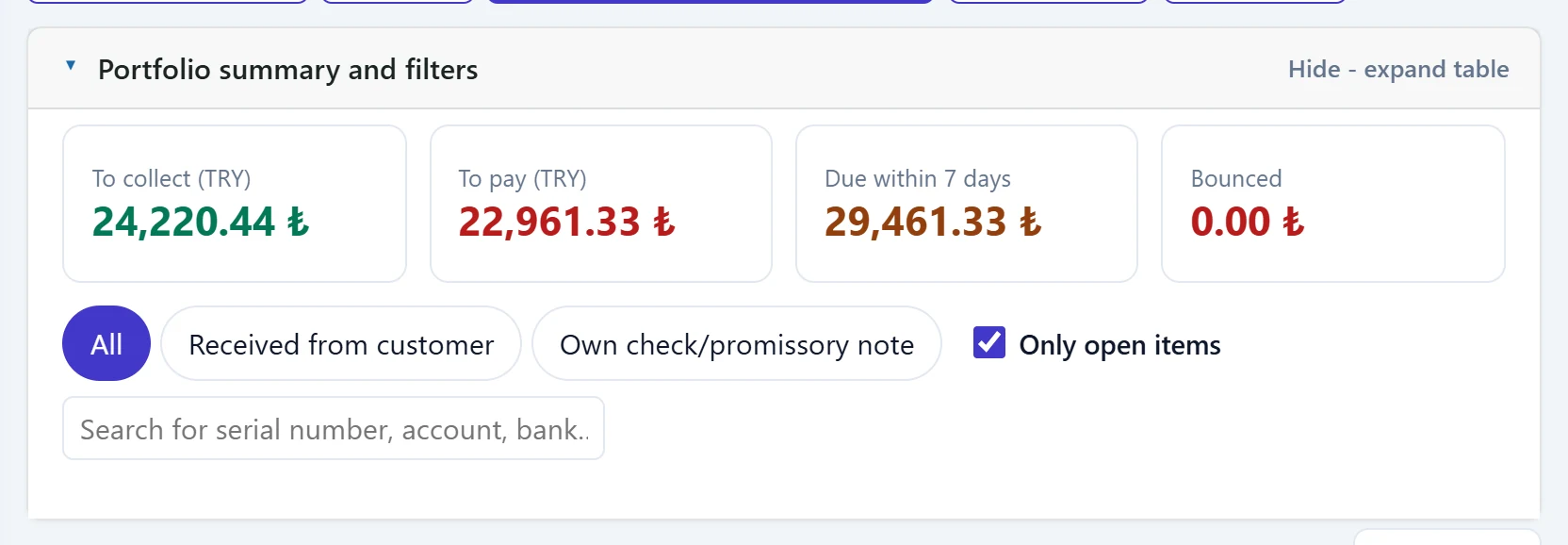
- 1To collect Amount received from customers but not yet collected (per currency).
- 2To pay Amount of cheques / notes you issued that are not yet paid.
- 3Due within 7 days Open items due within 7 days.
- 4Bounced Total of bounced cheques / notes.
- 5Direction All, Received from customer, Own cheque / note.
- 6Open only When ticked, only items in hand: in portfolio and issued. Items at the bank and closed items are hidden.
- 7Search Searches by serial no, account or bank name.
Only open items is ticked when the screen first opens; your choice is remembered in this browser. Clicking the summary heading hides the cards and filters so the table gets bigger. The full-screen button spreads the portfolio over the whole screen; click it again to shrink.
Portfolio list
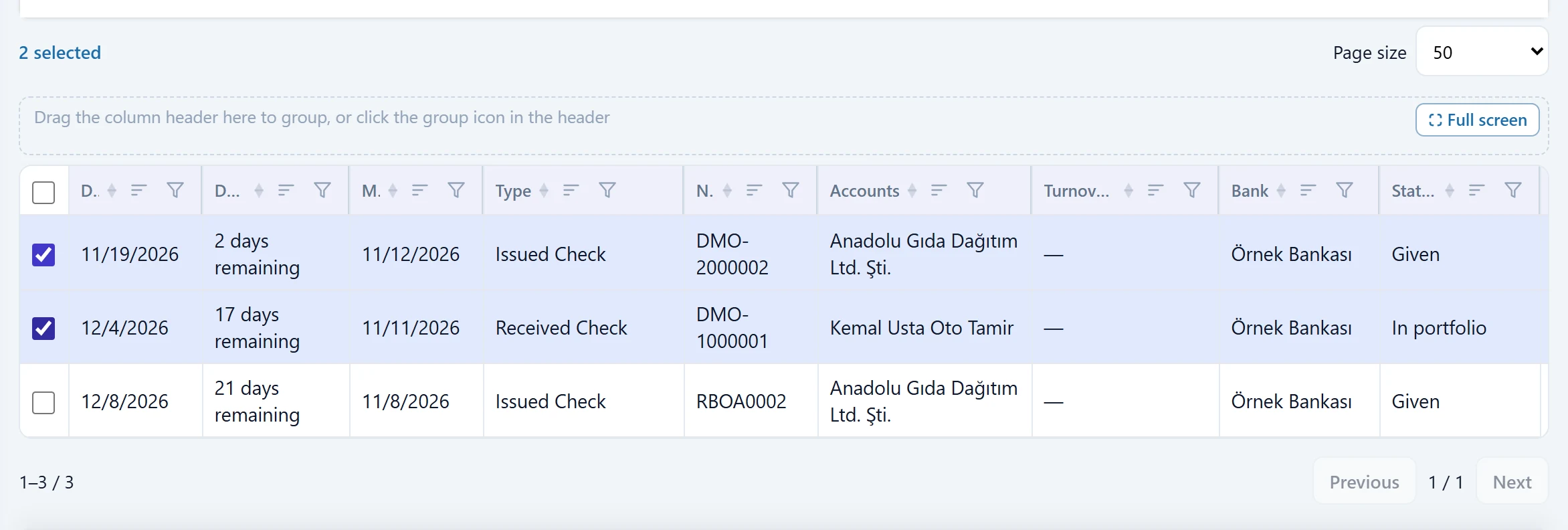
- 1Due date Due date; days left / overdue below it.
- 2Selection Tick rows to see the selected total.
- 3Cheque / note row Click the row to open the cheque / note details.
When you tick rows, the number of selected records and the total by direction / currency appear below:

- 1Selected Number of selected records.
- 2Selected total Selected total by direction and currency.
- 3Clear selection Clears the ticks.
The cheque books button opens your own books and their leaves below the list (details: Cheque books topic).
Cheque / note details
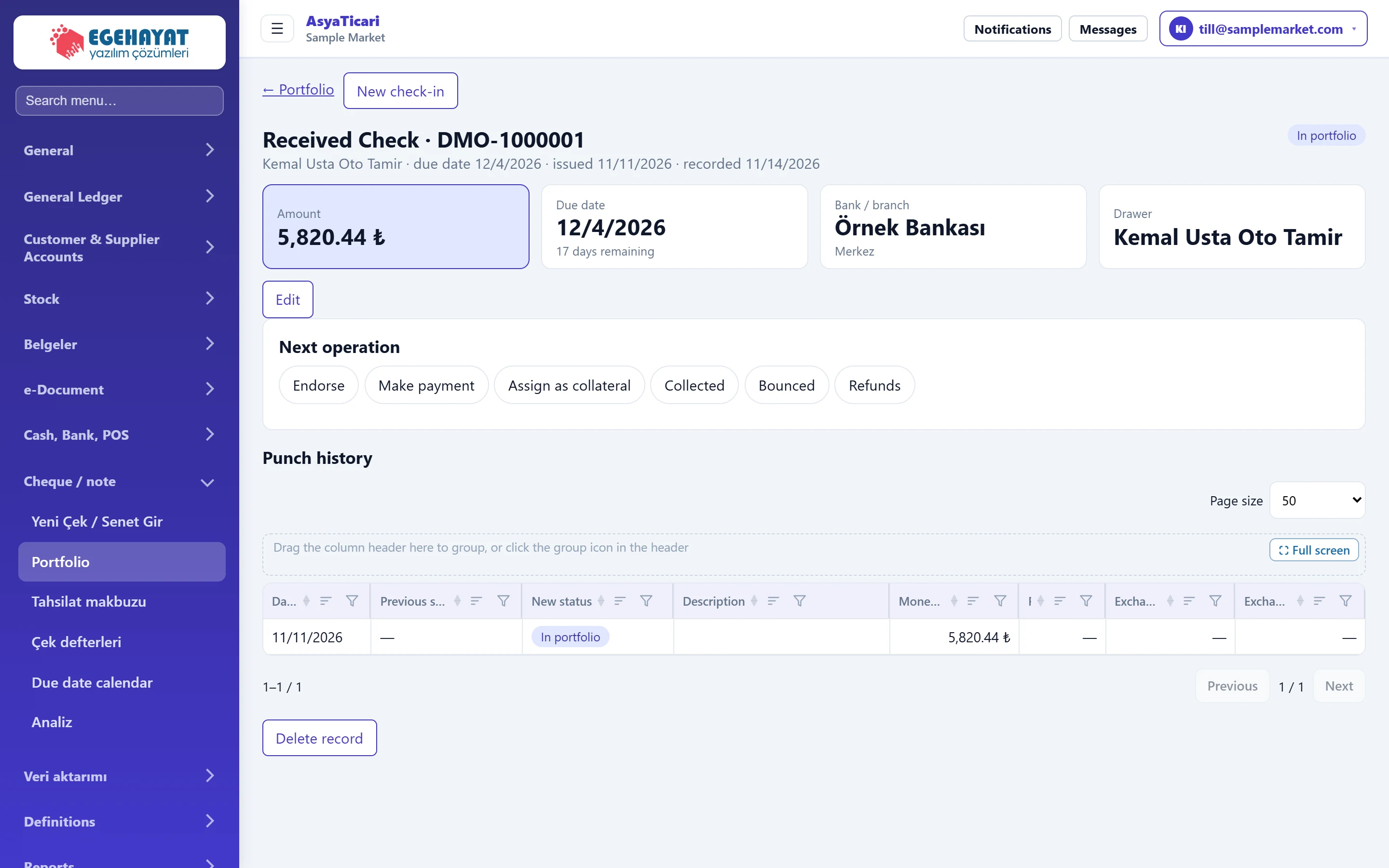
- 1Received Check · DMO-1000001 Direction, type and serial no; below: account, due date and issue date.
- 2Status Current status (In portfolio, At bank for collection, Endorsed …).
- 3Summary Amount, due date (days left), bank / branch, drawer.
- 4Edit Corrects the details of an open cheque / note.
- 5Next action Actions possible from the current status.
- 6History All statuses of the cheque and the linked money transactions.
- 7Undo / delete Undoes the last movement (or deletes the record if there is only one).
The details show the amount, due date (days left / overdue), bank / branch, drawer, endorsee and currency information as cards. If a cheque image was added, click the thumbnail to see it full size.
Statuses and next actions
| Direction | Status | Possible actions |
|---|---|---|
| Received | In portfolio | Endorse, Hand over for collection, Give as collateral, Collected, Bounced, Return |
| Received | At bank for collection | Collected, Bounced, Protest, Take back to portfolio |
| Received | Given as collateral | Take back to portfolio, Collected |
| Received | Endorsed | Collected, Bounced, Return (cheque goes back to the portfolio) |
| Received | Bounced | Return, Collected, Protest |
| Received | Protested | Return, Collected |
| Issued | Issued | Paid, Return |
The accounting effect of the action is written in the blue box below the form; for example for Collected «the cheque amount goes into the register / bank», for Bounced «the amount is added back to the customer's debt».
Collected
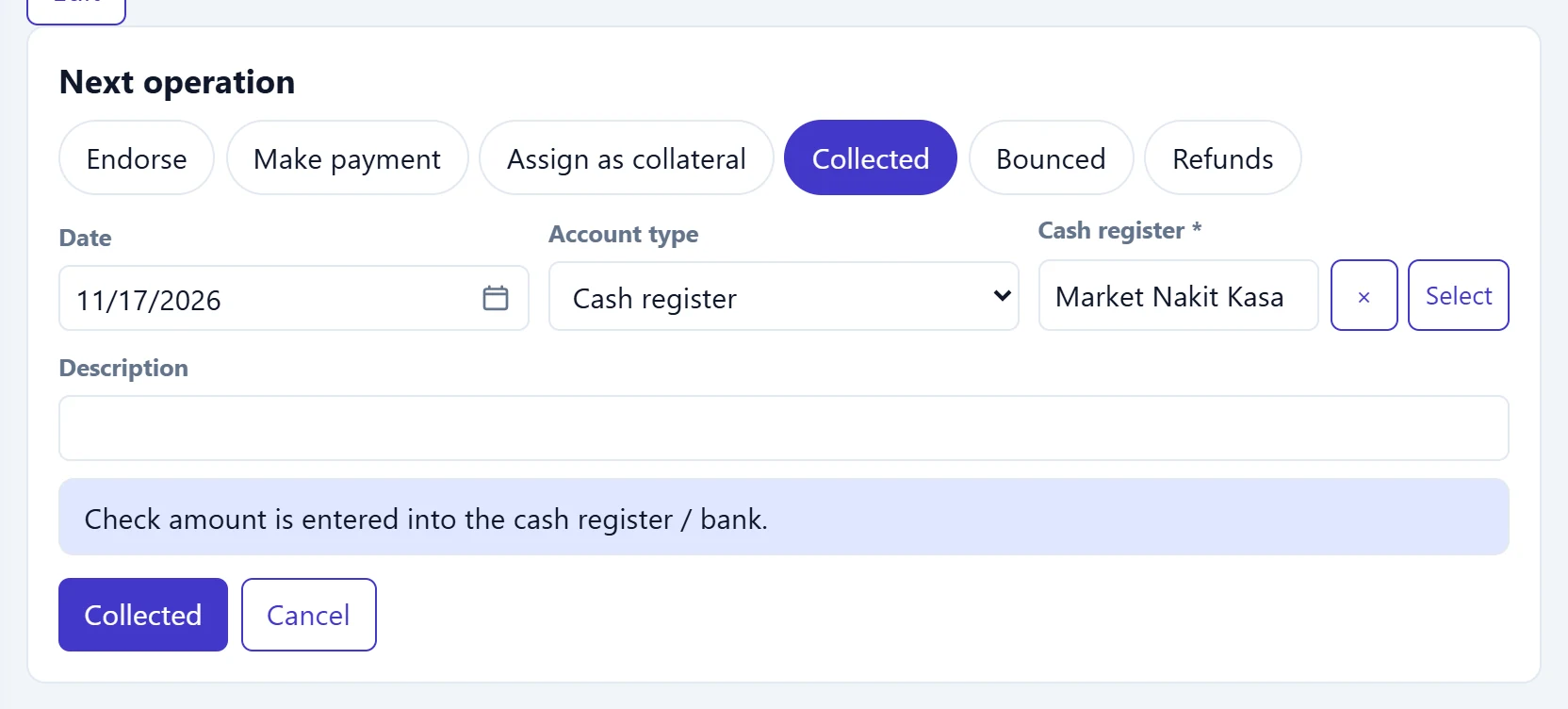
- 1Endorse Gives the cheque to another account as payment.
- 2Make payment Hands the cheque to the bank for collection.
- 3Assign as collateral Gives the cheque to the bank as loan collateral.
- 4Collected The cheque amount was received into the register / bank.
- 5Bounced The cheque bounced; the amount is added back to the customer's debt.
- 6Refunds The cheque is returned to the customer.
- 7Info Accounting effect of the selected action.
| Field | Sign in | Description |
|---|---|---|
| Date | Text | Transaction date; defaults to today. Placeholder: «mm/dd/yyyy» |
| Account type | Choice list | Account receiving the money: Register or Bank. Options: Cash register · Bank |
| Cash register required | Text | Register receiving the money (if account type is Register). Placeholder: «— Select —» |
| Description | Text | Note on the movement. |
Endorse
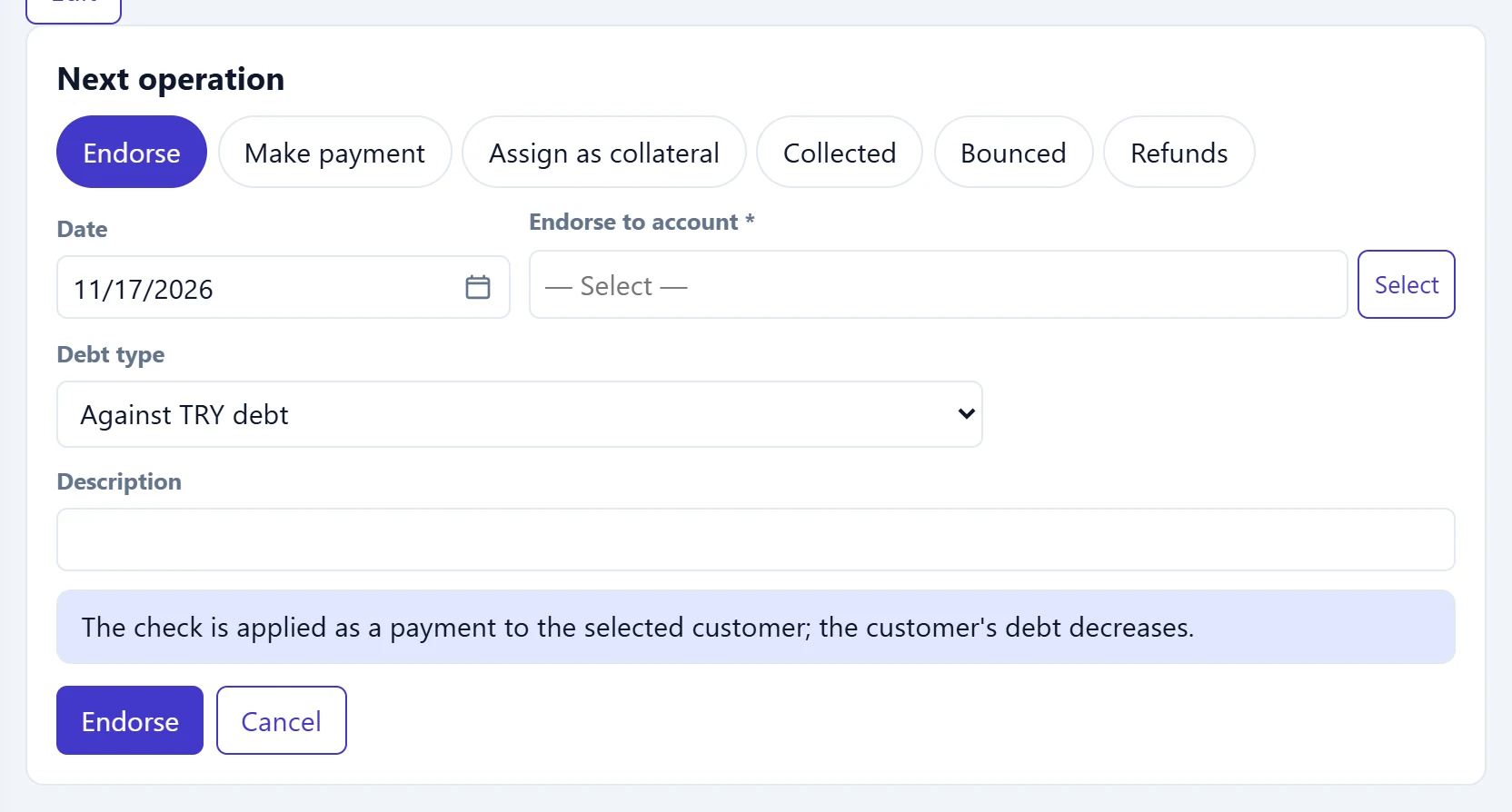
- 1Save Saves the action; the button label follows the selected action.
| Field | Sign in | Description |
|---|---|---|
| Date | Text | Endorsement date. Placeholder: «mm/dd/yyyy» |
| Endorse to account required | Text | Account you pass the cheque to (supplier etc.); your debt to it decreases. Placeholder: «— Select —» |
| Debt type | Choice list | Whether the cheque counts against a TRY debt or a foreign currency debt. Options: Against TRY debt · To foreign currency liability |
| Description | Text | Note on the movement. |
If a foreign currency debt is chosen as the debt type, the endorsement rate is asked; when the cheque is collected, the difference between the endorsement rate and the collection rate is recorded as an exchange difference.
Step by step: handing a cheque to the bank for collection and collecting it
- Click the cheque's row in the portfolio.
- In the Next action card choose hand over for collection, select the bank and account and click the button. No money comes in yet; the status becomes «At bank for collection».
- When the bank has collected the cheque, choose Collected on the same screen. The money goes into the bank account chosen when handing it over; no account is asked again.
- Check the date and click Collected. The cheque is closed.
Editing and undoing
- Edit appears only for open cheques / notes (in portfolio, at bank, as collateral, issued); account, number, amount, dates, bank and image can be corrected.
- Undo last transaction deletes the last action and the money record it created; the cheque returns to its previous status. For a record with only one movement the button is Delete record and the cheque / note is removed completely. Both ask for confirmation.
Undoing also deletes the cash / bank and account records. Before undoing a paid or collected action, make sure the bank account really contains an error.
Common messages
| Message (as shown on screen) | Cause | Solution |
|---|---|---|
| Select the customer to be invoiced. | The account is empty when endorsing. | Select the endorsee account. |
| Select the cash register or bank where the payment was made. | No account chosen for Collected. | Select the register or bank account. |
| Select bank account. | No account chosen when handing to the bank. | Select the bank and account. |
| Enter the exchange rate for turnover in foreign currency. | The rate is empty. | Enter the Rate. |
| Invalid collection rate. | Wrong collection rate on a foreign currency cheque. | Correct the rate or leave it empty (the day's rate is used). |
| Only open checks/promissory notes can be issued. First, undo the last movement. | A closed cheque was edited. | Undo the last movement first. |
| Amount depends on current or directional money movement. First, undo the last movement. | The amount / account of a cheque with movements was changed. | Undo the last movement and redo it. |
| This punch is matched with invoices; remove the matching first. | The money record to undo is matched to an invoice. | Remove the matching on the account screen. |
| The form is out of date; reopen editing. | The record changed elsewhere. | Refresh the page and edit again. |
| There are … collection records linked to this cheque / note (…). Delete that record on the cash / bank screen first, then delete the cheque. | A separate money record is linked to the cheque via a Collection receipt; deleting the cheque would leave it orphaned in cash / bank. | Delete the record with the date and amount in the message from the row menu on the Cash or Bank screen, then delete the cheque. |