
 AsyaTicari
 AsyaRestoran
 AsyaOtel
 AsyaCrm
 AsyaKlinik
 AsyaSpor
 AsyaSSH
 AsyaEmlak
 AsyaFilo
 AsyaPuantaj
 AsyaİSG
 AsyaİHD
 Kolay Öğren
AsyaSpor · Definitions
Service definitions
Cards for sales items without stock (labour, installation, maintenance, session packages) with price, VAT, withholding, unit set and package details.
This screen changed recently. Screenshots will be retaken after the code change of 2026-11-19; the text is current, some images may look outdated.
Services are the cards of sales items that do not keep stock: labour, installation, maintenance contracts, session packages. Service cards are shared by all products; in documents, quick sale and contracts they are chosen like item cards.
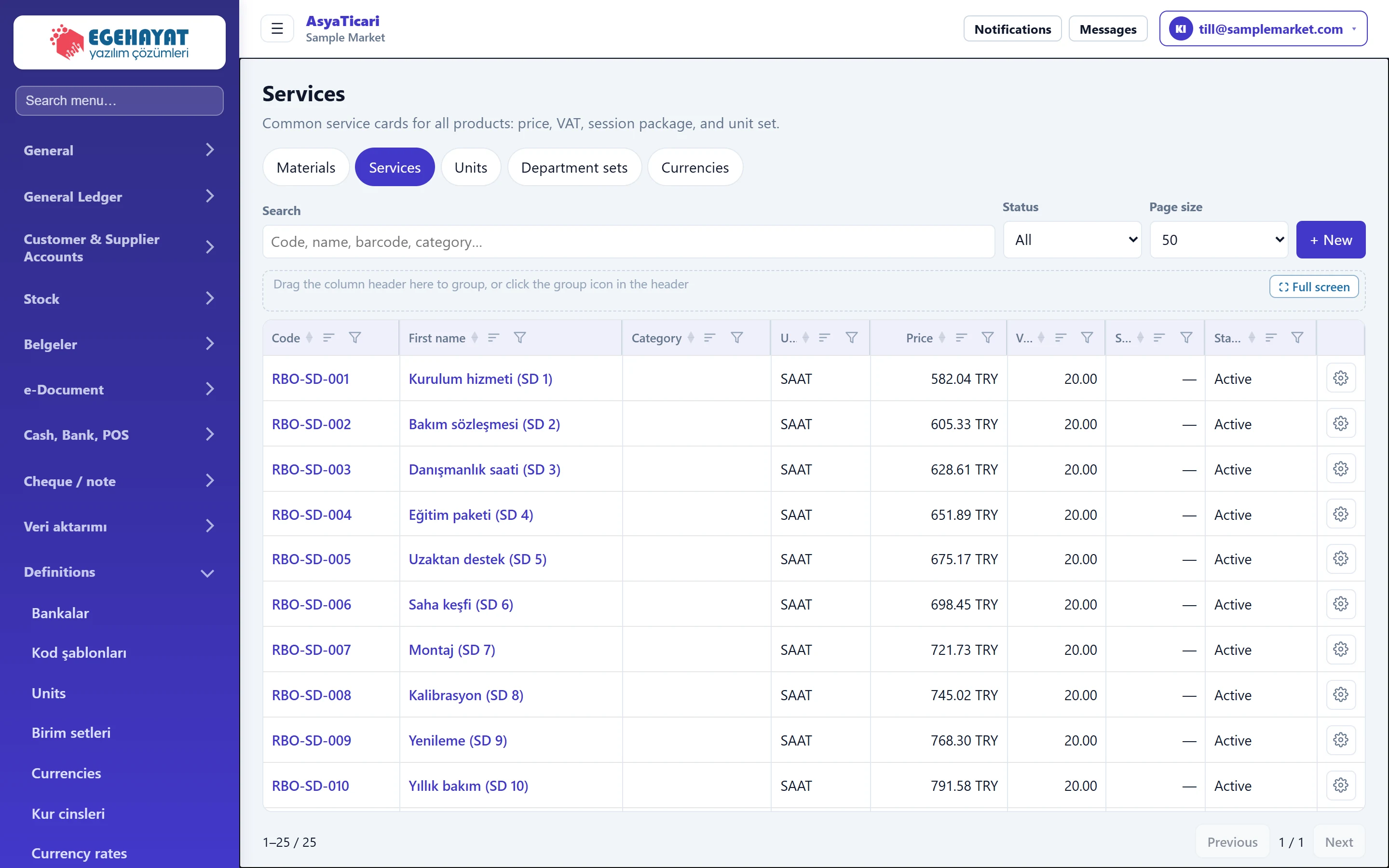
- 1Services Services in the catalogue tabs.
- 2Search Filters by code, name or category.
- 3+ New Opens a new service card.
- 4Service code Click to open the service card.
The list is part of the same catalogue screen as Materials, Units, unit sets and Currencies. Click the code or name to open the card; the actions menu at the end of a row contains Edit, Copy and Delete.
Service card
The card consists of collapsible panels. Press Save at the bottom to save; Cancel returns to the list without saving.
Identity
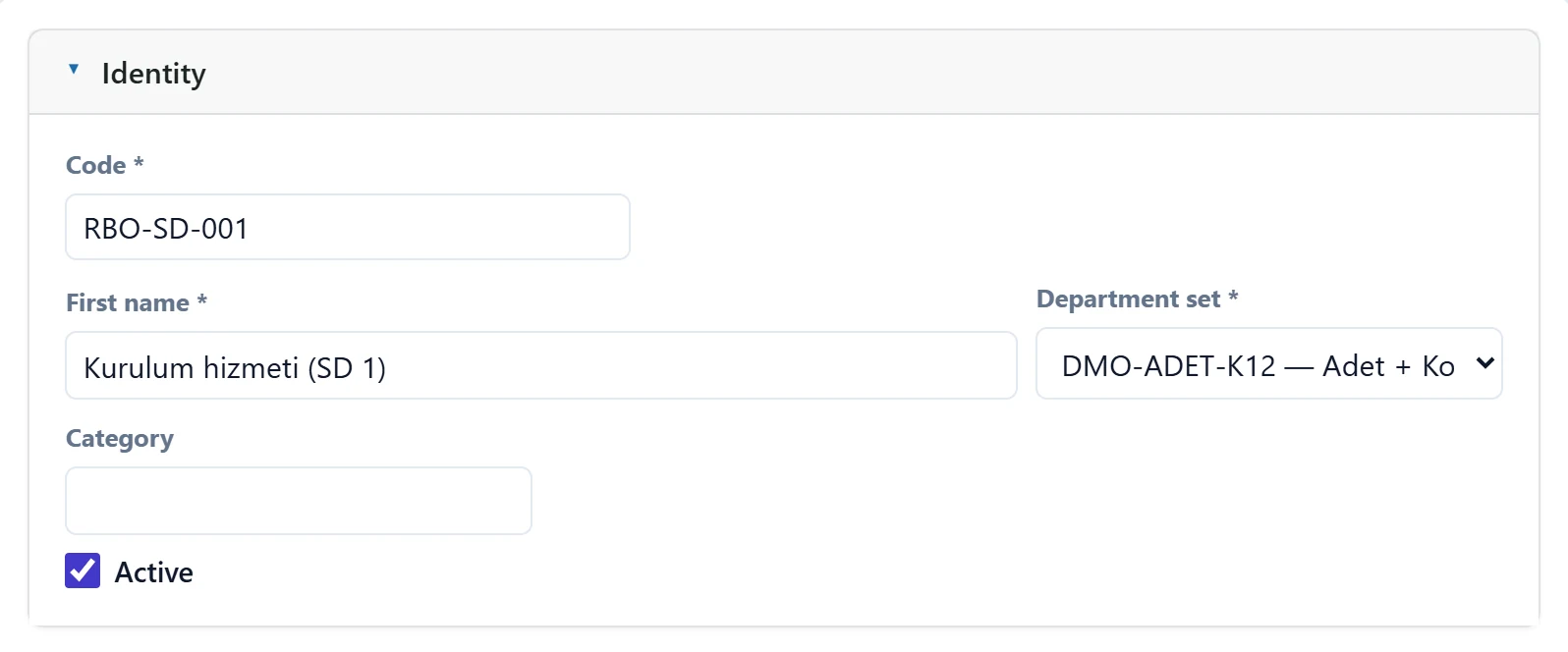
- 1Panel header Click to collapse / expand the panel.
| Field | Sign in | Description |
|---|---|---|
| Code required | Text | Service code. Built from the levels if a code template exists; must be unique in the company. |
| First name required | Text | Service name; shown in documents and quick sale. |
| Department set required | Choice list | Unit set the service is measured in (e.g. Hour, Piece). Required. Options: DMO-ADET-K12 — Adet + Koli (12) · DMO-SAAT — Saat · SYS-ADET-PAKET — Adet / paket / koli · SYS-KG-CUVAL — Kilogram / çuval · SYS-LT-PET — Litre / pet / bidon |
| Category | Text | Free classification; used for grouping and searching the list. |
| Active | Checkbox | If off, the service cannot be chosen on new documents. |
Price / tax
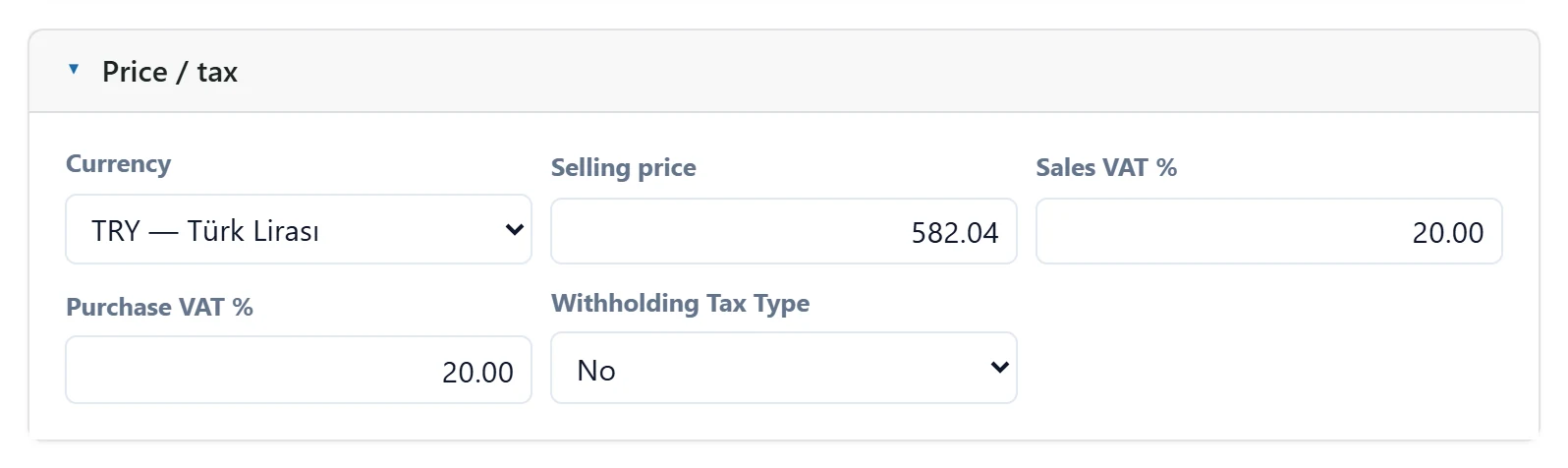
- 1Panel header Click to collapse / expand the panel.
| Field | Sign in | Description |
|---|---|---|
| Currency | Choice list | Currency of the sales price; TRY if empty. Options: TRY · EUR — Euro · GBP — İngiliz Sterlini · TRY — Türk Lirası · USD — ABD Doları |
| Selling price | Text | Default unit price brought into documents. |
| Sales VAT % | Text | VAT rate used in sales documents. |
| Purchase VAT % | Text | VAT rate used in purchase documents. |
| Withholding Tax Type | Choice list | GİB withholding code if VAT is withheld for the service; filled into documents automatically. |
Service
For businesses selling sessions and packages (gym, clinic, beauty salon).
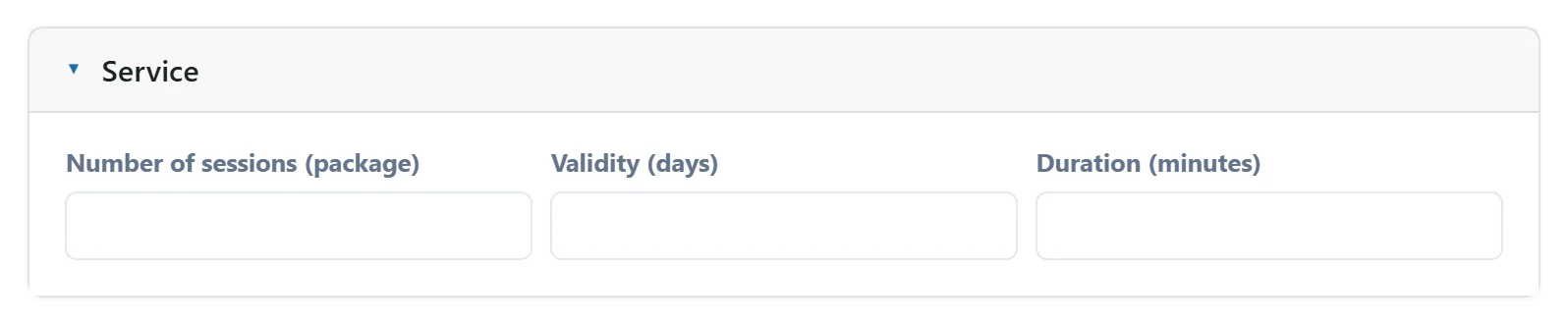
- 1Panel header Click to collapse / expand the panel.
| Field | Sign in | Description |
|---|---|---|
| Number of sessions (package) | Text | Number of sessions if sold as a package (e.g. 10 sessions). |
| Validity (days) | Text | How many days after sale the package can be used. |
| Duration (minutes) | Text | Duration of one session / service; used for appointment planning. |
Sub-material / service
Defines the content of the card (e.g. the materials and labour in a maintenance package) by percentage or quantity. This is content information; it is separate from the production recipe.
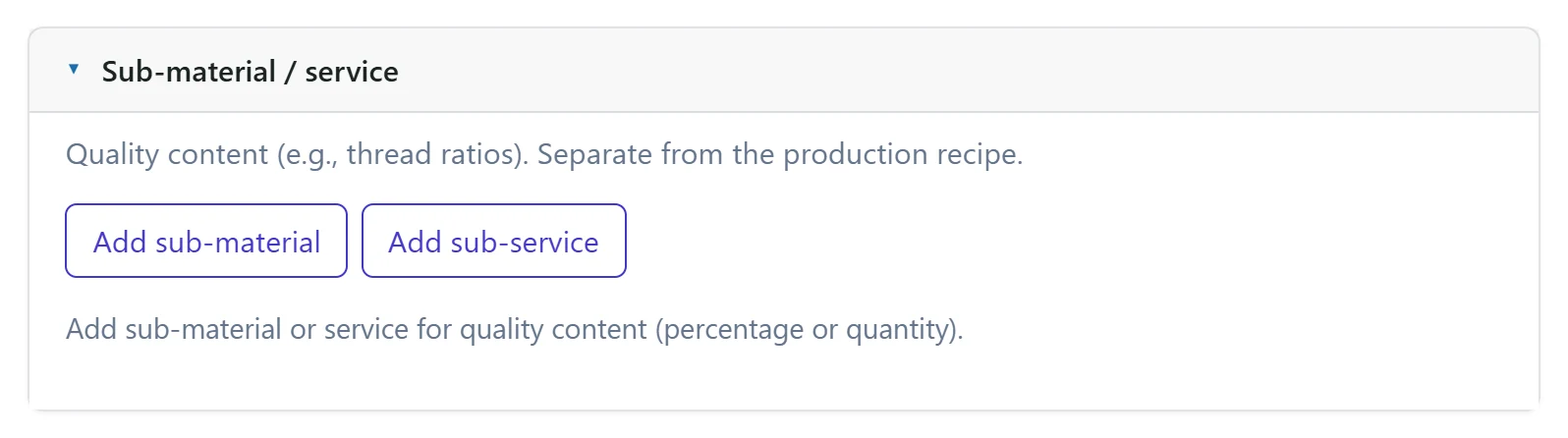
- 1Panel header Click to collapse / expand the panel.
- 2Add sub-material Links materials to the card as content (percentage or quantity).
Units
The rows of the selected unit set appear here. Barcode and sales / purchase usage flags can be changed per card. Synchronize from set re-applies changes made in the set to the card.
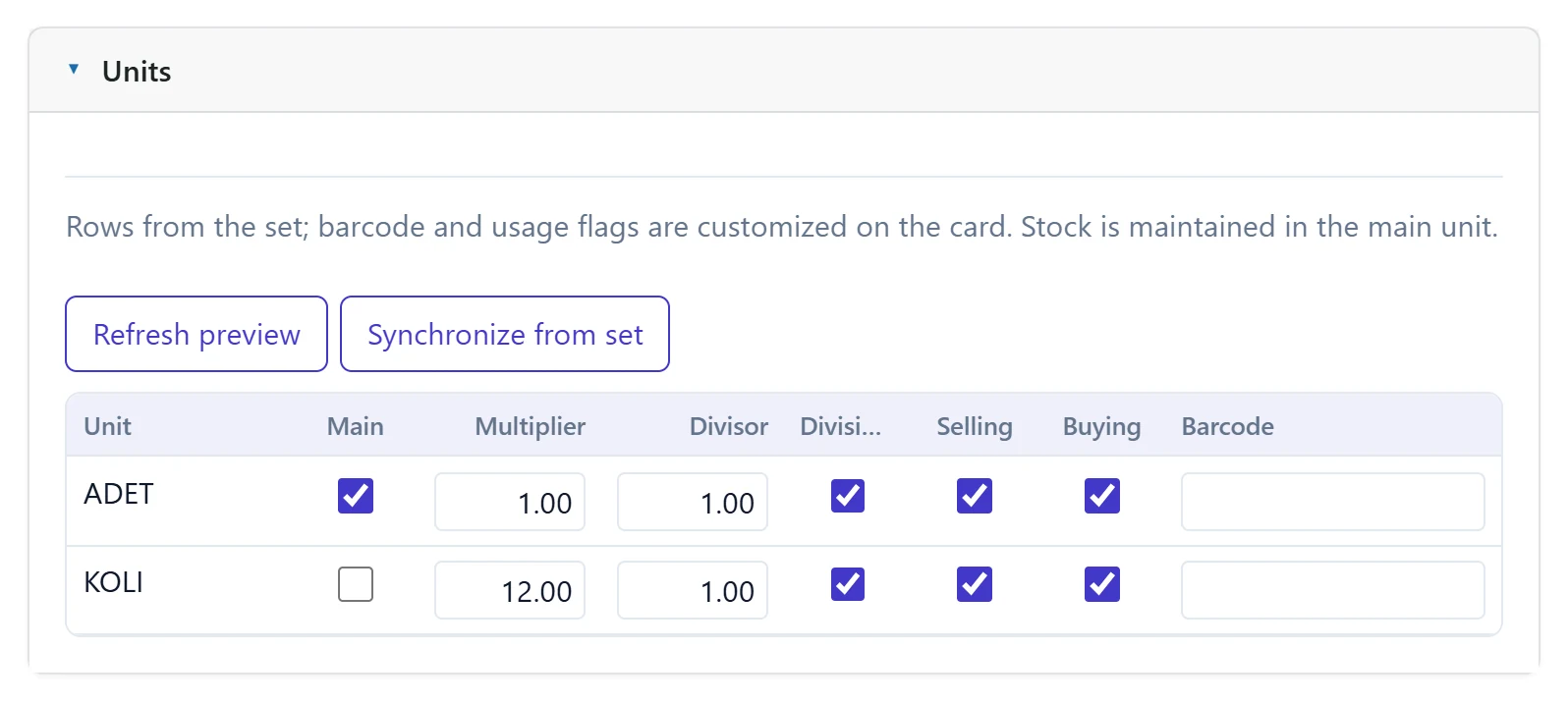
- 1Panel header Click to collapse / expand the panel.
- 2Unit rows Rows from the unit set; barcode and usage flags can be customised per card.
Workplace / description
- 1Panel header Click to collapse / expand the panel.
| Field | Sign in | Description |
|---|---|---|
| Description | Long text | Internal note about the card. |
Step by step: new service
- On Definitions → Services, press + New.
- In Identity, enter Code, Name and the unit set (with a code template, the code is built from the levels).
- In Price / tax, enter the Selling price and VAT rates; choose a Withholding Tax Type if the service is subject to withholding.
- For a session package, enter the number of sessions and validity days in the Service panel.
- Press Save.
To create a similar service, open an existing card with Copy in the list; all fields come filled and you only change the code and name.
Common messages
| Message | Cause | Solution |
|---|---|---|
| Code and name are required. | Code or name is empty. | Fill in both fields. |
| Unit set is required. | No unit set chosen. | Choose a unit set. |
| Code is already used in another record. | A card with the same code exists. | Change the code. |
| The total percentage must be 100. | The sub-material / service percentages do not add up to 100. | Complete the percentages to 100. |
| Code template could not be applied. | A required level of the code template was not chosen. | Choose all levels in the Identity panel. |