
 AsyaTicari
 AsyaRestoran
 AsyaOtel
 AsyaCrm
 AsyaKlinik
 AsyaSpor
 AsyaSSH
 AsyaEmlak
 AsyaFilo
 AsyaPuantaj
 AsyaİSG
 AsyaİHD
 Kolay Öğren
AsyaTicari · Cheque / note
Collection receipt
Recording money received from an account into a register or bank and printing a collection receipt; optionally linking a cheque / note.
The Collection receipt screen records money received from an account in a single form and prints a receipt you can hand to the customer. The money goes into a register or bank and the amount is deducted from the account's debt.
Opening the screen
Open Cheque / note → Collection receipt in the side menu.
ortak · /cek-senet/tahsilat-makbuzu
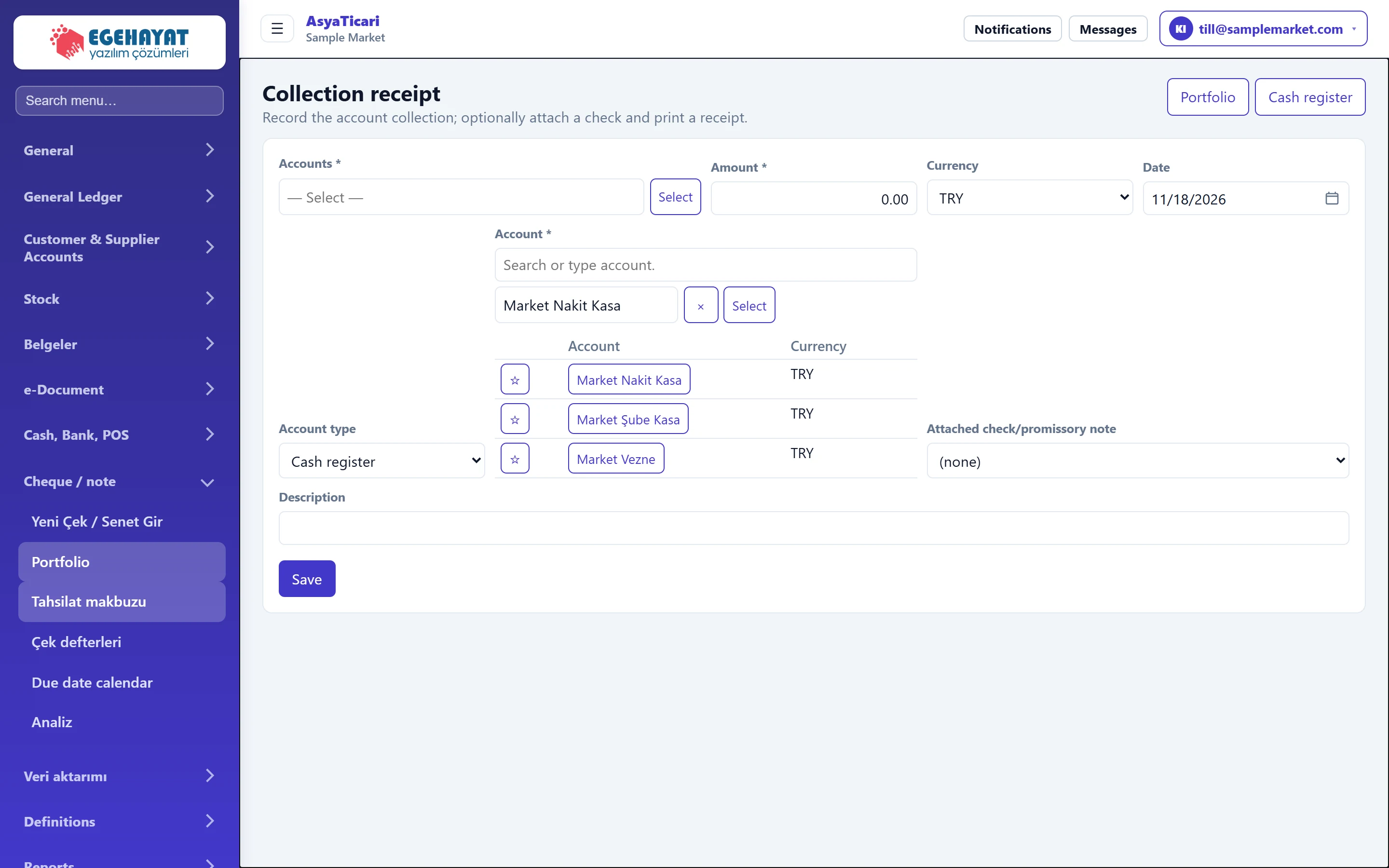
- 1Portfolio Goes to the cheque / note portfolio.
- 2Cash register Goes to the cash register screen.
- 3Receipt form Collection details; after saving you are asked whether to print a receipt.
Receipt form
Part of the screenReceipt form
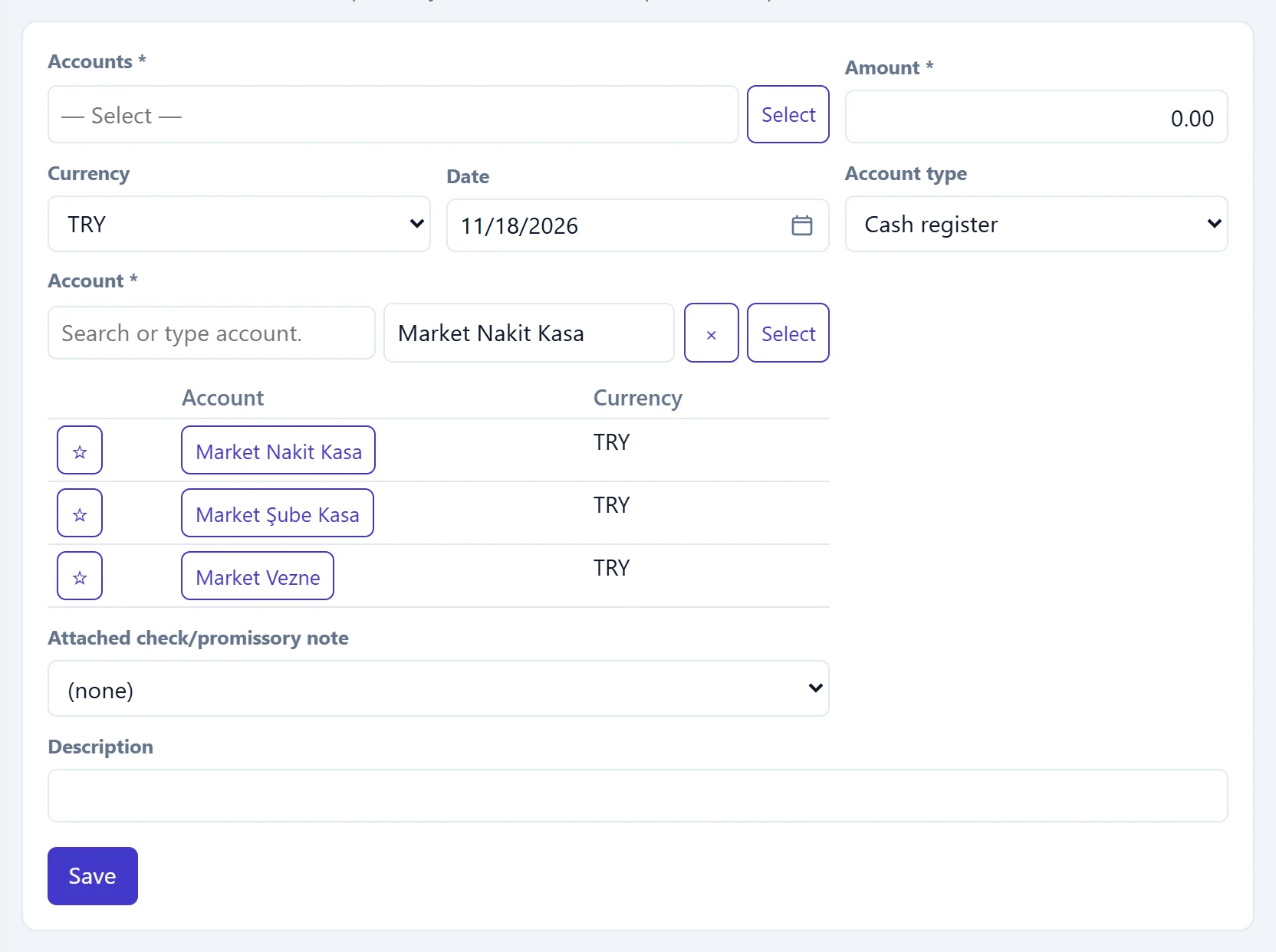
- 1Account list Accounts; ☆ marks a favourite account.
- 2Save Saves the collection; then asks «Issue a receipt?».
| Field | Sign in | Description |
|---|---|---|
| Accounts required | Text | Account paying the money. Required. Placeholder: «— Select —» |
| Amount required | Text | Amount received. Must be greater than zero. |
| Currency | Choice list | Currency of the collection; a rate field opens for currencies other than TRY. Options: EUR · GBP · TRY · USD |
| Date | Text | Receipt date. Placeholder: «mm/dd/yyyy» |
| Account type | Choice list | Where the money goes: Register or Bank. Options: Cash register · Bank |
| Account required | Text | Register / bank account receiving the money. Type to filter; starred favourite accounts stay on top. Placeholder: «Search or type account.» |
| Attached check/promissory note | Choice list | Links a cheque / note of the customer in your portfolio; choosing it fills account, amount and currency from the cheque. Options: (none) · DMO-1000001 · Kemal Usta Oto Tamir · 5,820.44 TRY |
| Description | Text | Note printed on the receipt. |
- With Account type set to cash register, registers are listed; with bank, bank accounts are listed. Click ☆ in the list to add an account to your favourites; it stays at the top and is remembered in this browser.
- If bank is selected and the account card has bank / IBAN details, an Account bank / IBAN hints list appears to help you find which account the transfer will arrive at.
- If the Currency is not TRY, a Rate field opens.
Step by step: issuing a receipt
- Use Select next to the account field to choose the paying account.
- Enter the Amount and check the Date.
- Choose the Account type (cash register / bank) and the Account receiving the money.
- If the payment belongs to a cheque / note in the portfolio, choose it under Attached check/promissory note.
- Click Save. «Payment saved.» appears and the Generate receipt? window opens.
- Print prints the receipt (date, account, amount, register / bank, cheque / note, description); the other button closes the window.
Linking a cheque does not change its status; when the cheque is collected, record it with Collected on the cheque's detail screen in the Portfolio.
Common messages
| Message | Cause | Solution |
|---|---|---|
| Select account. | The account is empty. | Select the account. |
| Amount must be greater than zero. | The amount is empty or zero. | Enter the amount. |
| Select an account. | No receiving register / bank account selected. | Select the Account. |
| Check/promissory note not found. | The linked cheque was deleted meanwhile. | Refresh the page and select again. |