
 AsyaTicari
 AsyaRestoran
 AsyaOtel
 AsyaCrm
 AsyaKlinik
 AsyaSpor
 AsyaSSH
 AsyaEmlak
 AsyaFilo
 AsyaPuantaj
 AsyaİSG
 AsyaİHD
 Kolay Öğren
AsyaOtel · Kasa, Banka, Pos
Bank
Bank accounts; incoming / outgoing transfers, bank charges, expenses, deposits, transfers between accounts, CSV statement import and account transactions.
This screen changed recently. Screenshots will be retaken after the code change of 2026-11-18; the text is current, some images may look outdated.
On the Bank screen you define your bank accounts and record money going in and out. The layout is the same as Cash register: the account list at the top, the action buttons and transactions of the selected account below.
The application does not send money to your bank. When an Outgoing transfer is saved, a Transfer instruction card appears at the top; use Copy to take the text to your bank's online / mobile banking.
Opening the screen
Open Cash, Bank, POS → Bank in the side menu. The first account in the list is selected; click another account's row to see its transactions.
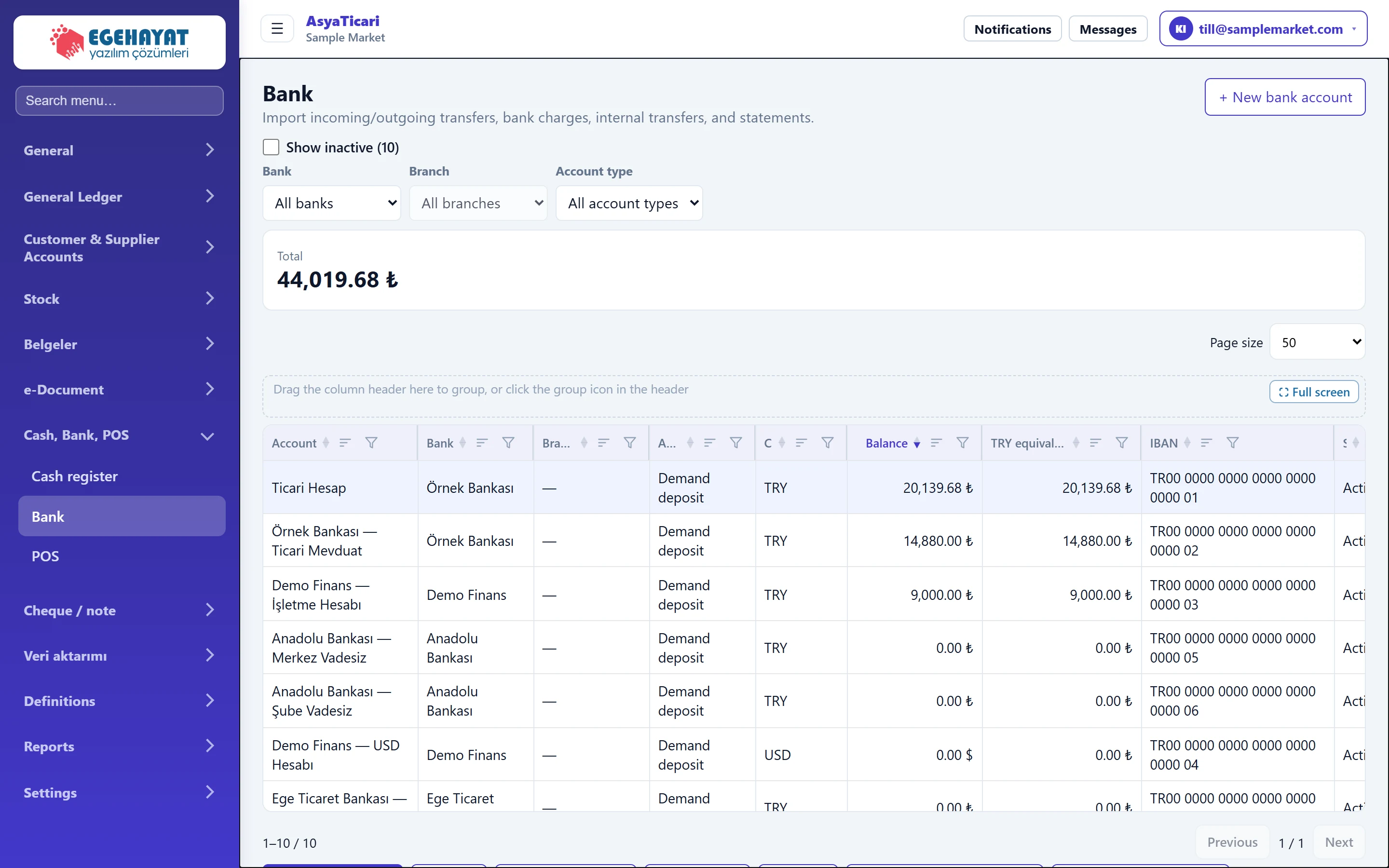
- 1+ New bank account Creates a new bank account.
- 2Filters Filters by bank, branch or account type.
- 3Total Total balance of the listed accounts.
- 4Account list Bank accounts; click a row to open its transactions below.
- 5Balance Click the header to sort by balance.
Account filters

| Field | Sign in | Description |
|---|---|---|
| Bank | Choice list | Shows only accounts of the selected bank. |
| Branch | Choice list | Enabled after choosing a bank; shows that branch's accounts. |
| Account type | Choice list | Filters by account type such as current, deposit or loan. Options: All account types · Demand deposit |
When several accounts are listed, the Total card above shows the balance of the filtered accounts.
- Balance is in the account's own currency ($ for a USD account). TRY equivalent (current rate) converts a foreign-currency balance to TRY at today's rate; Total is the sum of this column.
- Inactive accounts are not listed by default; tick Show inactive above the list to see them. An inactive account with a balance is always listed.
- The gear menu at the end of the row holds all the action buttons shown below, in the same groups (Money in, Money out, Transfer and checks, Account), and opens them without selecting the account first. The menu also has Transactions.
- Delete account in the row's gear menu permanently deletes an account without any transactions. An account with transactions, cheques / notes or a cheque book cannot be deleted; make it inactive in Account settings instead.
Action buttons

- 1Incoming transfer Incoming transfer from a customer.
- 2Deposit Money into the account from a register, another account, a partner or other income.
- 3Outgoing transfer Transfer sent to an account; the app does not send money, it prepares the instruction text.
- 4Bank charge Bank charges such as account fees or transfer fees.
- 5Expense Expense paid from the bank, not linked to an account.
- 6Transfer between accounts Transfer from this account to another bank account or register.
- 7Import statement (CSV) Imports a CSV statement from the bank line by line as transactions.
- 8Account settings Bank, branch, IBAN and currency of the account.
| Field | Sign in | Description |
|---|---|---|
| Start | Text | First day of the transaction list. Placeholder: «mm/dd/yyyy» |
| End | Text | Last day of the transaction list. Placeholder: «mm/dd/yyyy» |
The Incoming transfer, Bank charge and Expense windows are the same as the Collection and Expense windows of the Cash register screen; at the bank there is an extra Receipt / reference number field. Deposit and Transfer between accounts work as on the Cash register screen (see the Cash register topic).
Outgoing transfer
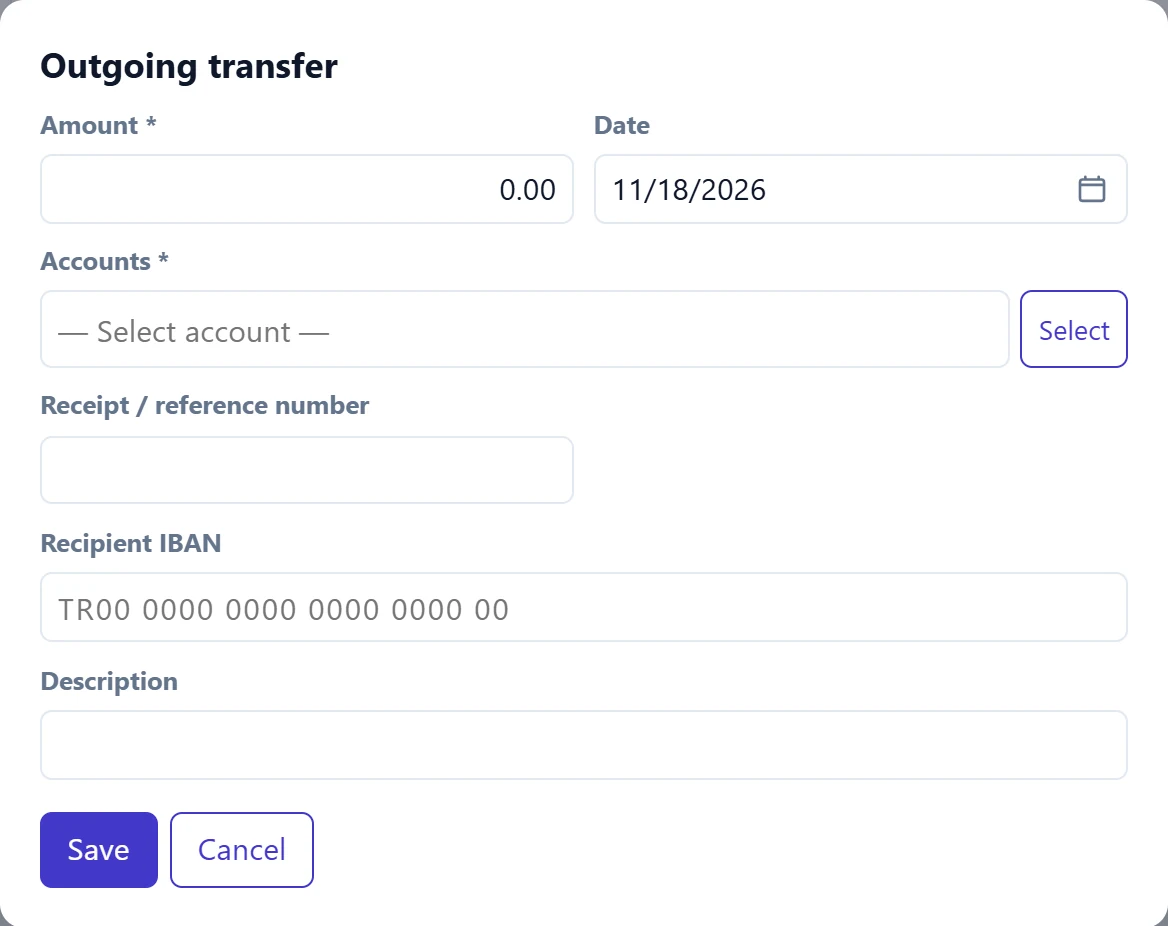
- 1Save Saves the transaction and shows the transfer instruction text.
| Field | Sign in | Description |
|---|---|---|
| Amount required | Text | Amount sent. Must be greater than zero. |
| Date | Text | Transfer date. Placeholder: «mm/dd/yyyy» |
| Accounts required | Text | Account receiving the money (supplier etc.). Either Account or Recipient IBAN is required. Placeholder: «— Select account —» |
| Receipt / reference number | Text | Bank receipt or transaction number; useful for statement matching. |
| Recipient IBAN | Text | IBAN the money goes to when no account is selected. 26 characters starting with TR. Placeholder: «TR00 0000 0000 0000 0000 00» |
| Description | Text | Transfer description. |
Step by step: paying a supplier by transfer
- Select the account the money leaves from.
- Click Outgoing transfer.
- Enter the Amount and select the supplier under Accounts. If there is no account record, enter the Recipient IBAN.
- Enter the bank's number in Receipt / reference number.
- To close open invoices, tick Automatically match with the oldest open invoices (shown when an account is selected).
- Click Save. Take the Transfer instruction text shown at the top with Copy and make the payment in your bank.
Statement import (CSV)

- 1Choose file CSV file downloaded from the bank (max. 2 MB).
- Download the account statement from your bank's online banking as CSV.
- Click Import statement (CSV) and choose the file. Date, description and amount (or debit / credit) columns are detected automatically.
- The preview shows, for each line, a tick box, the transaction type and the account. Positive amounts become collections; for negative amounts choose Payment, Bank charge or Expense.
- Lines marked «Previously imported» are already recorded; untick them.
- The import button saves the ticked lines as transactions.
The file can be at most 2 MB. Check the date, amount and type in the preview before importing.
New bank account and account settings
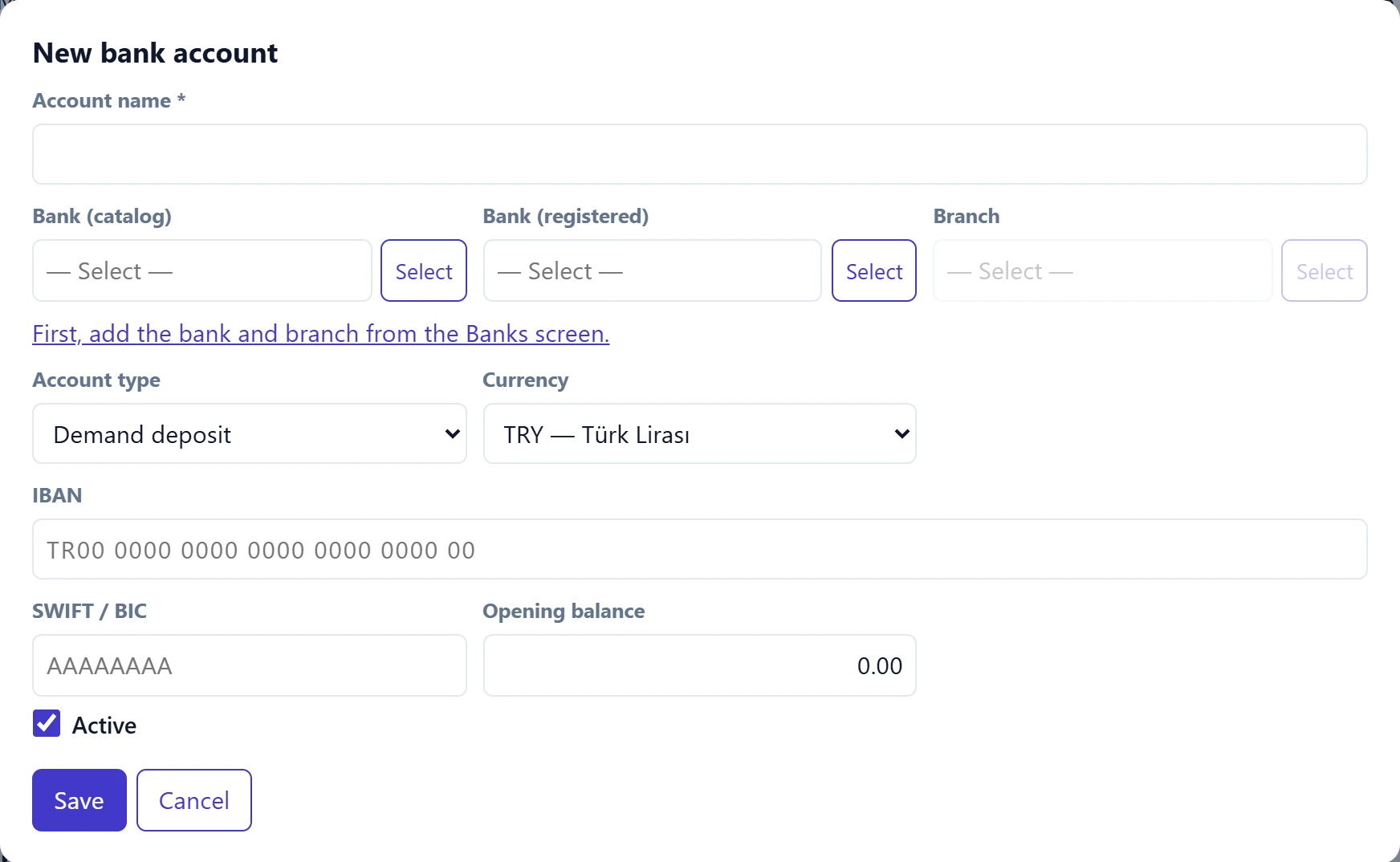
| Field | Sign in | Description |
|---|---|---|
| Account name required | Text | Name shown in the list (e.g. «Main bank TRY current»). Required. |
| Bank (catalog) | Text | Pick from the list of Turkish banks; also detected automatically from the IBAN. Placeholder: «— Select —» |
| Bank (registered) | Text | Bank registered under Definitions → Banks. Placeholder: «— Select —» |
| Branch | Text | Branch of the registered bank; choose the bank first. Placeholder: «— Select —» |
| Account type | Choice list | Current, deposit, loan etc.; used as a filter in the list. |
| Currency | Choice list | Account currency. Options: EUR — Euro · GBP — İngiliz Sterlini · TRY — Türk Lirası · USD — ABD Doları |
| IBAN | Text | 26 characters starting with TR; spaces are added automatically. Not saved if invalid. Placeholder: «TR00 0000 0000 0000 0000 0000 00» |
| SWIFT / BIC | Text | 8 or 11 character bank code for international transfers. Placeholder: «AAAAAAAA» |
| Opening balance | Text | Starting balance of the account. Asked only for a new account. |
| Active | Checkbox | Unticking makes the account inactive. |
When you type the IBAN, the bank code is decoded and Bank (catalog) is selected automatically. If you also define the bank and branch under Definitions → Banks, the account can be chosen for cheque books and cheque entry.
Common messages
| Message | Cause | Solution |
|---|---|---|
| Amount must be greater than zero. | The amount is empty or zero. | Enter the amount. |
| Enter the account or recipient IBAN for outgoing transfers. | Both account and IBAN are empty in an outgoing transfer. | Select an account or enter the Recipient IBAN. |
| IBAN is invalid. Turkish IBAN must be 26 characters long (e.g., TR33 0006 1005 1978 6457 8413 26). | The IBAN is incomplete / wrong. | Copy and paste the IBAN from your bank. |
| Account name is required. | The name of the new account is empty. | Fill in Account name. |
| The file must contain a header and at least one line. | The CSV is empty or has only a header. | Download the statement again. |
| Date and amount (or debit / credit) columns not found. | The CSV column names were not recognised. | Download it from your bank in CSV / Excel-CSV format. |
| File could not be read (maximum 2 MB). | The file is larger than 2 MB or cannot be opened. | Download a shorter date range. |