
 AsyaTicari
 AsyaRestoran
 AsyaOtel
 AsyaCrm
 AsyaKlinik
 AsyaSpor
 AsyaSSH
 AsyaEmlak
 AsyaFilo
 AsyaPuantaj
 AsyaİSG
 AsyaİHD
 Kolay Öğren
AsyaPuantaj · General
Work entries
Approve or reject home and warehouse work that staff enter in the mobile app with start and end times.
The Work entries screen lists the Home and Warehouse work that staff enter in the mobile app with start and end times; approve or reject pending entries here.
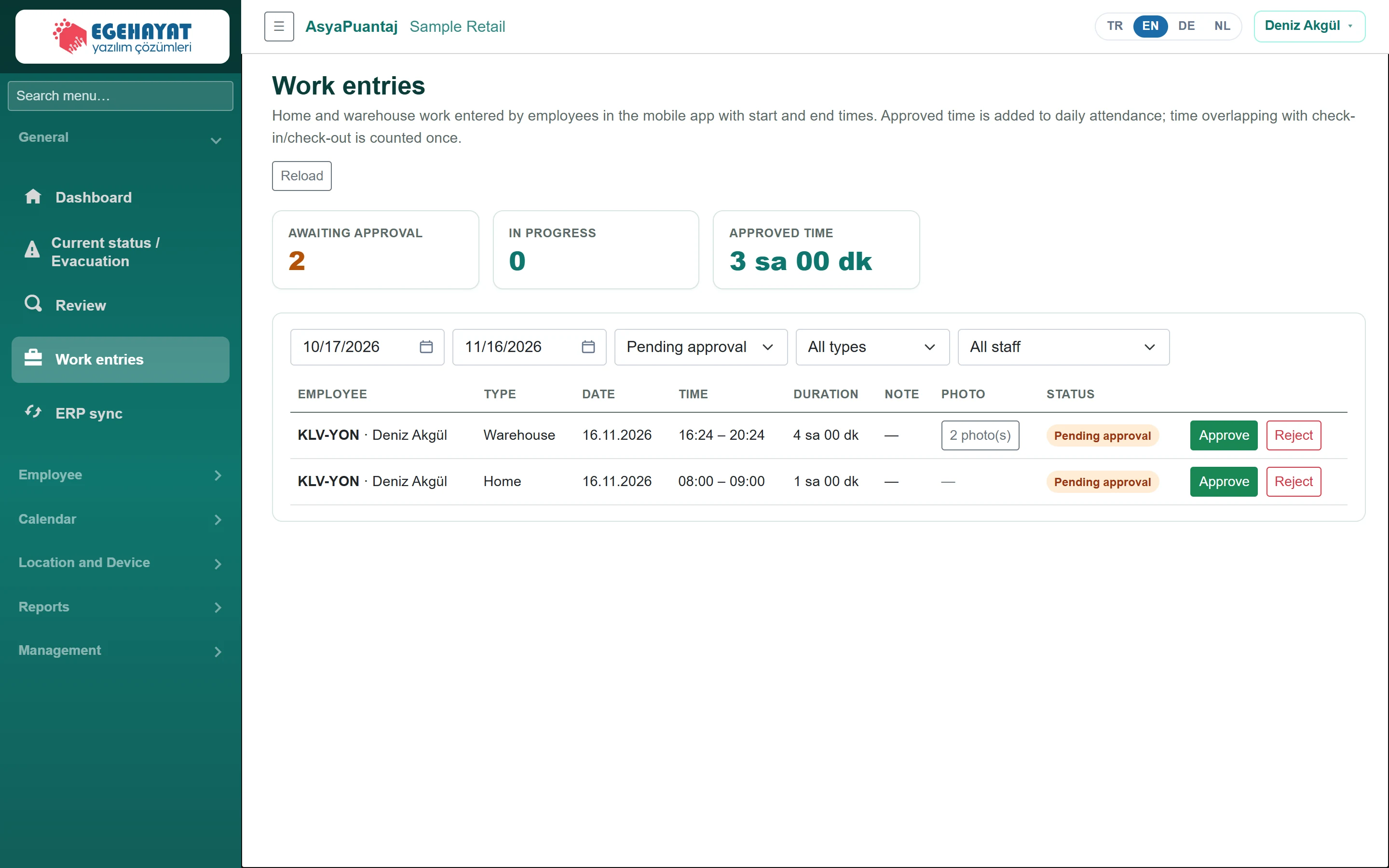
- 1AWAITING APPROVAL Pending and in-progress entries, total approved time.
- 2Pending approval Filter by status, type and employee.
- 32 photo(s) Start and end photos of the warehouse entry.
- 4Approve Approve: the time is added to daily attendance.
- 5Reject Reject: optionally with a reason.
How work types are recorded
| Type | In the mobile app | Verification |
|---|---|---|
| Installation | Site arrival / departure and check-in/out with location | Location rules (geofence, device binding) |
| Office | Check-in/out with tablet QR or location | Location rules |
| Home | Start work / End work or Add with times | No location, photo or device check |
| Warehouse | Check-in/out with tablet QR plus a work entry | In-app photo required at start and end of the entry |
Enabled types, the approval rule and the backdating limit are set under Management → Company details → Work types.
Deciding an entry
- The cards show the number of pending and in-progress entries and the total approved time in the period.
- Filter by date range, status, type and employee; the screen opens with pending entries of the last 30 days.
- For a warehouse entry press the photo button to see the start and end photos with their times.
- Press Approve: the time is added to daily attendance and the day is recalculated.
- If not acceptable press Reject, optionally enter a Reason for rejection and confirm with Reject. The reason appears in the employee's My work entries list.
If the time a warehouse employee enters overlaps with tablet QR check-in/out, the overlap is counted once; only the extra time is added. Approving and rejecting requires the Work entry approval permission (Management → Permissions).
Approved entries are not sent to the ERP (Logo, Mikro, Live) as movements; they only count in Puantaj's daily calculation and reports.
Common messages
| Message | Cause | Fix |
|---|---|---|
| Work entries can be backdated by at most 3 days. | The date is older than the company's backdating limit. | Raise the limit on Company details or use a correction request. |
| You already have another work entry at these times. | The times overlap another entry. | Correct the times or cancel the old entry. |
| Take a photo for warehouse work. | No photo on a warehouse entry. | Take a photo in the app. |
| Work cannot be entered for a future time. | Start or end has not happened yet. | Use Start work while working. |
| A single entry can be at most 24 hours. | End is more than 24 hours after start. | Split the entry by day. |
| This work type is disabled for the company. | The type is off on Company details. | Enable the type. |
| Home work is recorded as a work entry, not with check-in/check-out. | Check-in/out was tried with Home selected. | Use the work entry card. |
| This entry is not awaiting approval. | Someone else decided or it was cancelled. | Press Refresh. |