
 AsyaTicari
 AsyaRestoran
 AsyaOtel
 AsyaCrm
 AsyaKlinik
 AsyaSpor
 AsyaSSH
 AsyaEmlak
 AsyaFilo
 AsyaPuantaj
 AsyaİSG
 AsyaİHD
 Kolay Öğren
AsyaPuantaj · General
Review
Approve or reject staff correction requests, choosing the location.
The Correction / Review screen summarises the correction requests (forgotten entry or exit) staff send from the mobile app and lets you decide quickly.
asyapuantaj · /inceleme
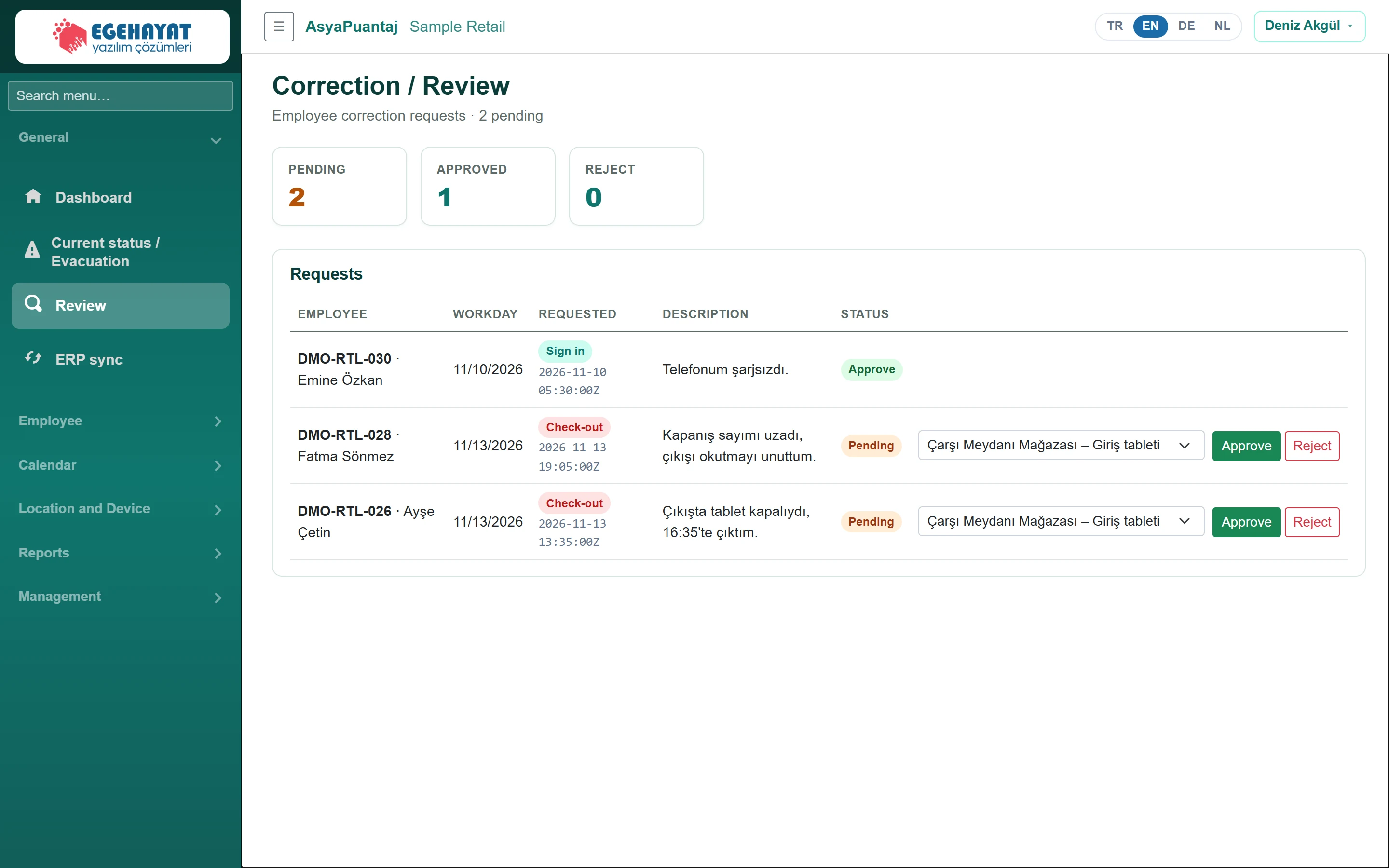
- 1PENDING Pending, approved and rejected request counts.
- 2Çarşı Meydanı Mağazası – Giriş tableti Location of the punch created on approval.
- 3Approve Approve: the request becomes a punch.
- 4Reject Reject: the request is rejected.
Deciding a request
- The cards show the Pending, Approved and Reject counts.
- For a pending request, choose the location of the punch to be created.
- Click Approve: a punch is written at the requested time and the day is recalculated. The approved row shows the number of the created punch.
- If it is not acceptable, click Reject.
To handle the same requests with a rejection reason and see the history, use Staff → Correction requests.
Approving and rejecting require a separate permission; if you do not see the buttons, have your correction approval permission checked under Management → Permissions.