
 AsyaTicari
 AsyaRestoran
 AsyaOtel
 AsyaCrm
 AsyaKlinik
 AsyaSpor
 AsyaSSH
 AsyaEmlak
 AsyaFilo
 AsyaPuantaj
 AsyaİSG
 AsyaİHD
 Kolay Öğren
Shared modules · Settings
My apps
Switch with one click between the applications your company subscribes to.
The My apps screen shows every Asya application with an active subscription for your company (AsyaTicari, AsyaKlinik, AsyaCrm …) as tiles. Click a tile to switch to that application.
Opening the screen
If your company subscribes to more than one application, the General → My apps link appears in the side menu. Companies using a single application do not see it in the menu; you can still open it by typing /uygulamalarim in the address bar.
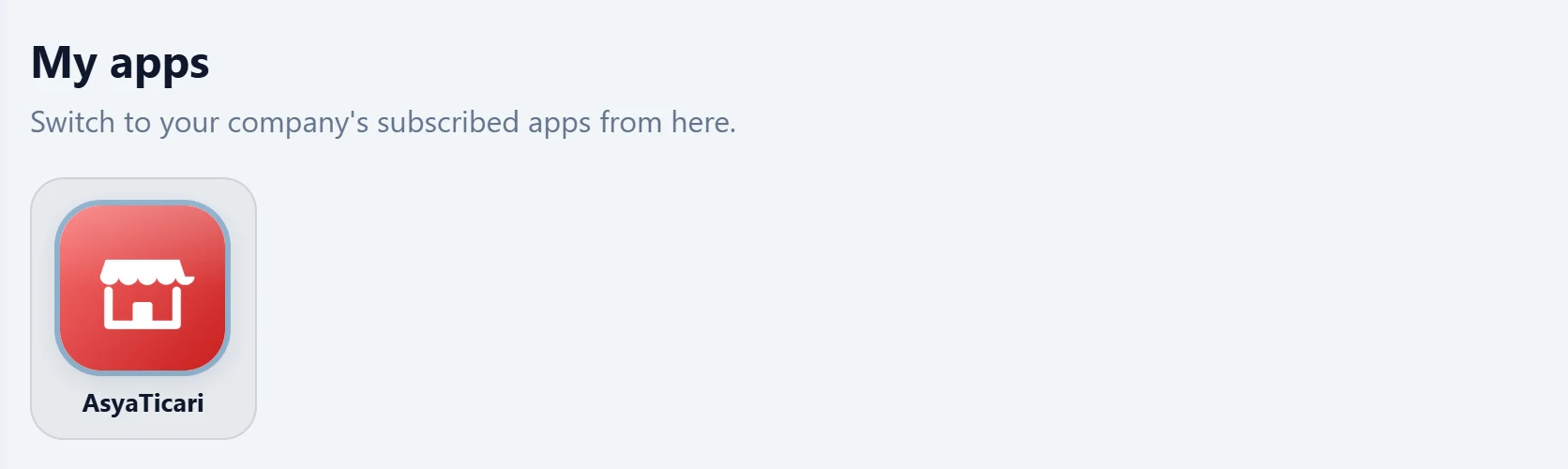
- 1My apps Applications the company subscribes to.
- 2Current application The tile with the bold frame is the open application; clicking it returns to its home screen.
Usage
- Open My apps from the side menu.
- Click the tile of the application you want to switch to.
- The other application opens in a new tab; the tile of the application you are working in takes you back to its home screen.
Applications in their trial period show a Trial label on the tile.
The My apps link appears in the menu when at least two different applications are active for the company. After subscribing to a new application, refresh the page to see the link.
Common messages
| Message | Cause | Solution |
|---|---|---|
| No active product subscription found. Contact your platform administrator. | The company has no active application subscription or it has expired. | Renew the subscription in the subscription cart or through your dealer. |