
 AsyaTicari
 AsyaRestoran
 AsyaOtel
 AsyaCrm
 AsyaKlinik
 AsyaSpor
 AsyaSSH
 AsyaEmlak
 AsyaFilo
 AsyaPuantaj
 AsyaİSG
 AsyaİHD
 Kolay Öğren
Shared modules · Belgeler
Marketplace
Importing orders from marketplaces such as Trendyol, Hepsiburada, N11 and from web shops, mapping stock cards and sending stock.
The Marketplace screen connects your shop's marketplace and web shop accounts to AsyaTicari. Once connected:
- Orders from the marketplace are imported with their account card and payment as a Sales order, returns as a Return invoice. The same external order is never opened twice.
- Stock quantity and price of mapped stock cards are sent to the marketplace.
The screen appears in the menu in companies with the «Marketplace» feature.
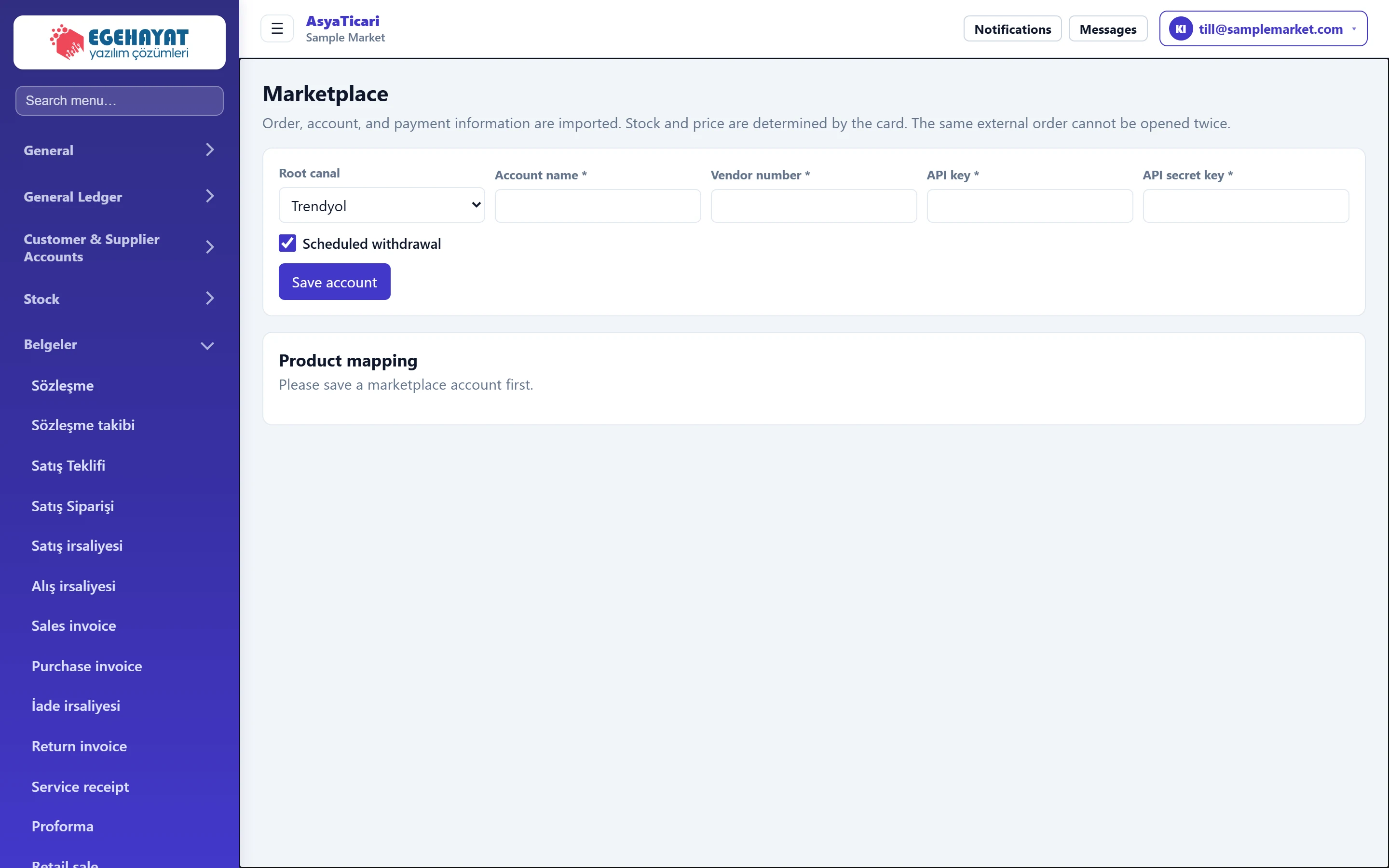
- 1Account setup Connection details of the marketplace account.
- 2Product mapping Maps a stock card to the product on the marketplace.
Account setup
A marketplace account needs the integration (API) details from your seller panel:

- 1Channel The required fields change with the channel.
- 2Save account Saves the account; the account list and product mapping appear below.
| Field | Sign in | Description |
|---|---|---|
| Root canal | Choice list | Marketplace or e-commerce platform (Trendyol, Hepsiburada, N11, Pazarama, Çiçeksepeti, Ticimax, IdeaSoft, T-Soft, Shopify, WooCommerce, Ikas, Hipotenus). The fields depend on the choice. |
| Account name required | Text | Name shown in the list (e.g. «Trendyol shop»). Required. |
| Vendor number required | Text | Seller number from the marketplace seller panel. |
| API key required | Text | API key from the integration section of the seller panel. |
| API secret key required | Text | Secret key issued with the API key; shown masked on screen. |
| Scheduled withdrawal | Checkbox | If ticked, orders are imported automatically at regular intervals. |
The fields depend on the channel:
| Channel | Required details |
|---|---|
| Trendyol | Seller number, API key, API secret key |
| Hepsiburada | Store number, User name, Password |
| N11 | Application key, Application secret key |
| Pazarama, Çiçeksepeti | API key, API secret key |
| Ticimax, IdeaSoft, TSoft, Shopify, WooCommerce, Ikas, Hipotenus | Optional API keys and order / stock / cargo tracking service URLs |
Web shop platforms (e.g. Ticimax) ask for service URLs:
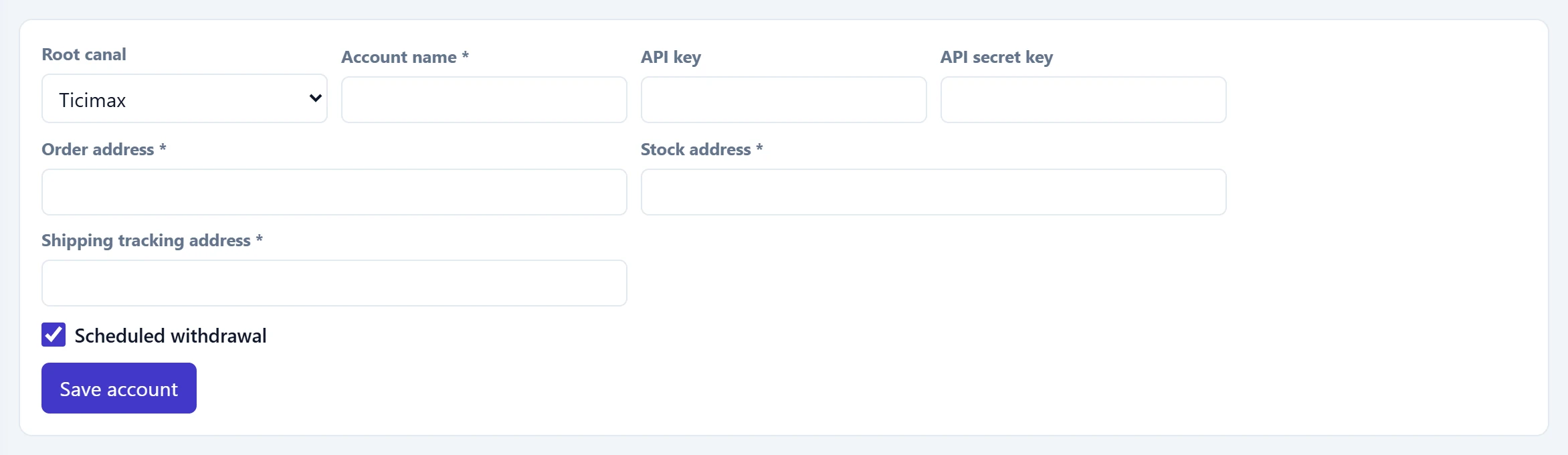
- 1Channel Web shop platforms need service URLs.
| Field | Sign in | Description |
|---|---|---|
| Root canal | Choice list | Marketplace or e-commerce platform. The fields depend on the choice. |
| Account name required | Text | Name shown in the list (e.g. «Web shop»). Required. |
| API key | Text | The site's API key (if any). |
| API secret key | Text | The site's API secret (if any). |
| Order address required | Text | Service URL for reading orders (see your site's integration settings). |
| Stock address required | Text | Service URL that receives stock quantities. |
| Shipping tracking address required | Text | Service URL that receives tracking numbers. |
| Scheduled withdrawal | Checkbox | If ticked, orders are imported automatically at regular intervals. |
Product mapping
To send stock, map each stock card to the product on the marketplace. This section is filled once at least one account is saved:

- 1Product mapping Once an account is saved, material, external SKU and barcode fields appear.
After an account is saved, the section shows these fields:
| Field | Description |
|---|---|
| Account | Marketplace account for the mapping. |
| Material | Stock card to map (with Select). |
| External stock code | The product's stock code (SKU) on the marketplace. |
| Barcode | The product's barcode on the marketplace. Trendyol uses the barcode when sending stock; if it is empty, the external stock code is sent. |
As accounts are saved, an account list appears below. Each account row has:
- Fetch orders button: imports new marketplace orders immediately.
- Send stock: sends the current stock of mapped cards to the marketplace.
Connecting a marketplace: step by step
- Open the integration / API page in your marketplace seller panel.
- Choose the marketplace in the channel list.
- Enter a name you will recognise in the list as Account name (e.g. «Trendyol shop»).
- Paste the numbers and keys copied from the panel into the matching fields.
- Leave the scheduled import box ticked so that orders arrive automatically (about every 15 minutes).
- Press Save account; «Account saved.» appears.
- In Product mapping, enter Material, External stock code and Barcode for each product and press Save mapping.
- Use the fetch-orders button on the account row for the first orders and Send stock to align stock.
The API secret key and password give access to your marketplace store. Grant this screen only to users you trust, and do not share keys by e-mail or message.
Sample cards from the sector demo data are not sent to marketplaces. Map your own stock cards.
Common messages
| Message | Cause | Solution |
|---|---|---|
| Account name is required. | Account name is empty. | Enter a name. |
| Invalid marketplace channel. | The channel was not recognised. | Choose the channel again from the list. |
| Please save a marketplace account first. | No account yet. | Save the account setup above. |
| Select material. | No stock card chosen in the mapping. | Choose the card in Material. |
| Barcode or external stock code is required for Trendyol. | Both are empty in a Trendyol mapping. | Enter the barcode or the external stock code. |
| External stock code is mandatory. | External stock code empty on other channels. | Enter the marketplace stock code. |
| Sector-specific demo cards do not go to the marketplace. | A demo data card was chosen. | Choose your own stock card. |
| Marketplace is disabled for this company. | The «Marketplace» feature is off. | Ask your reseller to enable it. |
| Marketplace did not respond. | The marketplace service could not be reached or the keys are wrong. | Check the details and try again later. |