
 AsyaTicari
 AsyaRestoran
 AsyaOtel
 AsyaCrm
 AsyaKlinik
 AsyaSpor
 AsyaSSH
 AsyaEmlak
 AsyaFilo
 AsyaPuantaj
 AsyaİSG
 AsyaİHD
 Kolay Öğren
AsyaKlinik · Clinic
Appointment calendar
Daily, weekly and monthly calendar; pre-registration appointments in free slots, closing time slots and admitting the patient to examination.
This screen changed recently. Screenshots will be retaken after the code change of 2026-11-19; the text is current, some images may look outdated.
The Appointment calendar shows the clinic's hours for the day. You book appointments in free slots, admit arriving patients to examination, and close hours for leave and meetings.
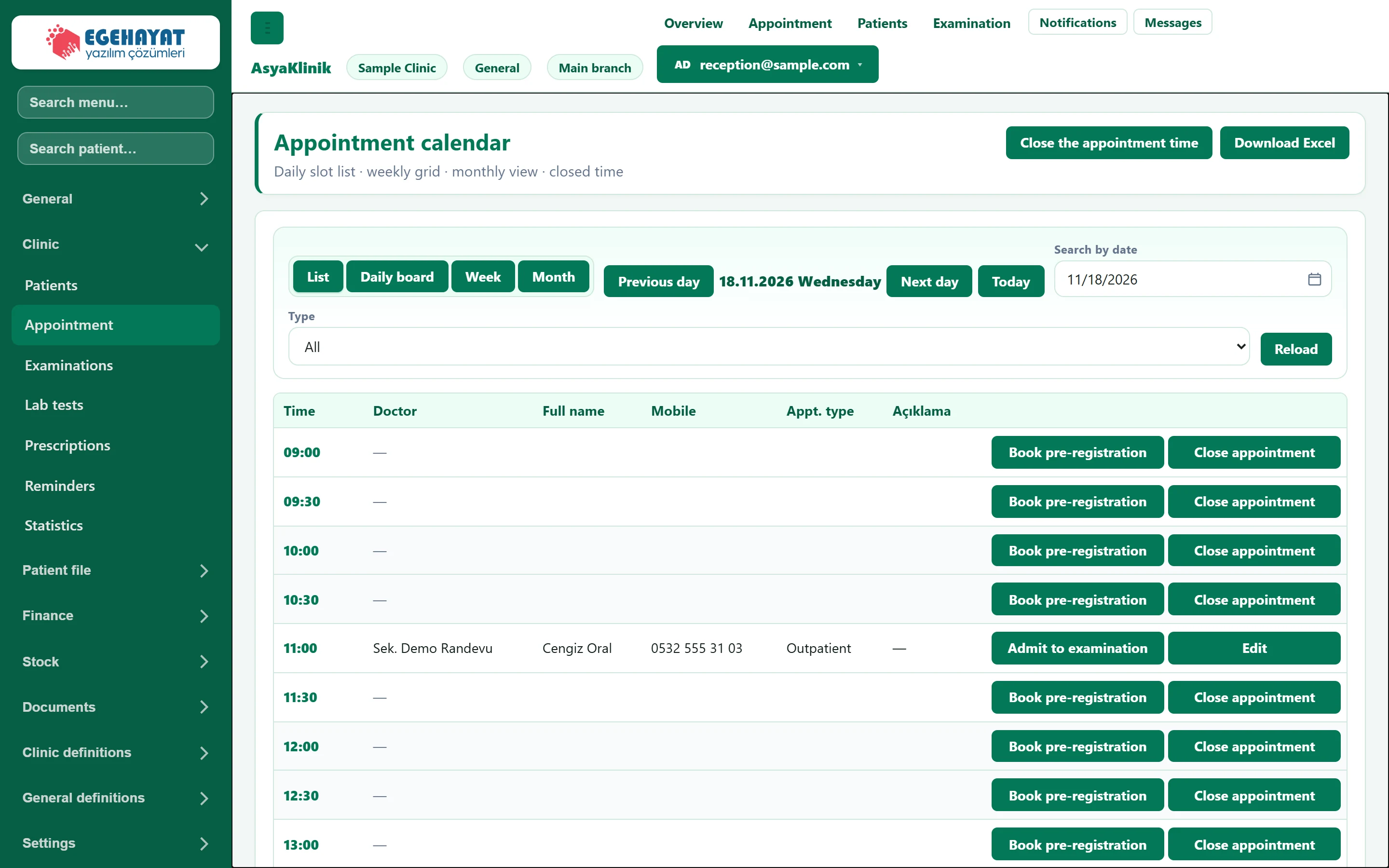
- 1View List, daily board, week and month views.
- 2Day navigation Previous / next day and Today.
- 3Go to date Picks a day from the calendar.
- 4Close the appointment time Blocks a time range for appointments (leave, meeting).
- 5Booked slot The patient's appointment; accept for examination from here.
- 6Book pre-registration Quickly books a free slot.
Views and choosing a day
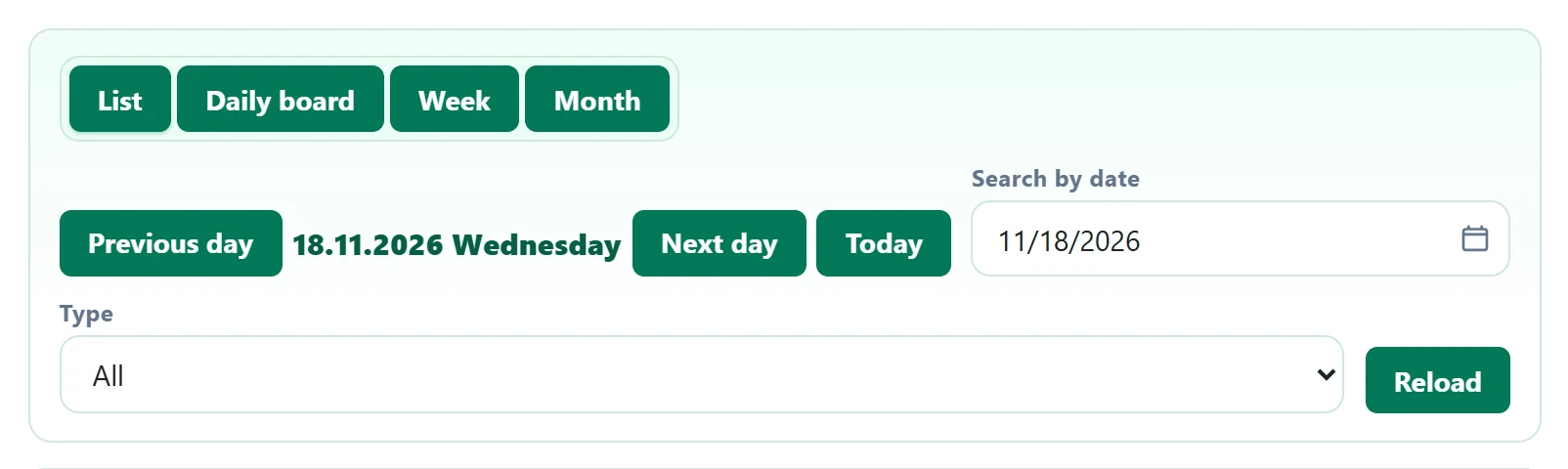
- 1List The selected day's appointments as a list.
- 2Daily board Hour by hour through the day; book free slots here.
- 3Week Weekly grid.
- 4Month Month view; each day shows its number of appointments.
- 5Today Back to today.
- 6Refresh Reloads the list from the server.
| Field | Sign in | Description |
|---|---|---|
| Search by date | Text | Pick the day to show from the calendar. Placeholder: «mm/dd/yyyy» |
| Type | Choice list | Shows pre-registration, outpatient or follow-up appointments separately; All shows everything. Options: All · Pre-registration · Outpatient · Follow-up |
Booking a free slot
- In the Daily board view, open the day you want to book.
- Press the Book pre-registration button on the row of the free slot.
- Select the patient, or type the new patient's name and phone number.
- Save. The time row is shown as booked.
Pre-registration is for people who do not have a patient card yet. When the patient arrives, Admit to examination opens the card and links the appointment to it.
When the patient arrives: admitting to examination

- 1Time Appointment time.
- 2Admit to examination Patient arrived: accepts for examination and opens the examination record.
- 3Edit Edit, cancel or delete the appointment.
The Admit to examination button marks the appointment as "arrived" and opens the examination record. Admitted appointments are counted in the "Examinations" counter on the Overview screen and in the weekly chart.
Closing hours for appointments
To close the hours when the doctor is on leave or in a meeting:
- For a single slot, press Close appointment on the row.
- For a range, use the Close the appointment time button at the top right and choose the start and end time.
Closed hours are shown in grey in the calendar, and no appointments can be booked in them. The Open button on the row opens the slot again.
If an appointment was already booked in an hour you close, the appointment is not deleted; first call the patient and move the appointment.