
 AsyaTicari
 AsyaRestoran
 AsyaOtel
 AsyaCrm
 AsyaKlinik
 AsyaSpor
 AsyaSSH
 AsyaEmlak
 AsyaFilo
 AsyaPuantaj
 AsyaİSG
 AsyaİHD
 Kolay Öğren
AsyaKlinik · Clinic
Examinations and examination records
Opening a new examination, history fields, recent records, viewing, editing, adding diagnoses, completing and cancelling.
On the Examinations screen you open a new examination record, see recent examinations and open one to edit it. Patients admitted from the appointment screen also appear here.
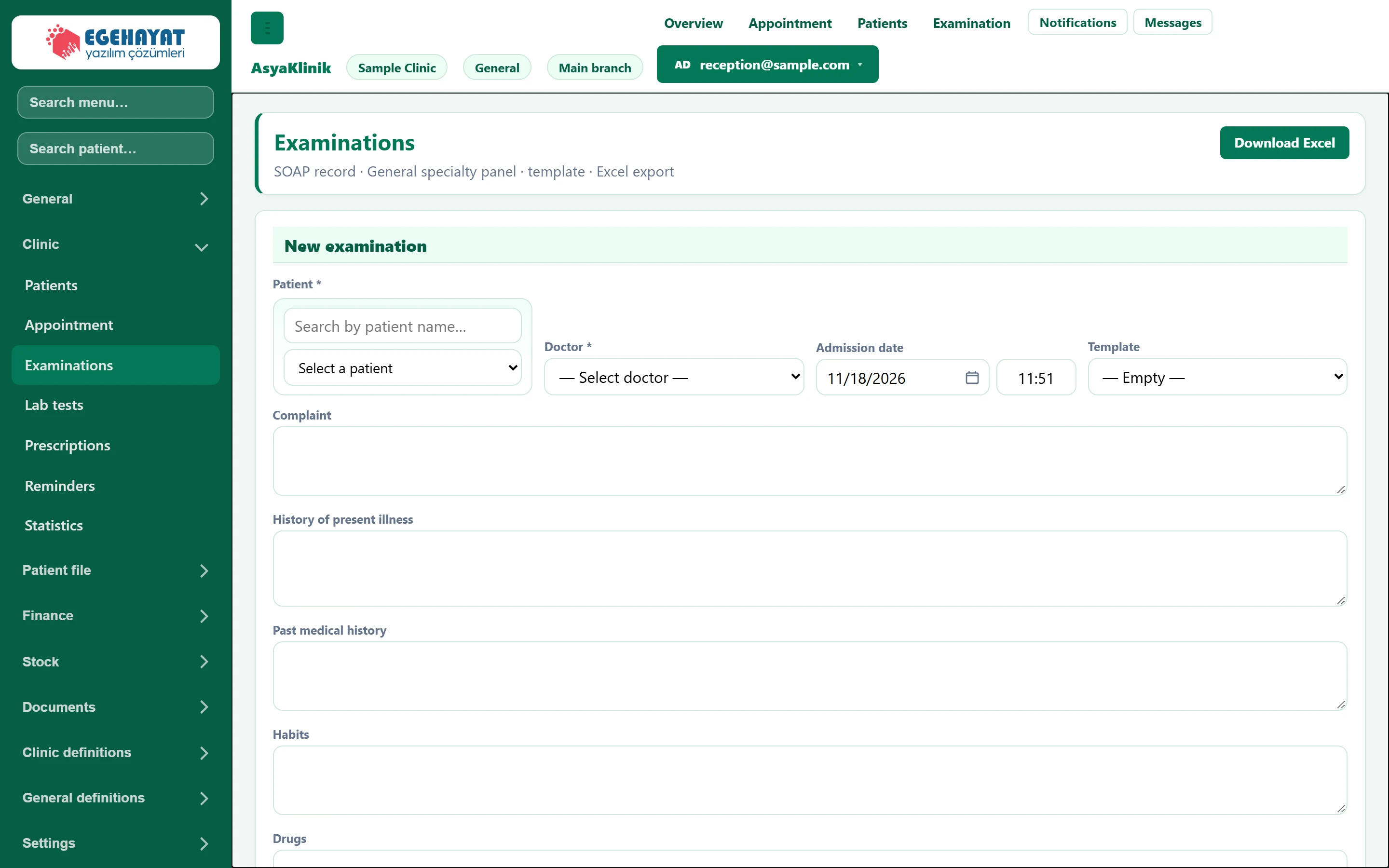
- 1Download Excel Downloads the listed examinations as an Excel file.
- 2New examination Form for a new examination record.
- 3Patient The patient to be examined.
New examination
Only Patient and Doctor are required; you can fill in the other fields during or after the examination.
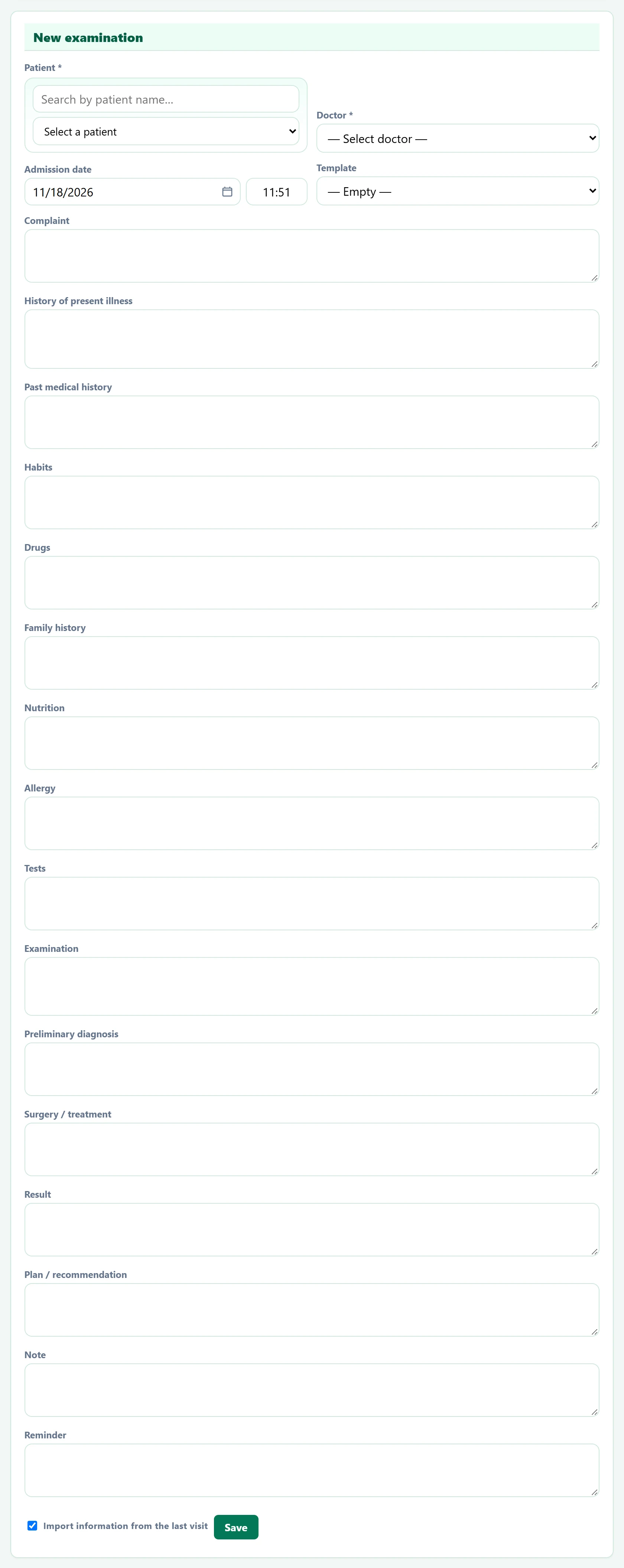
- 1Patient Patient selection.
- 2Import information from the last visit Carries the information of the last examination into the form.
- 3Save Saves the examination and opens the edit screen.
| Field | Sign in | Description |
|---|---|---|
| Patient required | Search | The patient to be examined. Typing a name in the upper box narrows the list. Required. Placeholder: «Search by patient name…» |
| Doctor required | Choice list | The doctor performing the examination. Required; the list comes from Definitions → Doctors. Options: — Select doctor — · Dr. Nihat Erdoğdu · Dr. Seda Akıncı · Hmş. Burcu Taner · Sek. Demo Randevu |
| Admission date | Text | Date and time of the examination; defaults to now and can be changed. Placeholder: «mm/dd/yyyy» |
| Template | Choice list | If a saved history template is chosen, the fields are filled with its text. Options: — Empty — · Açık rıza beyanı (kağıt) |
| Complaint | Long text | The reason for the visit (e.g. "Headache"). |
| History of present illness | Long text | Onset and course of the complaint. |
| Past medical history | Long text | Past illnesses and operations. |
| Habits | Long text | Smoking, alcohol etc. |
| Drugs | Long text | Medicines taken regularly. |
| Family history | Long text | Diseases in the family. |
| Nutrition | Long text | Eating habits and diet note. |
| Allergy | Long text | Known allergies. |
| Tests | Long text | Note about requested or received tests. |
| Examination | Long text | Physical examination findings. |
| Preliminary diagnosis | Long text | Preliminary diagnosis; used for filtering the patient list by diagnosis. |
| Surgery / treatment | Long text | Treatment / procedure performed or planned. |
| Result | Long text | Outcome of the examination. |
| Plan / recommendation | Long text | Recommendations such as follow-up, medication, diet. |
| Note | Long text | Other notes. |
| Reminder | Long text | Reminder note for this examination. |
| Import information from the last visit | Checkbox | If ticked, information such as history from the patient's last examination is copied into the new form. |
- Type a few letters of the name in the Patient box and choose the patient.
- Choose a Doctor. If the list is empty, first add a doctor under Definitions → Doctors.
- If the patient has been examined before, tick Import information from the last visit to copy history fields.
- Click Save. The examination is saved as open and the edit screen opens.
Choosing a saved history Template fills the fields with its text, so you do not retype frequent wording.
Recent records
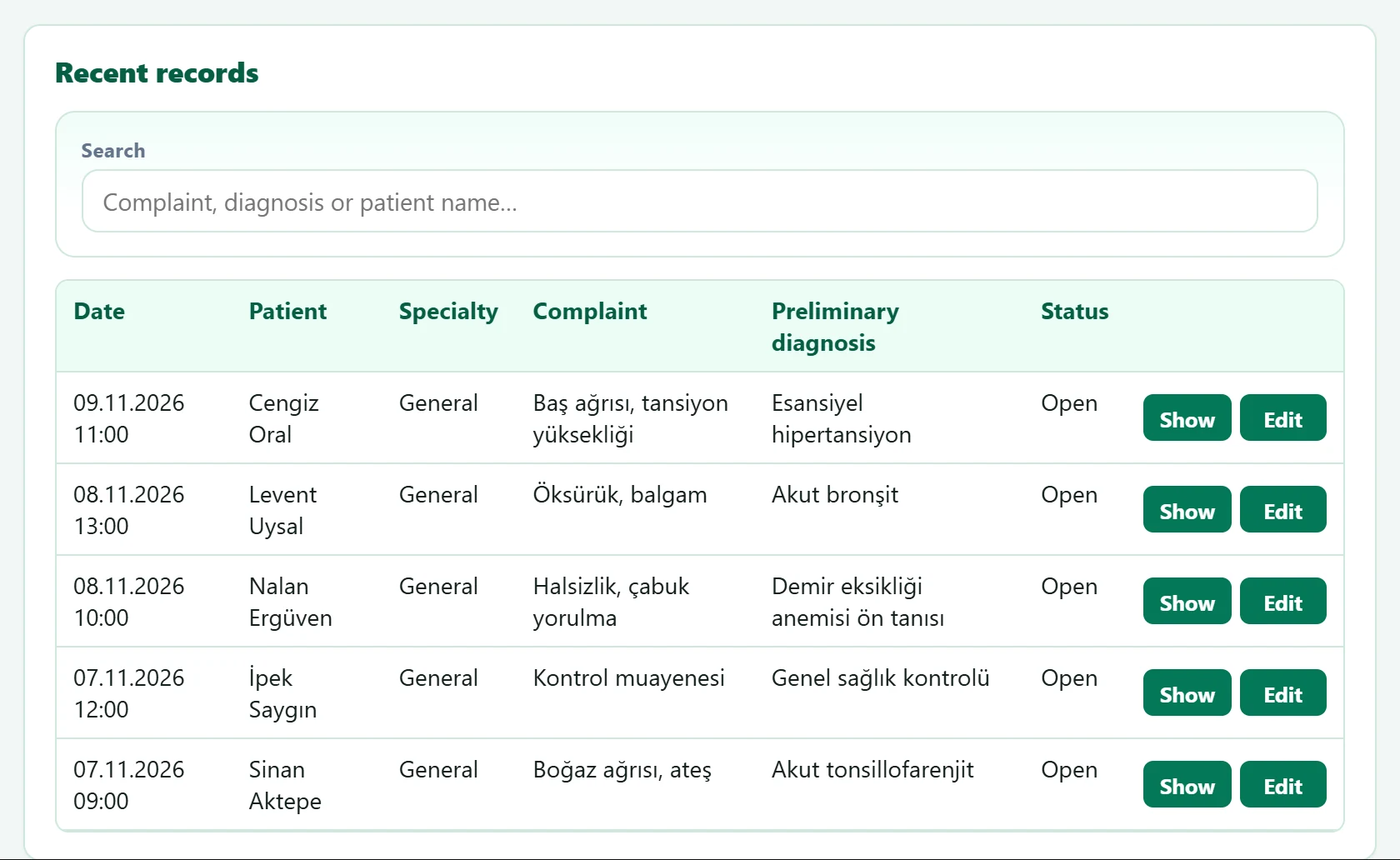
- 1Search Filters by complaint, diagnosis or patient name.
- 2Show Opens the examination read-only.
- 3Edit Edits an open examination.
| Field | Sign in | Description |
|---|---|---|
| Search | Text | Part of a complaint, diagnosis or patient name. Placeholder: «Complaint, diagnosis or patient name…» |
Show opens the examination read-only. Edit appears only for open (not completed) examinations.
Viewing an examination
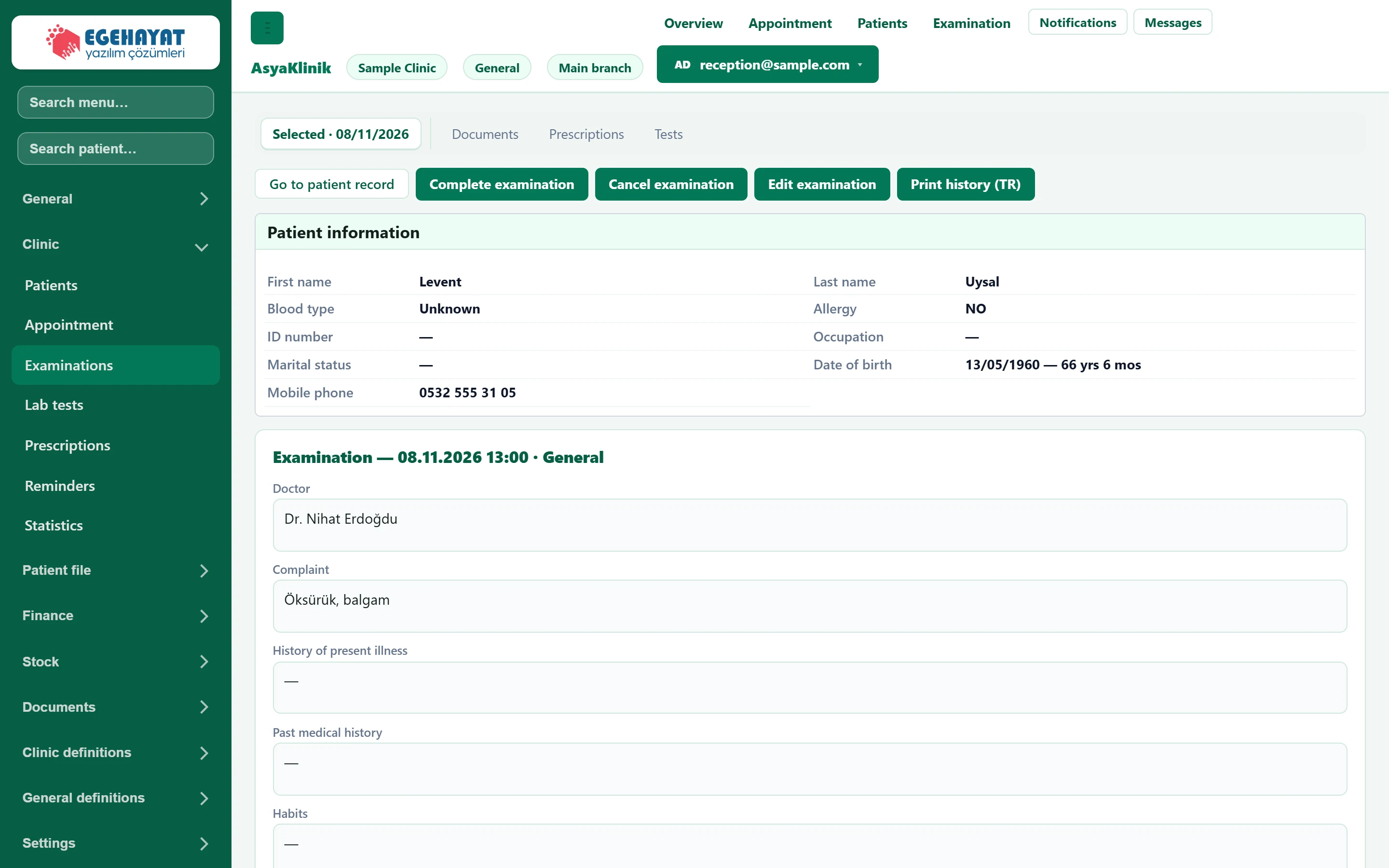
- 1Examination tabs The patient's examinations (date tabs) and links to Documents, Prescriptions, Tests.
- 2Go to patient record Opens the patient card.
- 3Complete examination Completes the examination; a completed examination can no longer be edited.
- 4Cancel examination Cancels the examination.
- 5Edit examination Opens the edit screen.
- 6Print history (TR) Prints the medical history in Turkish.
The tabs at the top switch to the patient's other examinations; the links open the patient's documents, prescriptions and test request.
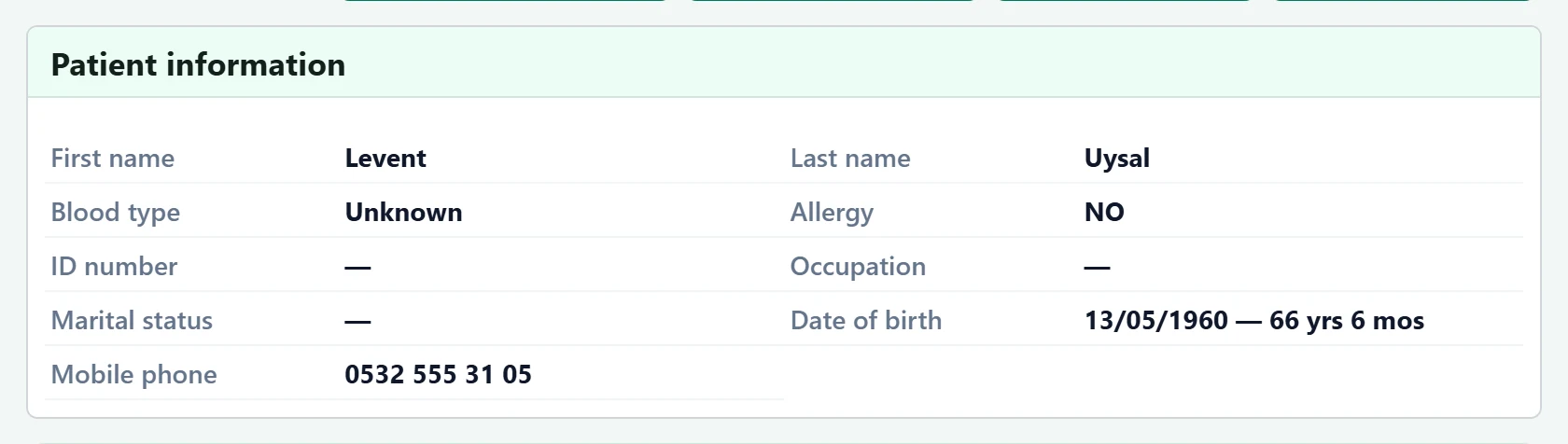
- 1Allergy Allergies appear here; otherwise it says NONE.
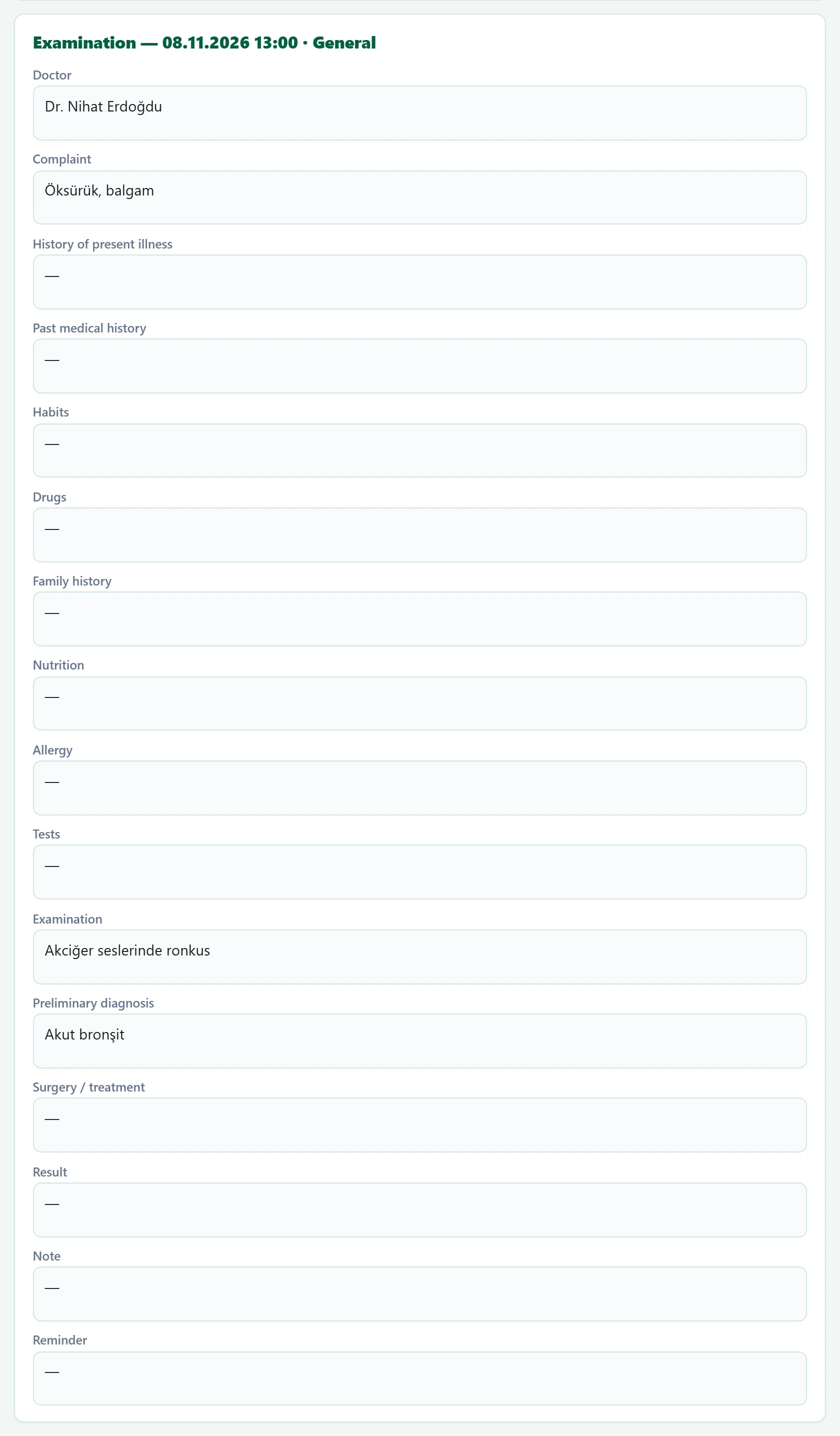
- 1Examination — 08.11.2026 13:00 · General Examination date and specialty.
- 2Doctor Filled-in fields are listed read-only.
- Complete examination: closes the examination; a completed examination cannot be edited, but Reopen opens it again.
- Cancel examination: cancels it; a cancelled examination cannot be reopened.
- Print history (TR): prints the record in Turkish.
Editing an examination

- 1Yeni Muayene Examination fields (history, examination, assessment).
- 2Diagnosis Diagnosis tab: add from the diagnosis catalogue.
- 3Documents The patient's documents.
The top strip shows the patient's ID, age, phone, blood group and allergies; allergies are highlighted in red. Clicking a Past Examinations number opens that visit's findings in a card; Copy finding takes them into the new examination.
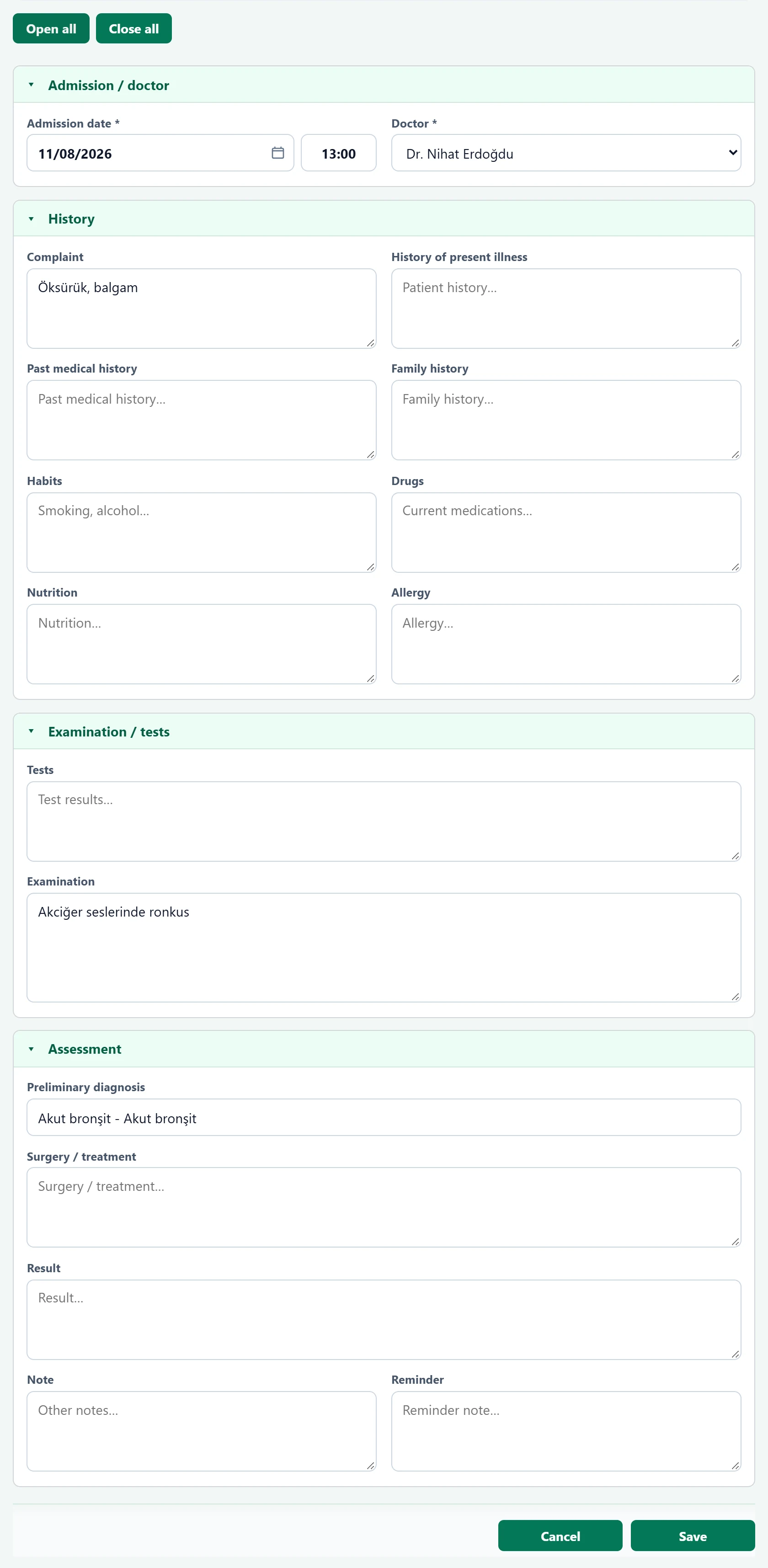
- 1Open all Opens all sections.
- 2Close all Closes all sections.
- 3▾ Admission date and doctor.
- 4Save Saves the changes.
The fields are grouped into Admission / doctor, History, Examination / tests and Assessment. A section for the patient's specialty (e.g. obstetrics, eye) appears when applicable. Save with Save at the bottom.
Adding a diagnosis

- 1Search diagnosis Search by code or name; click a result to add the diagnosis as a tag.
- Switch to the Diagnosis tab in the top strip.
- Type a diagnosis code or name in the search box and click a result.
- The diagnosis appears as a tag; remove it with ×.
Diagnoses of the previous examination are copied automatically. If a diagnosis is missing, add it under Definitions → Diagnoses.
A completed examination cannot be changed. To correct it, use Reopen, edit and complete it again.
Common messages
| Message | Cause | Solution |
|---|---|---|
| Select a patient. | Saved without a patient. | Choose a patient. |
| Selecting a doctor is required. | No doctor chosen. | Choose a doctor; if the list is empty add one under Definitions → Doctors. |
| Examination could not be saved. | The server rejected the record or the connection dropped. | Refresh the page and try again. |