
 AsyaTicari
 AsyaRestoran
 AsyaOtel
 AsyaCrm
 AsyaKlinik
 AsyaSpor
 AsyaSSH
 AsyaEmlak
 AsyaFilo
 AsyaPuantaj
 AsyaİSG
 AsyaİHD
 Kolay Öğren
AsyaKlinik · Patient file
Documents
Uploading PDF and image files for a patient, category, description, viewing, downloading and deleting.
On the Documents screen you keep a patient's reports, lab printouts, images and similar files. Consent forms and printed forms are added here automatically.
asyaklinik · /documents
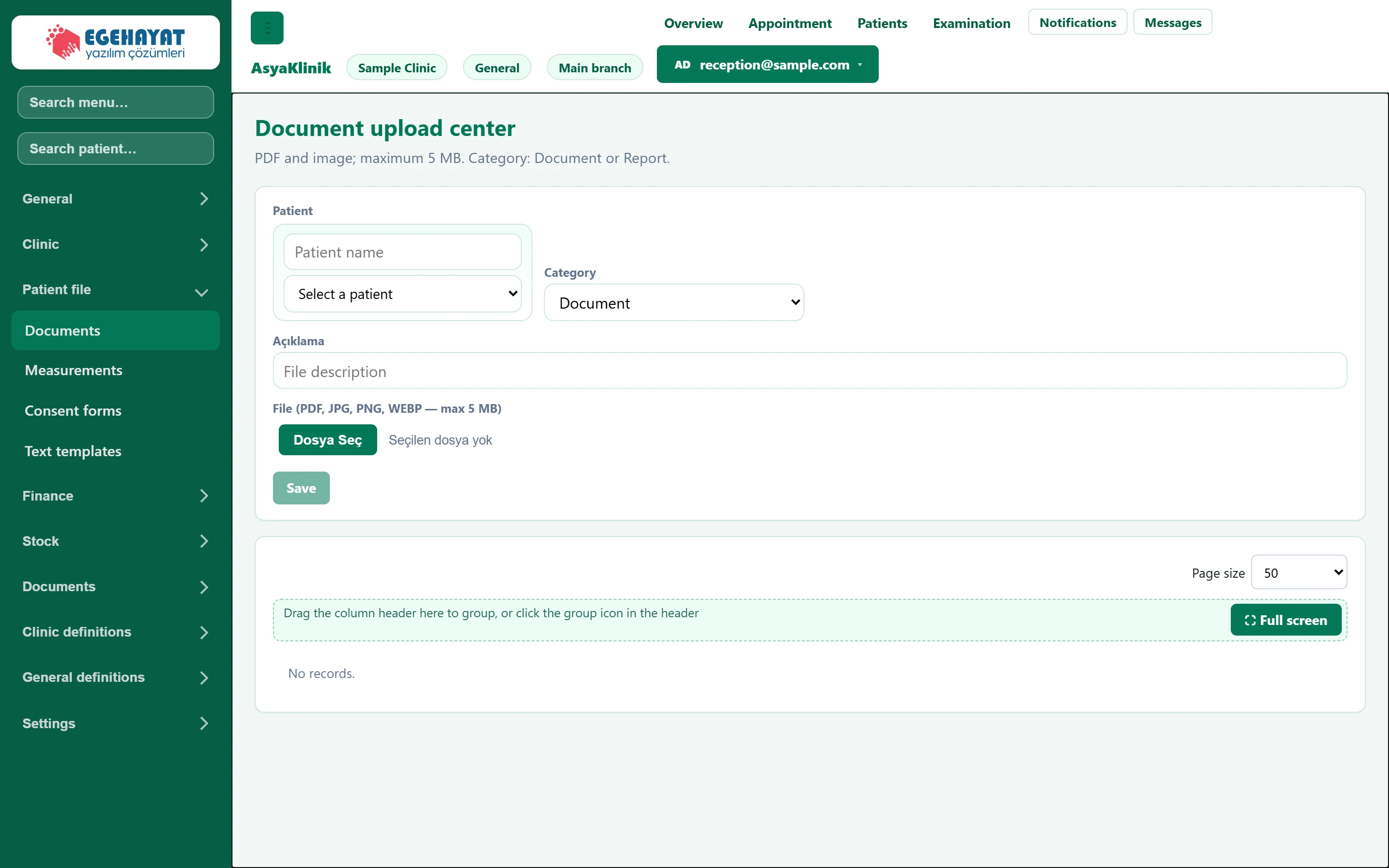
- 1Upload Upload form.
- 2Save Saves the file to the patient's documents.
- 3List Uploaded documents; show, download, edit or delete from the row.
Uploading a file
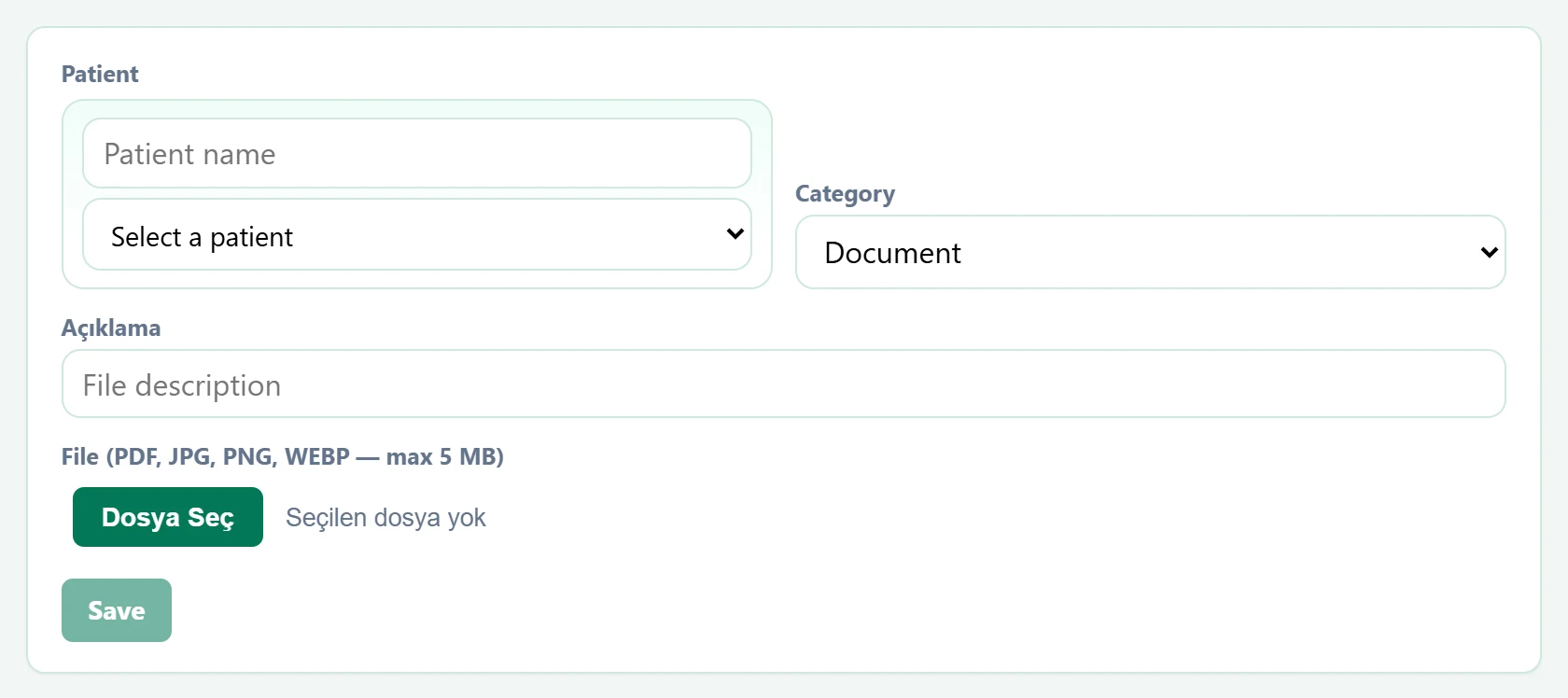
Part of the screenDocument upload form
| Field | Sign in | Description |
|---|---|---|
| Patient | Search | The patient the document belongs to. Selecting one filters the list to that patient. Placeholder: «Patient name» |
| Category | Choice list | Document or Report. Options: Document · Report |
| Açıklama | Text | Short description shown in the list (e.g. "MRI report"). Placeholder: «File description» |
| File (PDF, JPG, PNG, WEBP — max 5 MB) | Text | The file to upload; PDF and images only, max 5 MB. |
- Choose the patient.
- Choose Document or Report as Category, optionally add a description.
- Pick the file and click Save.
Choosing a patient filters the list below to that patient. From a row you can Show (preview), Download, Edit (change the description) and Delete.
A deleted document cannot be restored.
Common messages
| Message | Cause | Solution |
|---|---|---|
| Select a patient. | No patient chosen. | Choose the patient. |
| Select a file. | No file chosen. | Choose the file to upload. |
| File can be at most 5 MB. | File larger than 5 MB. | Reduce the file. |
| Only PDF and common image formats (JPG, PNG, WEBP) are accepted. | Unsupported file type. | Upload a PDF or an image. |