
 AsyaTicari
 AsyaRestoran
 AsyaOtel
 AsyaCrm
 AsyaKlinik
 AsyaSpor
 AsyaSSH
 AsyaEmlak
 AsyaFilo
 AsyaPuantaj
 AsyaİSG
 AsyaİHD
 Kolay Öğren
AsyaCrm · Settings
Route settings
Workplace route defaults: start / return point, visit time, travel speed, working hours, task creation on approval and task scheduling.
Route settings determine how route time schedules and route approval work for the workplace you are signed in to. Each workplace has its own settings; to change another branch, sign in with that workplace. The screen appears only when the Route planning module is enabled.
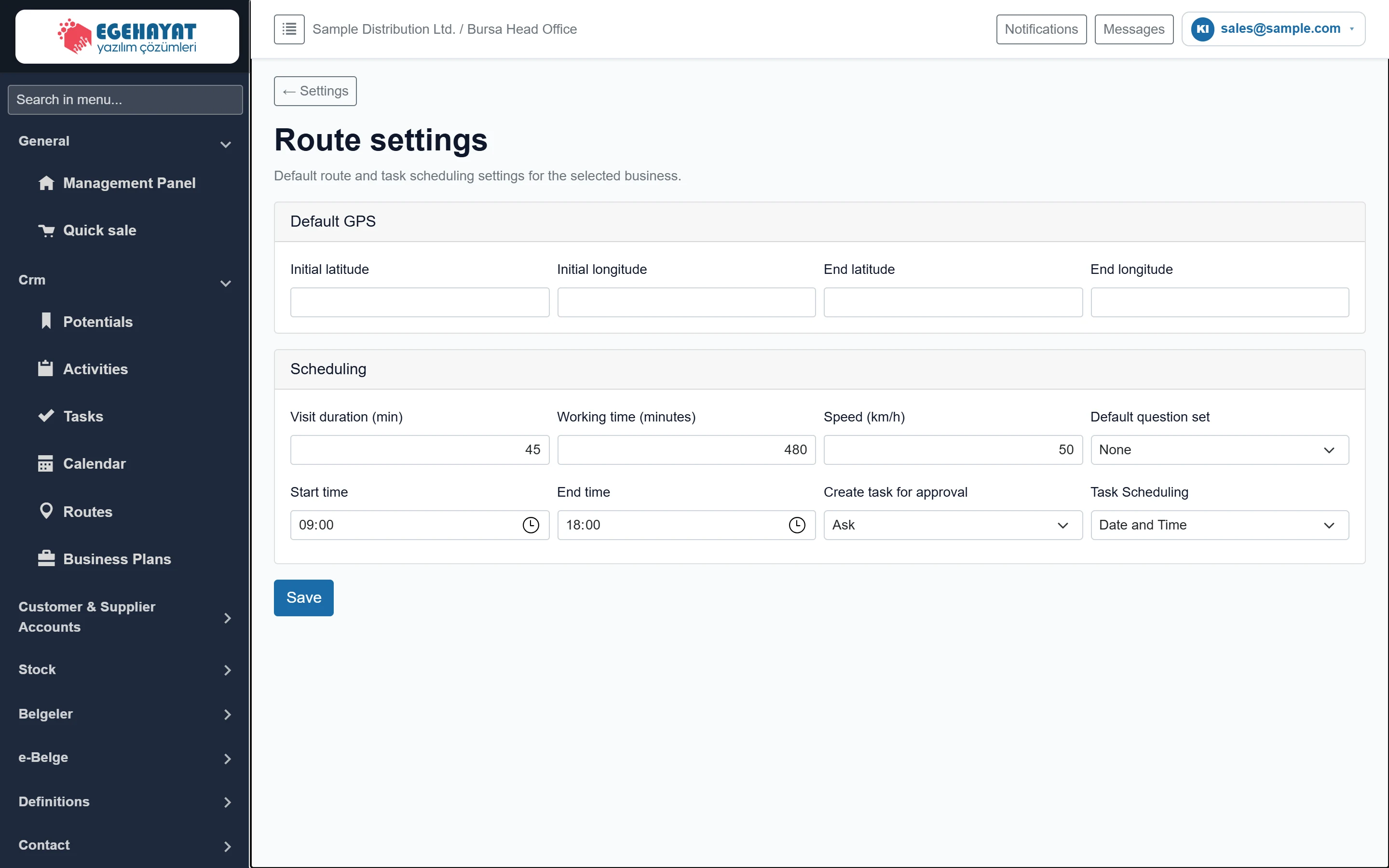
- 1Scope Settings apply to the workplace of the current session.
- 2Default GPS Start / return point of routes.
- 3Scheduling Duration, speed, working hours and approval behaviour.
- 4Save Saves the settings.
Default GPS
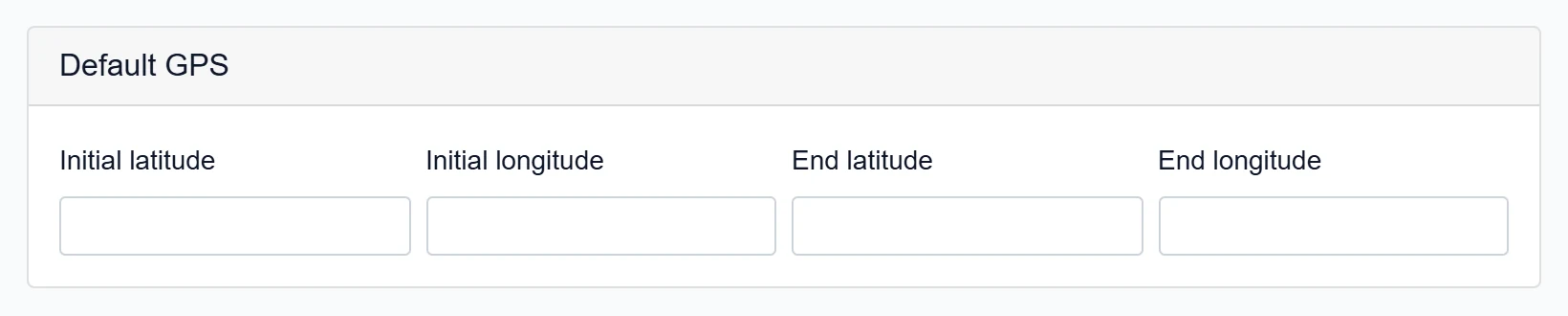
| Field | Sign in | Description |
|---|---|---|
| Initial latitude | Text | Latitude of the default starting point (e.g. warehouse, office). |
| Initial longitude | Text | Longitude of the starting point. |
| End latitude | Text | Latitude of the end point of the day. |
| End longitude | Text | Longitude of the end point. |
Scheduling
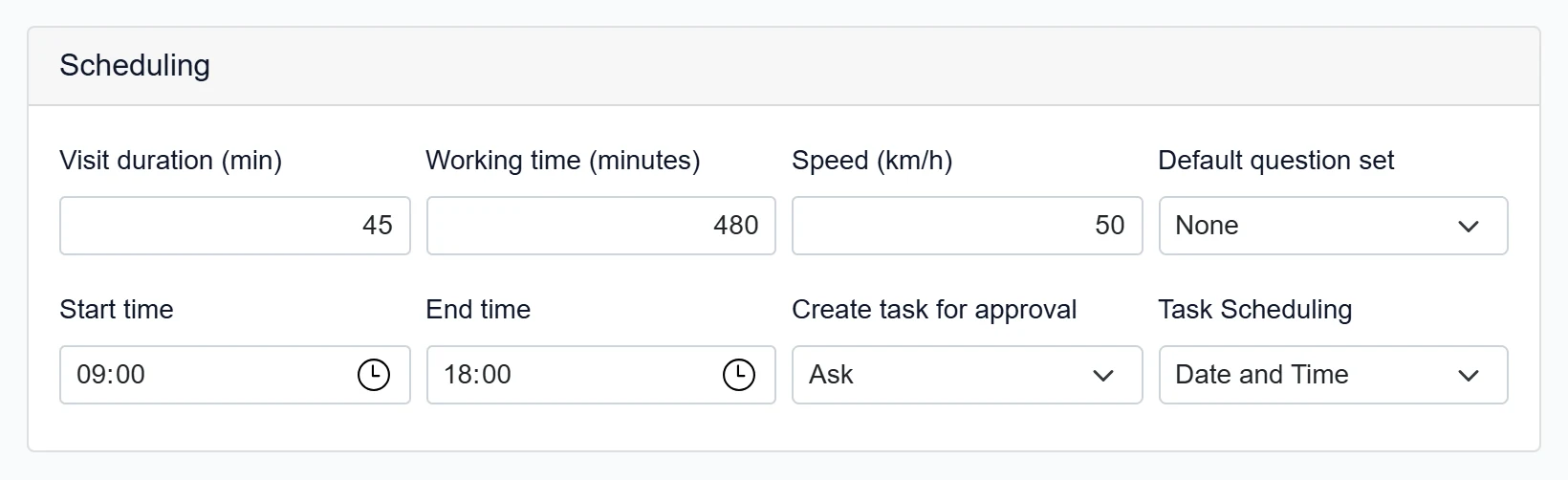
| Field | Sign in | Description |
|---|---|---|
| Visit duration (min) | Text | Default time at each stop (default 45). |
| Working time (minutes) | Text | Total working time per day (default 480). |
| Speed (km/h) | Text | Travel time between stops is calculated at this average speed (default 50). |
| Default question set | Choice list | Checklist linked to tasks created from routes. |
| Start time | Time | Start time of the first stop in the time schedule. |
| End time | Time | End time of the day. |
| Create task for approval | Choice list | When a route is approved: Closed (no tasks), Ask (asked on approval), Automatic (a task per stop). Options: Closed · Ask · Automatic |
| Task Scheduling | Choice list | Whether created tasks get only a day or a day and time. Options: Only day · Date and Time |
If nothing has been saved for the workplace yet, the form opens with these defaults: visit 45 min, working time 480 min, speed 50 km/h, working day 09:00–18:00, task creation on approval “Ask”, task scheduling “Date and Time”.
Step by step
- Enter the latitude / longitude of the warehouse or office in Default GPS.
- Set visit time, travel speed and working hours for your team.
- Choose Create task for approval:
- Closed: the route is approved, no tasks are created.
- Ask: on approval you are asked “Route approved. Create tasks?”.
- Automatic: a task is created for each stop automatically.
- Click Save; “Saved.” appears next to the button.
If you select a Default question set, it is filled in when a task created from a route is closed (if the route has no question set of its own); answers appear under Reports → Checklist.
The settings affect only time schedules calculated and tasks created from now on; times of existing tasks do not change.