
 AsyaTicari
 AsyaRestoran
 AsyaOtel
 AsyaCrm
 AsyaKlinik
 AsyaSpor
 AsyaSSH
 AsyaEmlak
 AsyaFilo
 AsyaPuantaj
 AsyaİSG
 AsyaİHD
 Kolay Öğren
AsyaCrm · Settings
Integrations
Reconciliation e-mail (SMTP) status, WhatsApp (Meta Cloud API) settings and the details of the ERP connection (Live ERP, Netsis) enabled by the platform administrator.
On the Integrations screen you enter the connection details AsyaCrm needs to talk to external systems. ERP cards appear only when the platform administrator has enabled that integration for your company; the Integrations link in the menu also appears only if an ERP integration is enabled. The screen is available to users with the user management permission.
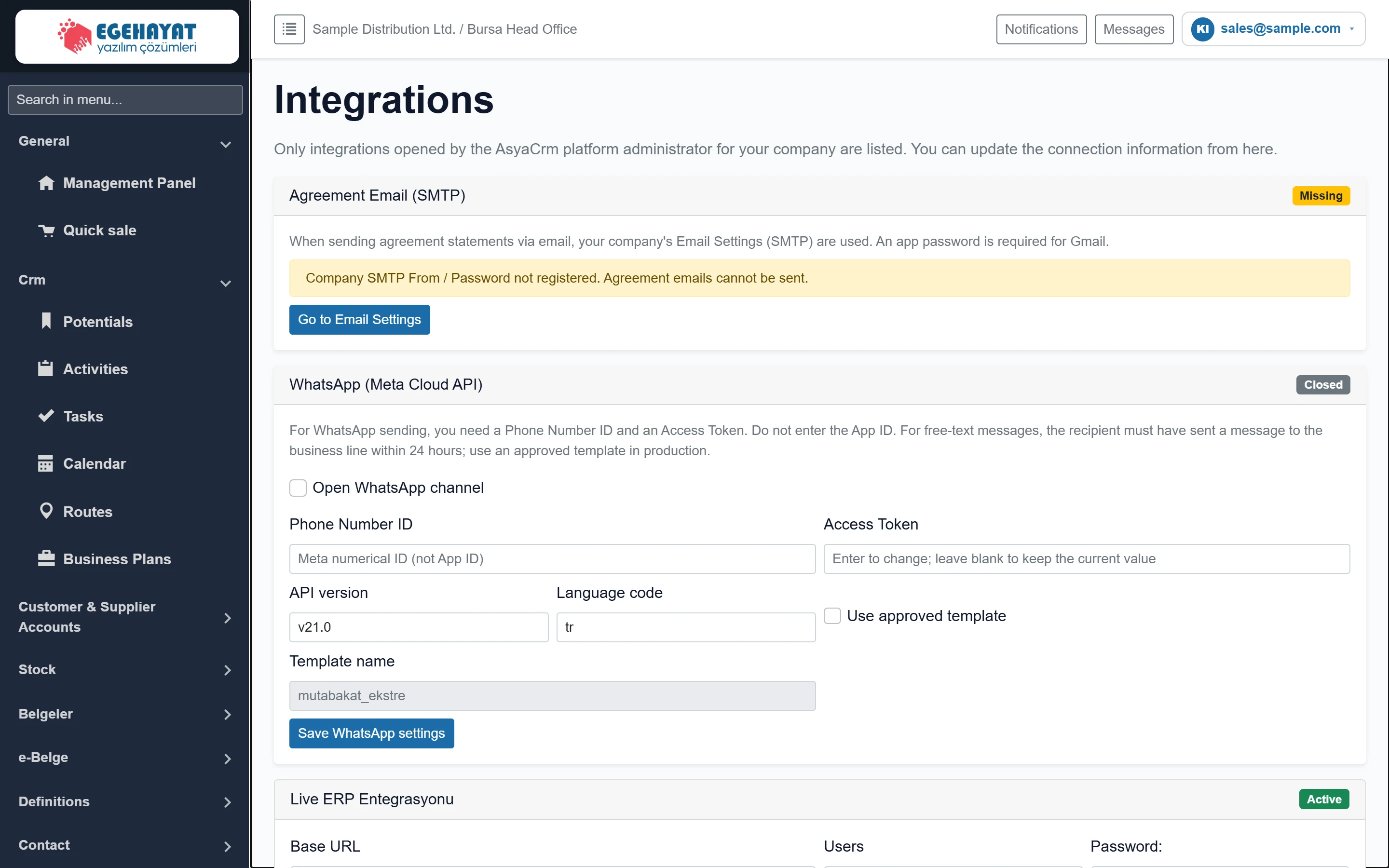
- 1Agreement Email (SMTP) SMTP status for reconciliation e-mail.
- 2WhatsApp (Meta Cloud API) WhatsApp sending settings.
- 3Live ERP Entegrasyonu ERP connection enabled by the platform administrator.
Reconciliation e-mail (SMTP)
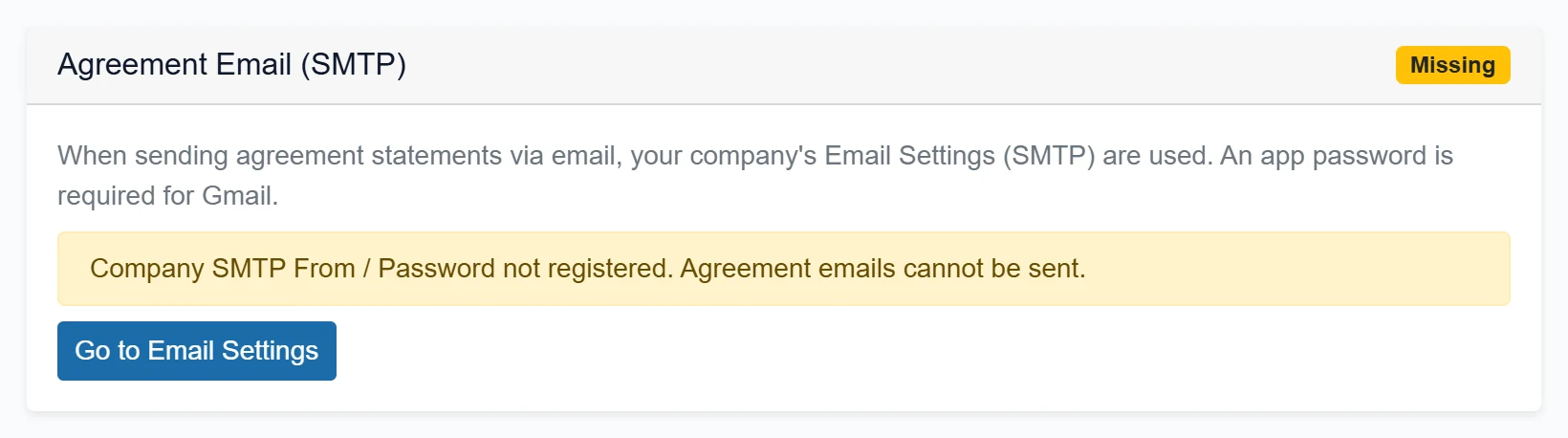
- 1Status Ready: SMTP saved. Missing: e-mail cannot be sent.
- 2Go to Email Settings Goes to the Email Settings screen.
Reconciliation statements are e-mailed through the SMTP account in your company's Email Settings. The card only shows the status: Ready means sending works; Missing means you should enter the SMTP details via Go to Email Settings.
WhatsApp (Meta Cloud API)
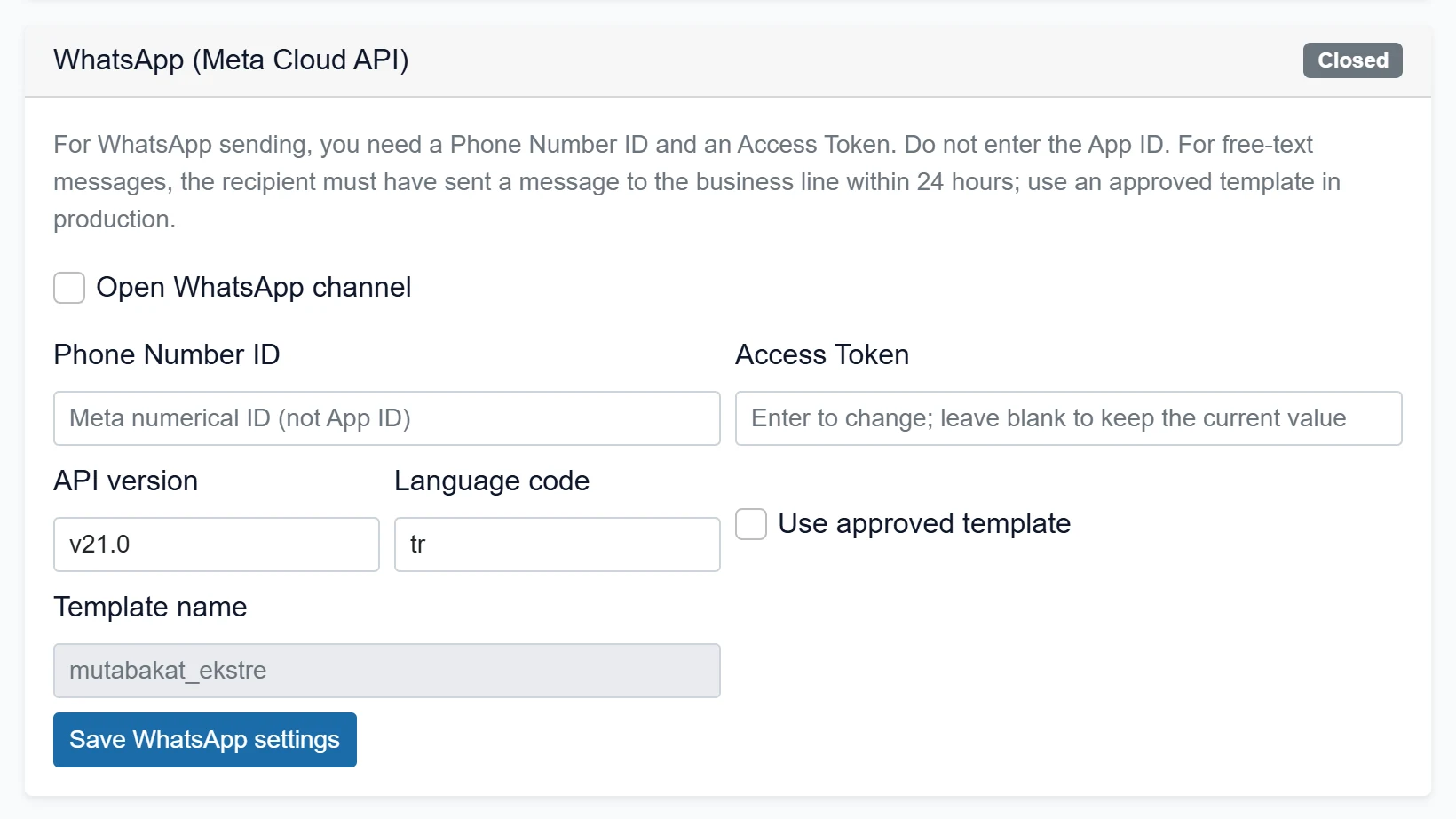
- 1Save WhatsApp settings Saves the WhatsApp settings.
| Field | Sign in | Description |
|---|---|---|
| Open WhatsApp channel | Checkbox | When ticked, reconciliations can also be sent via WhatsApp. |
| Phone Number ID | Text | Phone number ID (numeric) from the Meta business account. Do not enter the App ID. Placeholder: «Meta numerical ID (not App ID)» |
| Access Token | Text | Meta access token. If saved, leaving it empty keeps the old one. Placeholder: «Enter to change; leave blank to keep the current value» |
| API version | Text | Meta Graph API version (e.g. v21.0). Placeholder: «v21.0» |
| Language code | Text | Language code of the approved template (e.g. tr). Placeholder: «tr» |
| Use approved template | Checkbox | When ticked, a Meta-approved template is sent instead of free text; recommended in production. |
| Template name | Text | Name of the approved template in Meta; editable only when «Use approved template» is on. Placeholder: «mutabakat_ekstre» |
- Get the Phone Number ID and a permanent Access Token from your Meta (Facebook) business account.
- Tick Open WhatsApp channel and paste the two values.
- In production tick Use approved template and enter the name and language code of the template approved in Meta.
- Press Save WhatsApp settings. A confirmation appears and the card header shows Open.
A free-text message is delivered only if the recipient wrote to your business number in the last 24 hours. Use an approved template for bulk reconciliation sending.
ERP connection
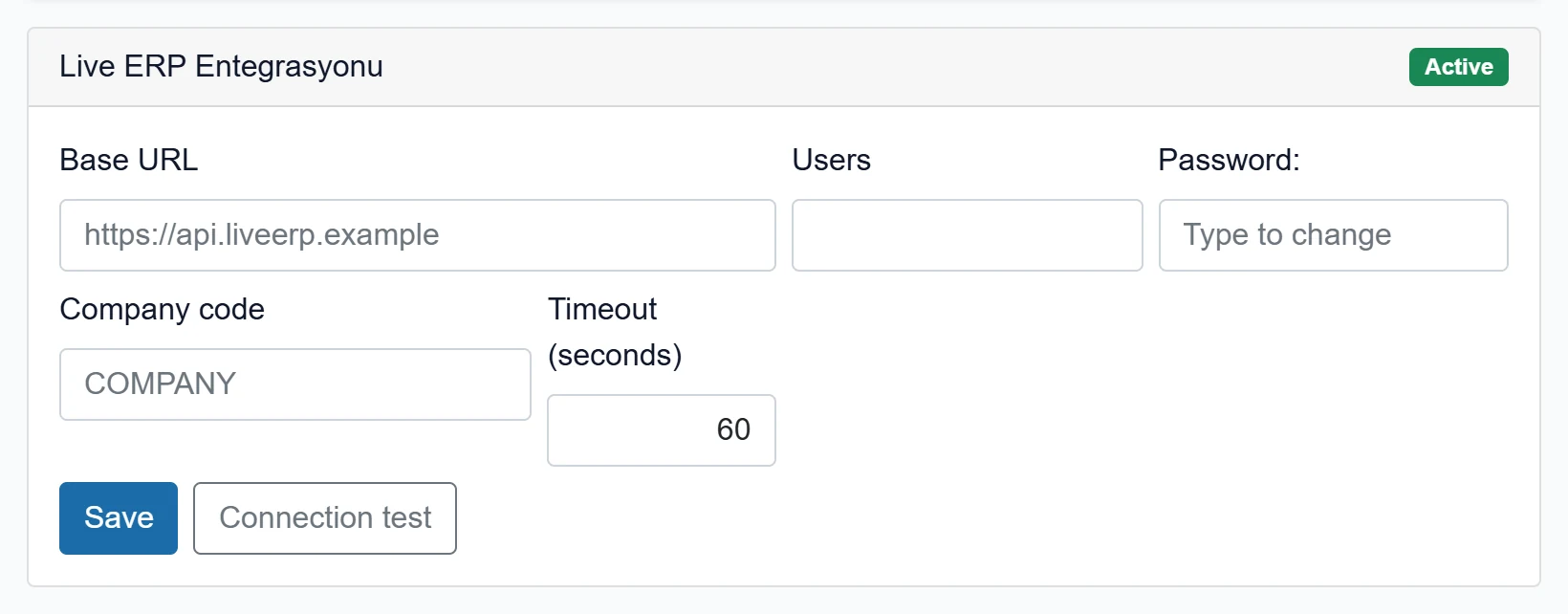
- 1Save Saves the connection details.
- 2Connection test Makes a test connection to the ERP; the result appears at the top of the screen.
| Field | Sign in | Description |
|---|---|---|
| Base URL | Text | Address of the ERP service (https://…). Placeholder: «https://api.liveerp.example» |
| Users | Text | ERP service user. |
| Password: | Text | ERP service password. If saved, «(kayıtlı)» is shown; leaving it empty keeps the old one. Placeholder: «Type to change» |
| Company code | Text | Company code in the ERP. Placeholder: «COMPANY» |
| Timeout (seconds) | Text | Maximum seconds to wait for a request. |
- Enter the address, user, password and company code you received from your ERP provider.
- Press Save; a "connection settings saved" message appears at the top of the screen.
- Use Connection test to make a test connection to the ERP. The result appears at the top; the time and result of the last test are shown at the bottom of the card.
The Netsis card additionally has database name, user, password, type and branch code fields; its test button is called Token test.
If you leave password fields empty, the saved password is kept; type one only when you want to change it.
Common messages
| Message | Cause | Solution |
|---|---|---|
| Company SMTP sender / password not saved. Reconciliation e-mail cannot be sent. | E-mail settings are incomplete. | Enter the SMTP details via Go to Email Settings. |
| This integration is not enabled for your company. | The platform administrator disabled the integration. | Contact your dealer / platform administrator. |
| No ERP integration has been enabled for your company yet. … | No ERP integration is enabled. | If needed, ask the platform administrator to enable one. |
| This provider will be added soon. | The enabled provider has no settings screen yet. | Ask support for the setup. |